
Best Live Streaming Software for Beginners Who Want to Go Live Without a Complicated Setup
Disclosure: This post contains affiliate links. If you buy through them, we may earn a commission at no extra cost to you. How we make money.
This guide to the best live streaming software for beginners is for people who want to go live, interview a guest, or record a show, and do not want a control room full of cables. I am comparing StreamYard, Restream, and OBS using official product pages. This is a beginner map, not a live-audience test.
The reader’s problem: going live should not require a week of setup
Many new creators stall before the first show. A desktop mixer can feel like a second job. A browser tab can feel too simple to trust. The useful question is not “which tool has the longest feature list?” It is “which desk will I actually open on the day I go live?”
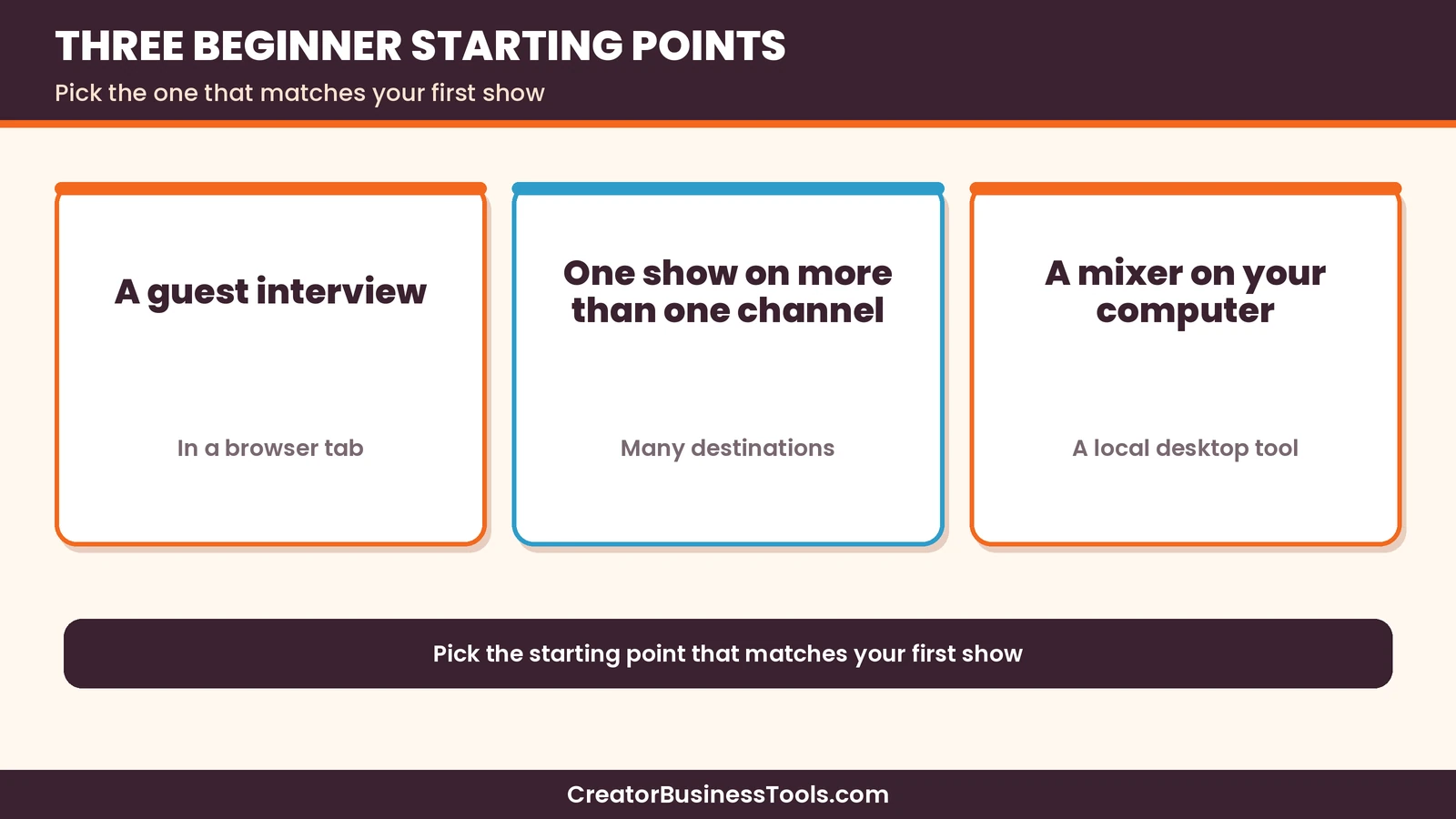
Looking at the best live streaming software for beginners starts with the show you want: a solo talk, a guest interview, or one feed sent to more than one channel. Then you match that show to official limits.
Three criteria for beginners
Criterion one: time to the first show
A beginner desk should let you invite a guest or go live without a long install, unless you already want a local mixer.
Criterion two: destinations and branding
How many channels you can use, and whether a platform mark appears on the stream, should be clear before the first public session.
Criterion three: room to grow
Guest caps, recording, clips, and team seats decide whether you outgrow the first rung after a few shows.
Best live streaming software for beginners, at a glance
| Product | Best for | Key strength | Drawback | Price tier |
|---|---|---|---|---|
| StreamYard | Beginners who want a browser studio for interviews | A studio-first desk with a free plan and a clear paid ladder | The free plan includes a logo and streaming limits | Free, then budget to mid-range, plus a higher rung |
| Restream | Beginners who want several channels, or to keep a desktop encoder later | A channel-count ladder plus a studio and an encoder path | Studio quality and some extras step up by plan | Free, then budget to mid-range, plus a high rung |
| OBS | Beginners who want a local mixer they install themselves and are willing to learn it | Full local control with no subscription rung | Setup is heavier than a browser tab | Free desktop software |
StreamYard
What it is
StreamYard is a browser studio for live streams, guests, recordings, and clips. Official pages include a free plan with core studio features, a logo on streams, and listed limits. Paid individual rungs add unlimited streaming, more destinations, brand tools, cloud recording, clips, and, on the high rung, an On-Air webinar-style room. Those paid rungs are described for individual use. A Business path exists for organizations.
Pros of StreamYard
- You can start in a browser tab
- A free plan exists for a first studio
- Mid rungs add brand tools and recordings
- Guest invites are part of the official product story
Cons of StreamYard
- The free plan includes a logo and streaming limits
- Individual plans may not fit a company-wide team
- I did not test a live show for this guide
Restream
What it is
Restream is a multistreaming platform with a browser studio and an official path for desktop encoders such as OBS. Official plans are metered mainly by how many channels you can use at once. The free plan covers two channels with branding. Paid rungs raise the channel count, add guest channels, and step up studio quality. Clips and webinars are listed as add-ons. A high rung adds a website player, team seats, and a co-producer mode.
Pros of Restream
- A simple channel-count story for beginners who want reach
- A studio and an encoder path in one product family
- A free plan for two channels
- Room to add seats later
Cons of Restream
- The free plan includes branding and a lower studio cap
- Full HD in the studio is not on every rung
- Add-ons can make the desk feel less simple
- I did not test a live show for this guide
OBS
What it is
OBS is open-source software you install yourself for mixing cameras, windows, and audio on your computer. Official materials present it as software you run locally. There is no paid plan ladder. You can send a feed from OBS into a multistreaming tool, including Restream, according to Restream’s official pages.
Pros of OBS
- No subscription rung
- Deep local control
- A common pair with a multistreaming desk later
Cons of OBS
- Setup is heavier for a first guest interview
- You still need a destination, and sometimes a second tool, for many channels
- There is no hosted guest lobby in the same sense as a browser studio
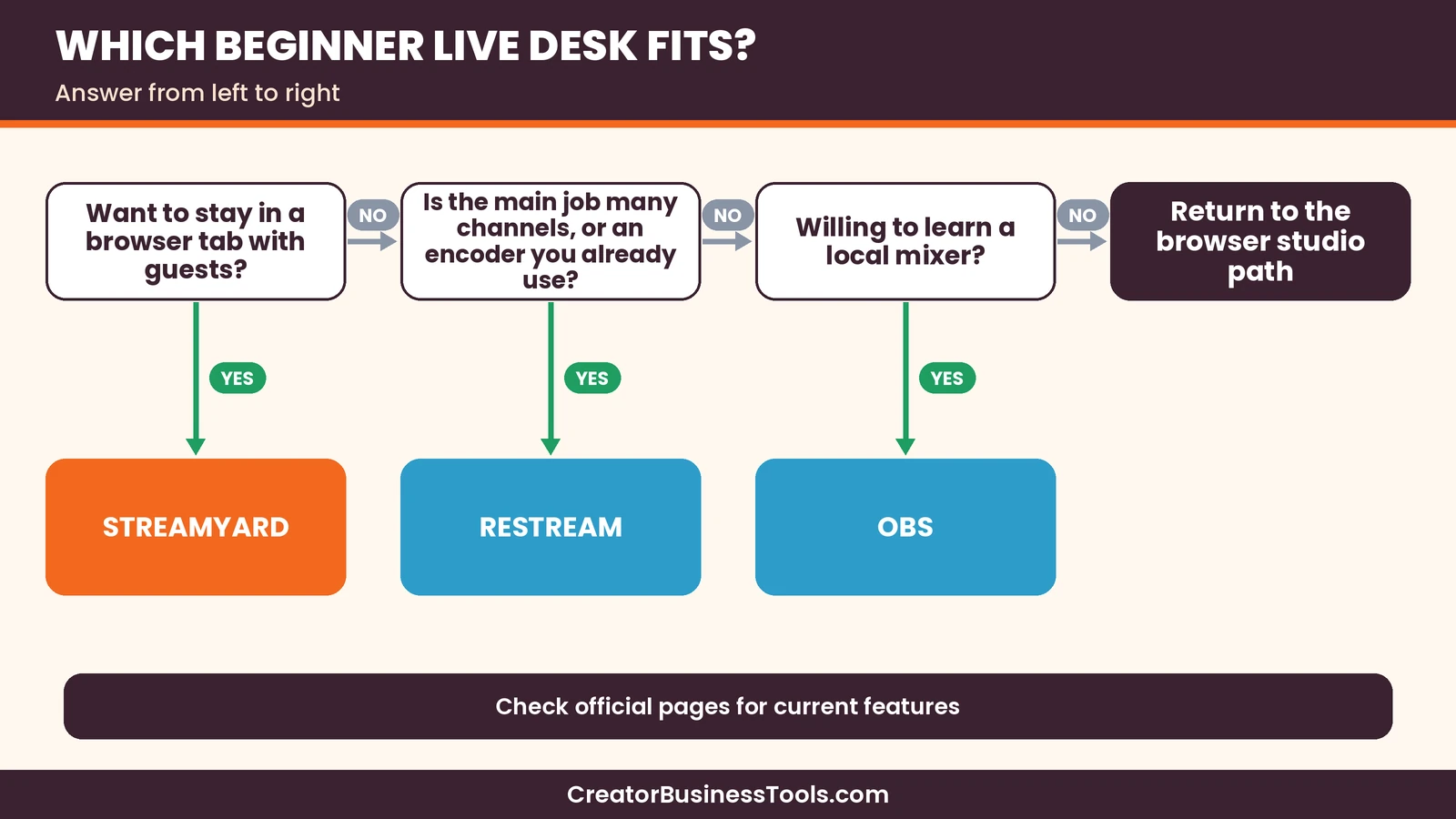
Best-use-case recommendations
| Situation | Pick | Why |
|---|---|---|
| A first guest interview, in a tab | StreamYard | Official studio-first shape |
| One show on several channels | Restream | Official channel ladder |
| A local mixer you install yourself | OBS | Official open-source desktop studio |
| Brand tools and clips inside the plan | A mid StreamYard rung | Official mid-rung tools |
| You already like OBS and want many channels | Restream with OBS as the source | Official encoder path |
Pricing structure, without the noise
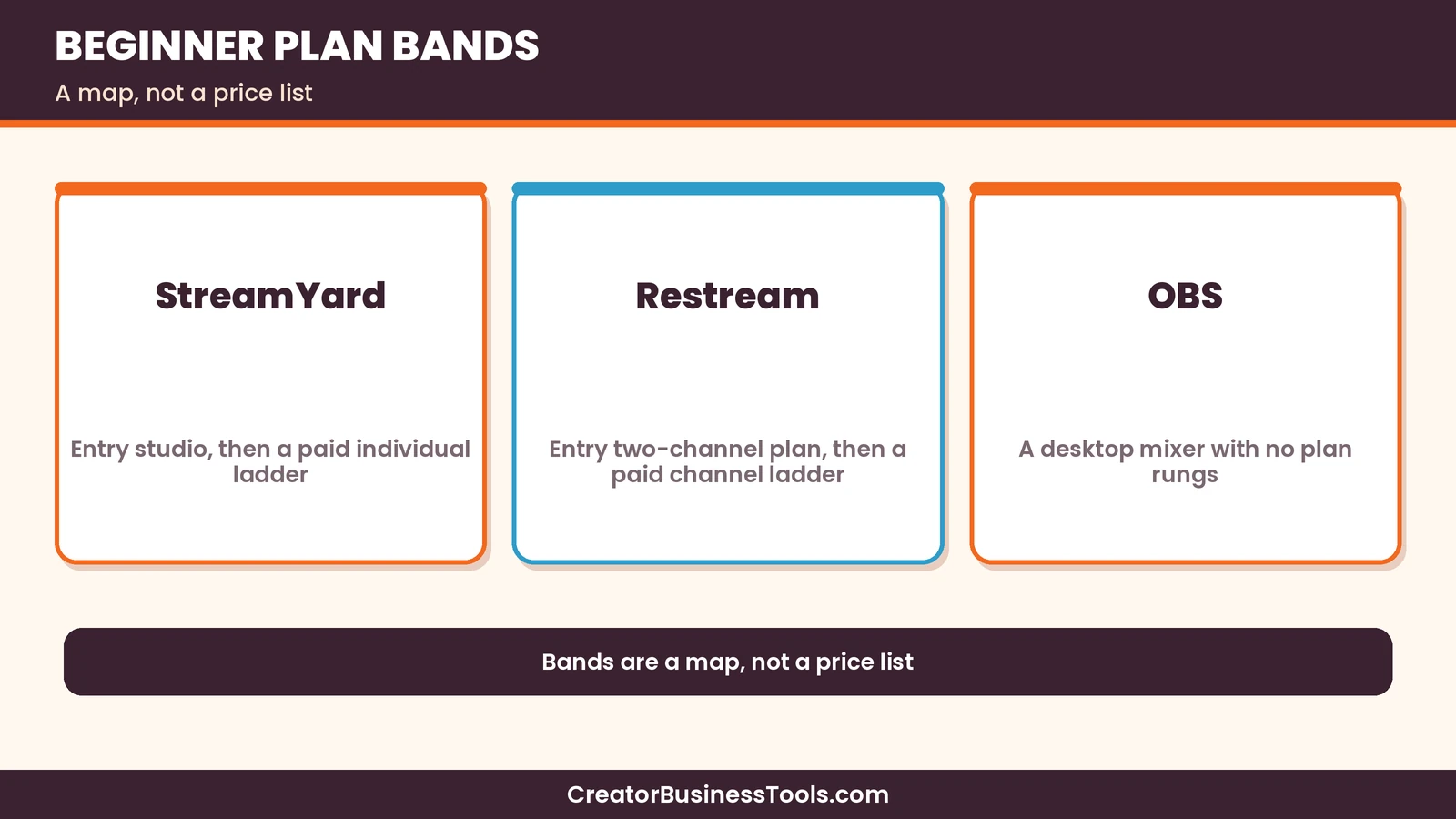
StreamYard has a free plan and three paid individual rungs, plus a Business path. Restream has a free plan and three public paid rungs, plus enterprise, with some extras as add-ons. OBS has no paid ladder. Billing on the hosted tools may be monthly or on a longer term. I am not restating dollar amounts here. Read official pages when you buy.
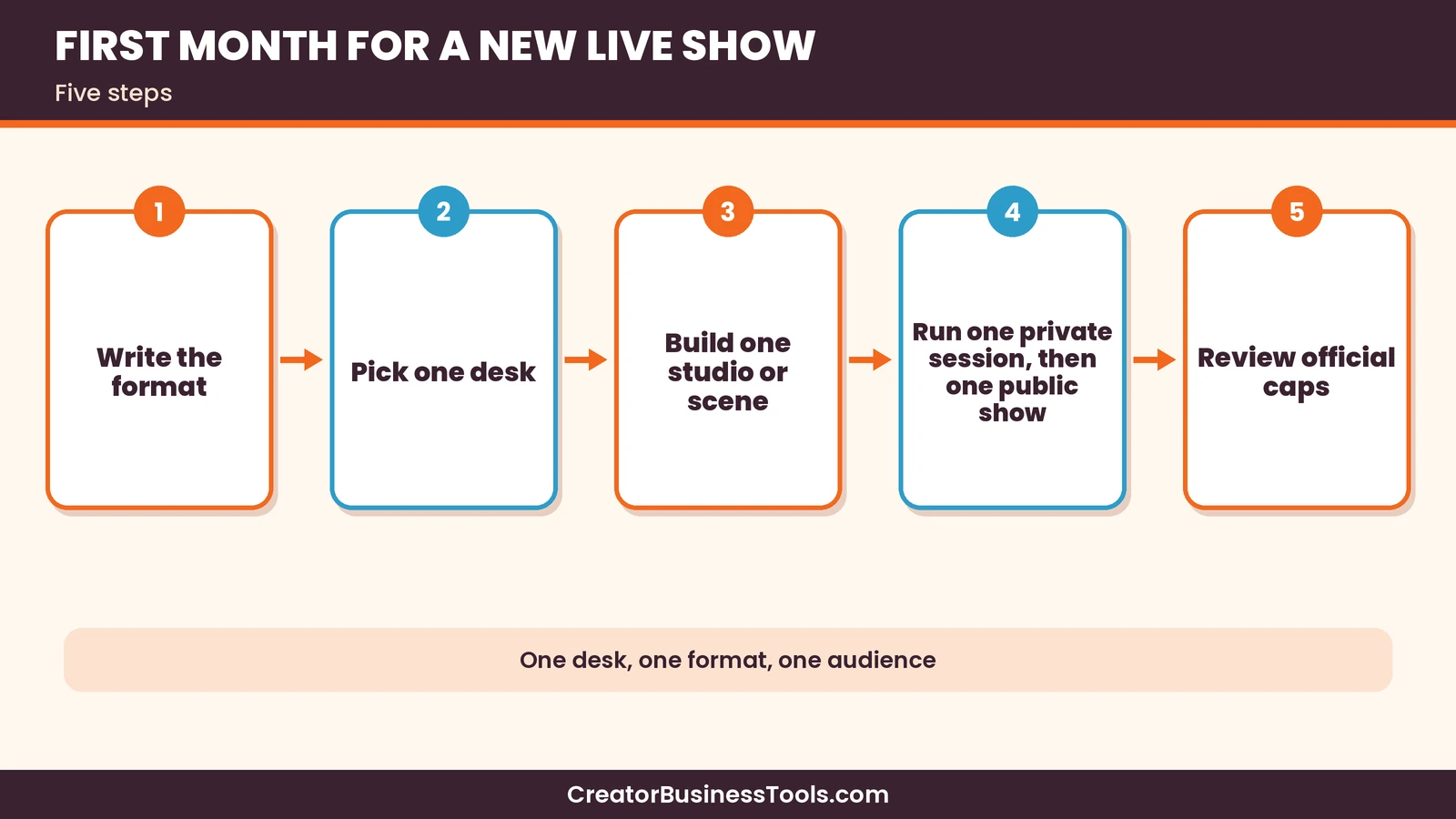
A simple first-show plan for beginners
Day one: write the show in one sentence.
Day two: pick one desk from the table above, not all three.
Day three: set a title, a destination you already use, and a guest invite if you need one.
Day four: do a private recording and watch it on a phone.
Day five: go live only if that path already works, or run one more private session if it does not.
Do not connect every channel you have in that first week. One finished show is the goal.
When to stay simple
Stay on a free hosted plan if the logo or branding does not block the show, and the official caps still fit.
Stay on OBS if you already finished a local setup and you like the control.
Leave a working desk only if a weekly job is missing.
When to look at a higher rung
Look at a mid StreamYard rung if you need to remove a logo, add overlays, or keep a cloud recording.
Look at a mid or high Restream rung if you need more channels, full HD in the studio, or team tools.
Look at an official organization path if a company team is joining the desk.
Mistakes I would avoid
- Installing three tools before one show exists
- Ignoring logo or branding rules on a free plan
- Adding clip extras before you have a recording to cut
- Switching desks in the middle of a live series
- Treating this guide as a quality test; I did not run one
- Asking a guest to install software if a browser invite would have been enough
How I would staff the first month
Publish one short format and repeat it. Same title style, same join path, same recording home. Review official caps at the end of the month. If you are already near a ceiling, plan the next rung or thin an unused destination.
Guest path, encoder path, and keeping one audience
Beginners often lose people between the invite and the live moment. The software you pick should make that path short. A clear link, a short audio check, and a named show belong together.
StreamYard is built to keep more of that path in a browser. Restream keeps the channel list close, and can accept a desktop encoder. OBS keeps the mixer on your machine, and may still need another desk for many destinations.
When you compare the best live streaming software for beginners, put this path on the page. A longer feature list will not fix a broken invite.
Audio, lighting, and what the software will not fix
The best live streaming software for beginners still cannot fix a quiet mic, a noisy room, or a camera that points at a window. Before you change desks, fix the room. Sit in the same seat you will use on the public show. Listen to a private recording on a phone.
A browser studio such as StreamYard makes the invite and the layout easier. A channel desk such as Restream makes the destination list easier. A local mixer such as OBS gives you more control over scenes. None of those desks will invent a clear voice. Treat the software as the desk, and the room as the first job.
If the private recording already sounds hard to hear, stay on the same desk and fix the mic before you add a second destination.
A one-note studio inventory for beginners
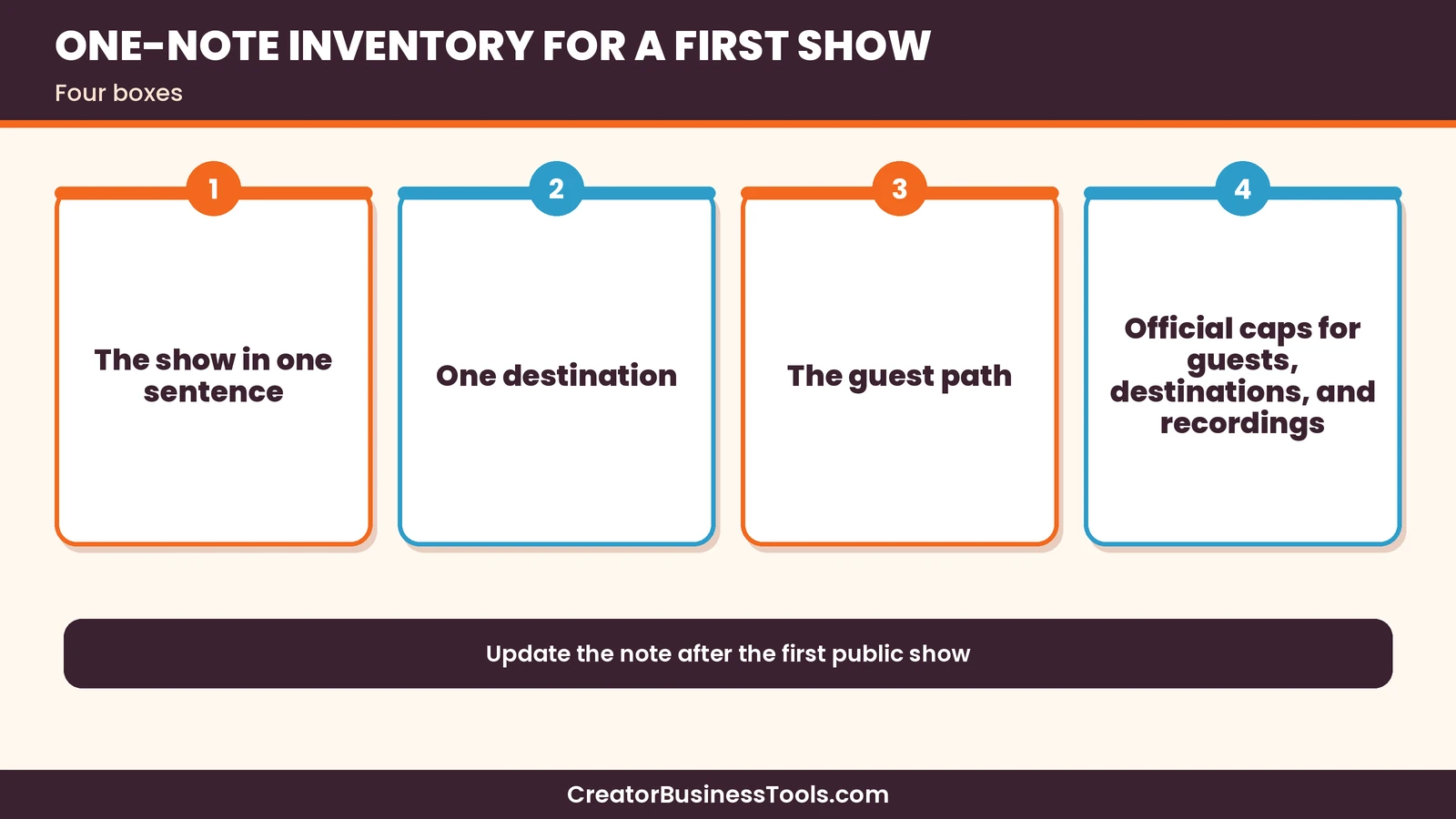
Keep one short note next to the official plan page. Write the show in one sentence. Write the destination you will use first. Write the guest path, if you need one. Write the official caps that matter: destinations or channels, on-screen guests, and recording limits.
That note is how you avoid buying a higher rung for a show you have not described. It is also how you notice a ceiling coming, without living in a pricing page.
Update the note after the first public show, not before. The first show will tell you which cap is real.
Titles, replays, and a calm public path
Pick a title style and keep it. Beginners often change the show name every session, then wonder why the audience cannot find the replay. The desk you choose should make it easy to use the same title, the same description, and the same recording home.
If official pages describe a replay or a recording you can publish later, decide where that file will live. Do not invent a second channel for the replay until the first show has a home.
The public path should be boring on purpose. Same join link style. Same start routine. Same place to find the file after the show.
What I would put in the first five shows
Show one: a short solo talk, even if your long-term plan is interviews. You learn the desk without a guest waiting.
Show two: a guest interview, if that is your format, with a private audio check first.
Show three: the same format again, with one small layout change at most.
Show four: a recording you actually reuse, if official tools include a recording you can keep.
Show five: a review of official caps, and a decision to stay or to change one thing.
That sequence is slower than opening every feature on day one. It is also how a beginner desk becomes a habit.
How I would pick if I were starting from zero
If I had no studio yet, I would write the first show in one sentence, then pick only one desk. I would choose StreamYard for a guest interview in a browser. I would choose Restream if the first job was several channels, or if I already liked a local encoder. I would choose OBS only if I wanted a local mixer I install myself and had time to learn scenes.
I would not install all three. I would not connect every channel I have. I would run one private session, watch it on a phone, and go public only if that path already works.
After that first public show, I would reread official caps once. If a logo, a destination limit, or a recording cap is already in the way, I would plan the next official rung. If the cap is not in the way, I would repeat the same format. The best live streaming software for beginners is the one that survives that second show, not the one with the longest brochure.
A helper, if I had one, would get a named role before the second show. Seats and co-producer tools belong in the same official-cap check as destinations. A desk that only the on-camera person can open is a fragile desk.
Questions to confirm on official pages
- Guest, channel, and recording caps
- Logo or branding rules on the free plan
- Whether clips or webinar rooms are included
- Encoder support, if you want a local mixer later
- Individual versus organization plan rules
My honest take
The most useful way to read the best live streaming software for beginners is by first show, not by trophy. StreamYard is the browser studio. Restream is the channel desk. OBS is the local mixer. I would match the first show, then read official caps, then run one private session before a public one.
If you work with a helper, include seats or co-producer tools in the same official-cap check. A desk that fits your on-camera week can still be a poor fit if your helper cannot get in.
I would also keep a short written note of official caps — destinations or channels, on-screen guests, and storage — so you can see a ceiling coming. That note takes less time than rebuilding a show after a cap gets in the way.
FAQ
What is the best live streaming software for beginners?
It depends on the first show. StreamYard fits a browser interview. Restream fits several channels, or an encoder you already use. OBS fits a local mixer you install yourself.
Do I need paid software to go live?
Not always. Official StreamYard and Restream pages include free plans with limits. OBS is open-source desktop software you install yourself. Move up a rung when official caps no longer fit.
Can I start in a browser and add OBS later?
Yes, in the sense that Restream official pages describe an encoder path. You do not have to start with a desktop mixer.
Is a platform logo a problem on a free plan?
It can be, if your brand needs a clean frame. Official paid rungs describe removing or avoiding that mark. Confirm the rule on the official page.
Should I use more than one studio at once?
No for the same audience. Keep one path so guests and viewers are not split.
Get the free live-studio checklist
Free checklist: Get our free Live-Studio Checklist — for mapping your first show, destinations, and guest path before you pick a desk. Contact us to request a copy.
Conclusion: picking the best live streaming software for beginners
The best live streaming software for beginners is the desk you will actually open. Choose StreamYard if your first show is a guest interview in a browser. Choose Restream if you need several channels, or want an official path for a desktop encoder. Choose OBS if you want a local mixer you install yourself and are willing to learn it. Read official caps, run one private session, and let that first show tell you which desk fits.