
Riverside vs Zoom for Podcast Recording: Which Should Coaches Use?
Disclosure: This post contains affiliate links. If you buy through them, we may earn a commission at no extra cost to you. How we make money.
If you’re starting a video podcast to attract clients, your first tool question is usually “Can I just use Zoom?” The honest answer is yes, you can. The better question is what you plan to do with the recording afterward.
Zoom is a meeting tool that records well for many purposes. Riverside is a recording studio built for podcasts, with local recording and editing tools designed for turning one episode into many pieces of content.
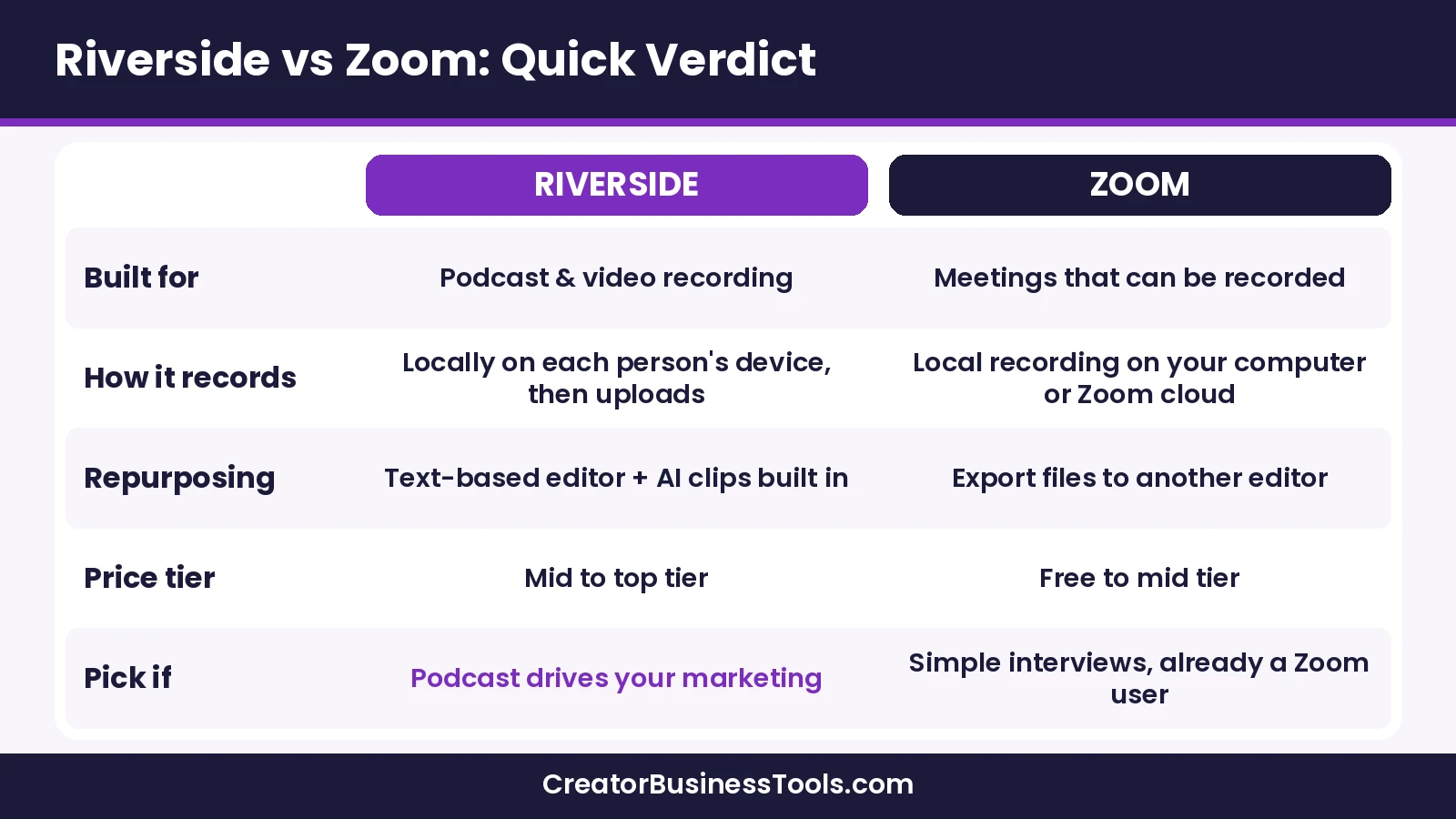
Quick verdict: Choose Riverside if your podcast is a marketing engine and you want studio-quality separate tracks plus fast clip creation. Choose Zoom if you already pay for it, your episodes are simple conversations, and you mainly need audio or a basic video record.
Quick picks
| If you… | Pick | Why |
|---|---|---|
| Want the best possible quality from remote guests | Riverside Pro | Each participant is recorded locally, up to 4K video and 48kHz audio |
| Want to turn every episode into short clips | Riverside Pro or Grow | Magic Clips, text-based editing, and publishing tools built in |
| Want to go live and post to social from one tool | Riverside Grow | Live streaming, multistreaming, and social media scheduling |
| Run webinars as part of your funnel | Riverside Webinar | Registration, lead capture, reminders, and HubSpot integration |
| Record short, audio-first episodes on a budget | Zoom (free or Pro) | Free local recording; separate audio files per participant |
Riverside vs Zoom at a glance
| Factor | Riverside | Zoom |
|---|---|---|
| Main purpose | Podcast and video recording studio | Video meetings and collaboration |
| How recording works | Each participant recorded on their own device, then uploaded | Local recording on the recorder’s computer, or cloud recording on paid plans |
| Separate tracks | Separate audio and video tracks per participant | Separate audio file per participant (setting) |
| Video quality | Up to 4K on desktop | Records the meeting as it appears on screen |
| Editing and clips | Built-in text-based editor and AI clips | Use a separate editor |
| Meeting length on free plan | Not applicable | Up to 40 minutes per meeting |
| Price tier | $$ to $$$ | Free, then $ to $$ |
How each tool records
This is the core difference, and it explains most of what follows.
Riverside: local, studio-quality recording
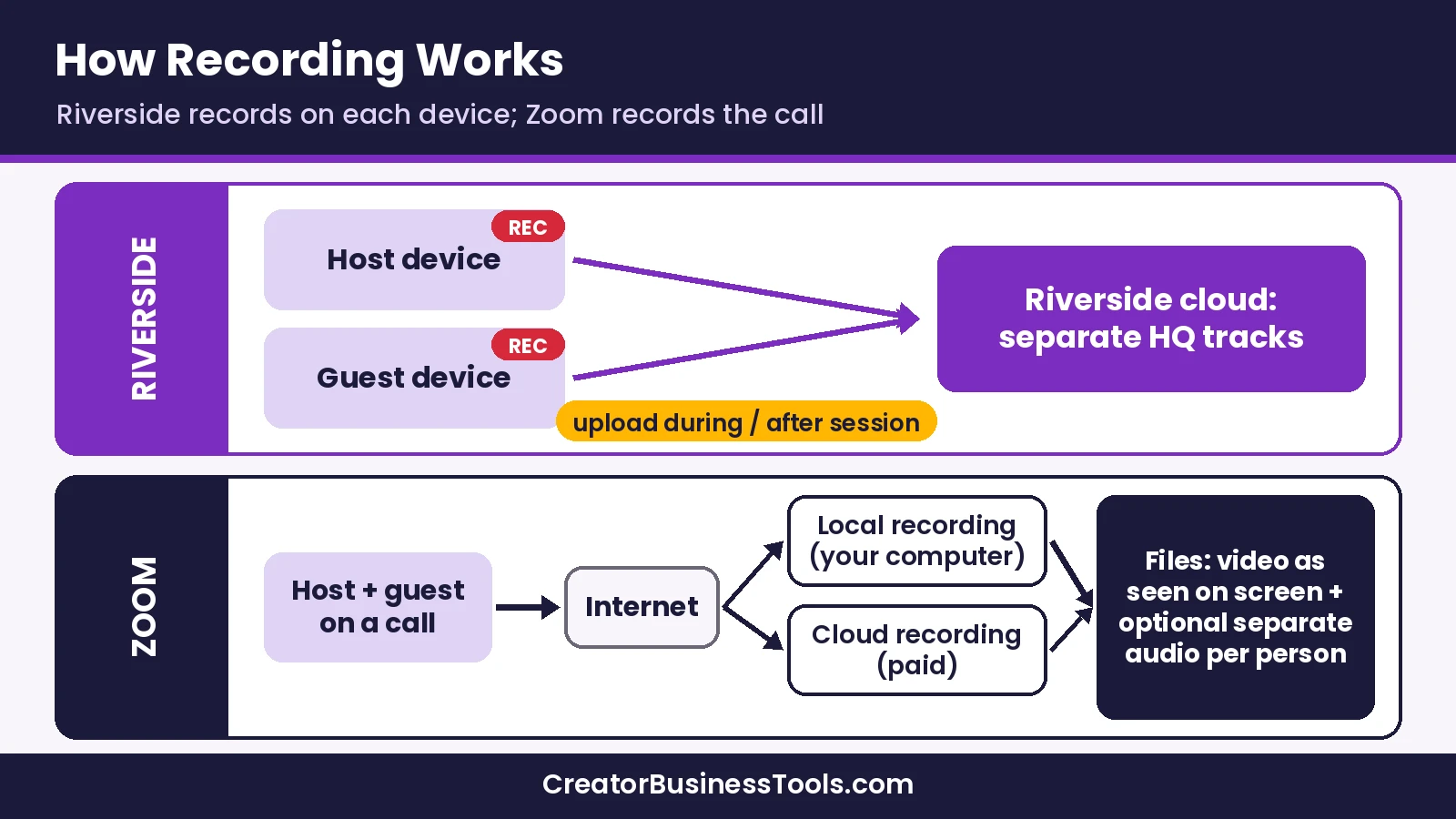
Riverside records each person’s audio and video directly on their own device. The files upload to Riverside during the session or right after it ends.
Because the recording isn’t captured over the internet, a shaky connection affects the live call, not the final files. You end up with a high-quality track for the host and each guest.
- Up to 4K video on desktop and up to 48kHz audio.
- Up to 10 people recorded in one session.
- Progressive uploading and automatic cloud backups.
- Unlimited recording hours on paid plans.
Zoom: meeting recording, done reliably
Zoom offers two ways to record. Local (computer) recording saves files to your computer and is available on free and paid accounts. Cloud recording saves to Zoom’s cloud and requires a paid license.
Local recording captures the meeting the way the person recording sees it. For example, if you’re in speaker view, the video will show speaker view.
Zoom also has a useful podcast setting: you can record a separate audio file for each participant. That gives you more control when editing the audio, which matters for audio-first shows.
- Free Basic plan: meetings up to 40 minutes, local recording.
- Pro and Business: meetings up to 30 hours, local plus cloud recording.
- Cloud recordings offer layouts like active speaker, gallery view, and shared screen.
- Recording transcripts are available on paid plans.
- Computer recording isn’t supported on iOS or Android; use cloud recording on mobile.
Feature comparison for podcasters
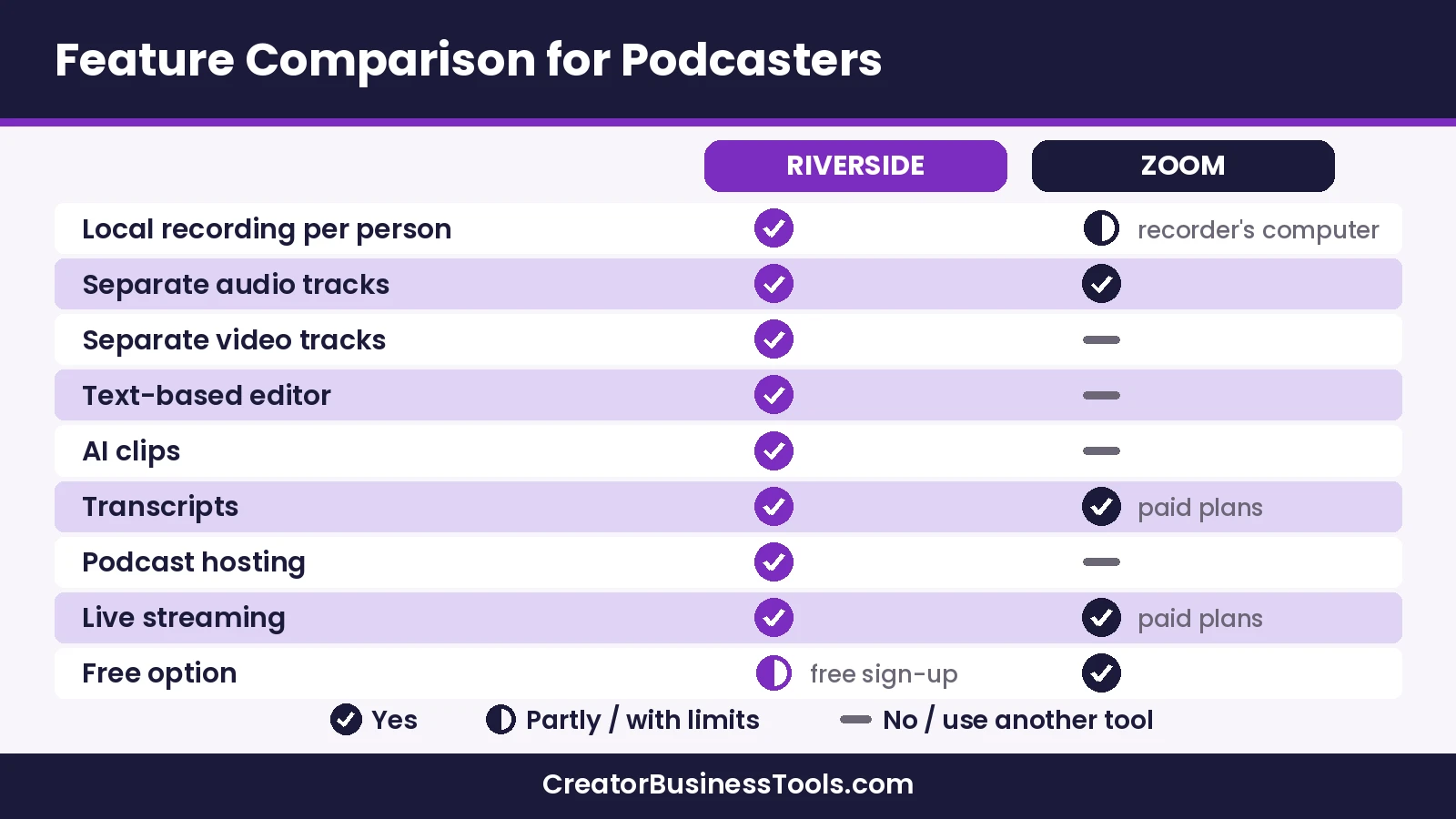
| Feature | Riverside | Zoom |
|---|---|---|
| Local recording per participant | Yes, every participant | Local recording on the recorder’s computer |
| Separate audio per person | Yes | Yes (setting) |
| Separate video per person | Yes | Not covered in the help articles cited here |
| Text-based editing | Yes, unlimited on Pro | No |
| AI short clips | Magic Clips | No |
| Transcripts | Unlimited on paid plans | Recording transcripts on paid plans |
| Remove silences and filler words | Yes | No |
| Podcast hosting | Yes | No |
| Live streaming | Grow and up | Streaming on paid plans |
| Free option | Free sign-up; paid plans have a trial | Free Basic plan |
Riverside vs Zoom pricing
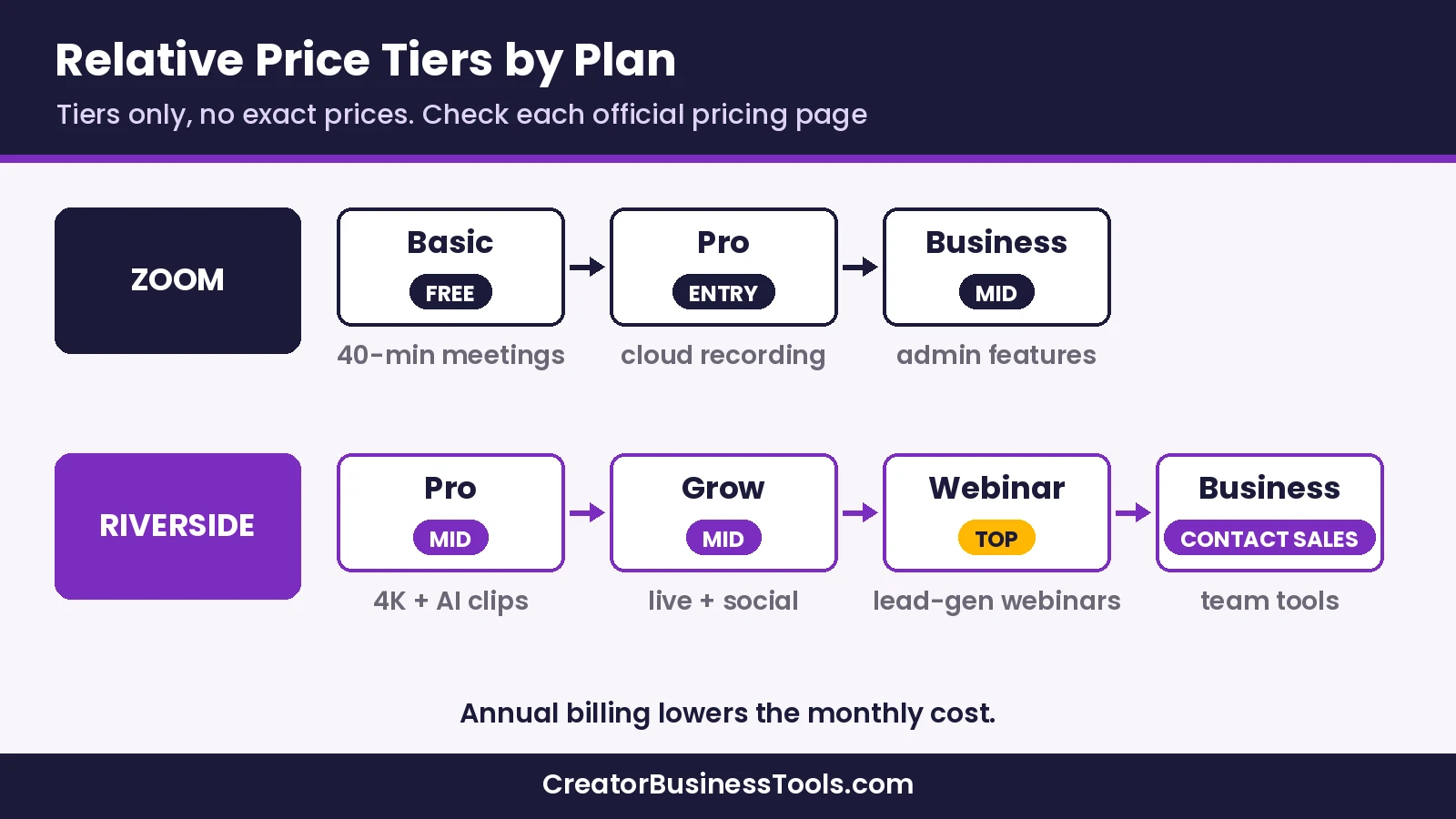
Both tools discount annual billing. Zoom has a free plan with a meeting time limit. Riverside lets you sign up for free and offers a free trial on its paid plans.
| Plan | Price tier | What you get for podcasting |
|---|---|---|
| Zoom Basic | Free | Meetings up to 40 minutes, local recording |
| Zoom Pro | $ | Meetings up to 30 hours, local plus cloud recording, transcripts |
| Zoom Business | $$ | Larger meetings and admin features; same recording basics |
| Riverside Pro | $$ | Up to 4K, no watermark, text-based editing, Magic Clips, hosting, 1 studio |
| Riverside Grow | $$ | Pro plus live streaming, social scheduling, newsletter, 2 studios |
| Riverside Webinar | $$$ | Grow plus webinars, lead capture, email reminders, 3 studios |
| Riverside Business | Contact sales | Unlimited studios, producer mode, team tools |
One limit to know on Riverside
Recording time is unlimited on Riverside’s paid plans. What is capped is separate track downloads, measured in hours per month and rising by plan.
For a weekly one-hour show, Pro’s allowance is usually comfortable. If you run several shows or long sessions, check the allowance against your schedule before choosing a plan.
Which Riverside plan fits a coach
- Pro if you record one show and want clips and hosting.
- Grow if you also go live or want to schedule social posts from Riverside.
- Webinar if live webinars are part of how you sell your program.
Repurposing one episode into short clips
For coaches and course sellers, the episode isn’t the product. It’s the raw material for a week of content that brings people to your email list.
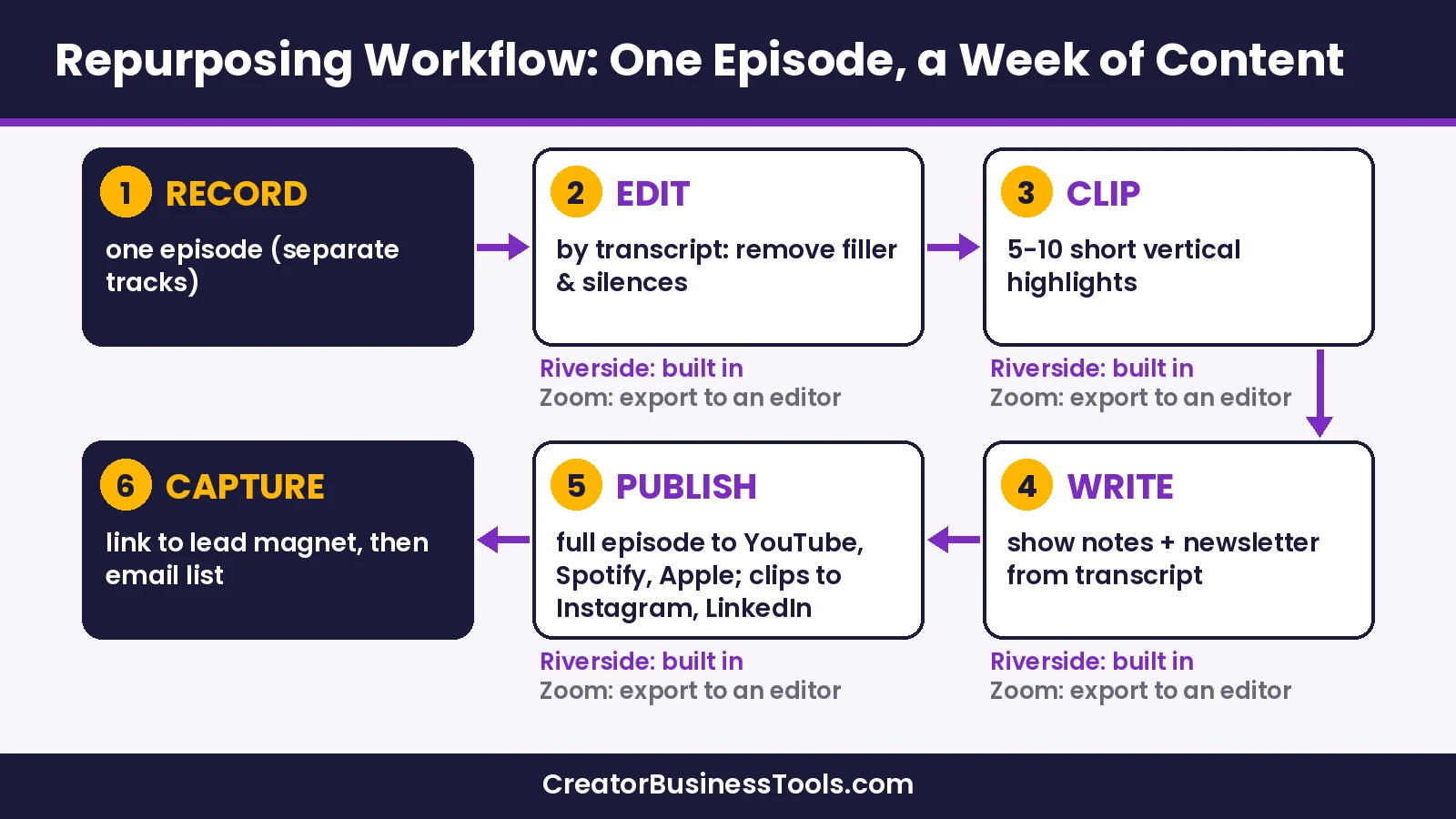
The workflow in Riverside
- Record the episode with your guest. Each of you gets separate high-quality tracks.
- Edit by transcript. Delete words in the text and the video follows. Remove silences and filler words.
- Create clips with Magic Clips, then adjust which moments you keep.
- Generate show notes with Riverside’s AI show notes as a first draft.
- Publish to YouTube, Spotify, Apple, Instagram, LinkedIn, and more from Riverside.
- Point every clip to one lead magnet or booking link.
The workflow with Zoom
- Record locally with separate audio files turned on, or to the cloud on a paid plan.
- Download the video and audio files.
- Import them into a separate video editor.
- Cut clips and add captions in that editor.
- Upload to your podcast host and each social platform.
Both paths work. Riverside keeps the steps in one place, while Zoom relies on other tools for editing, clipping, and hosting.
Clip checklist
- Open with the hook in the first sentence.
- Keep each clip focused on one idea.
- Add captions, since many people watch muted.
- Format clips vertically for short-form platforms.
- End with a single call to action.
- Track which clips bring email signups.
Turning listeners into clients
A podcast attracts attention, but your email list and offers turn it into income. Plan the path before you record episode one.
| Stage | What to use | Where to learn more |
|---|---|---|
| Capture listeners | Lead magnet + email tool | Best email marketing for course creators |
| Build community | Community platform | Circle vs Skool vs Mighty Networks |
| Sell a program | Course platform | Kajabi vs Teachable |
Best podcast recording software for coaches
Choosing between Riverside and Zoom depends on how central the podcast is to your marketing.
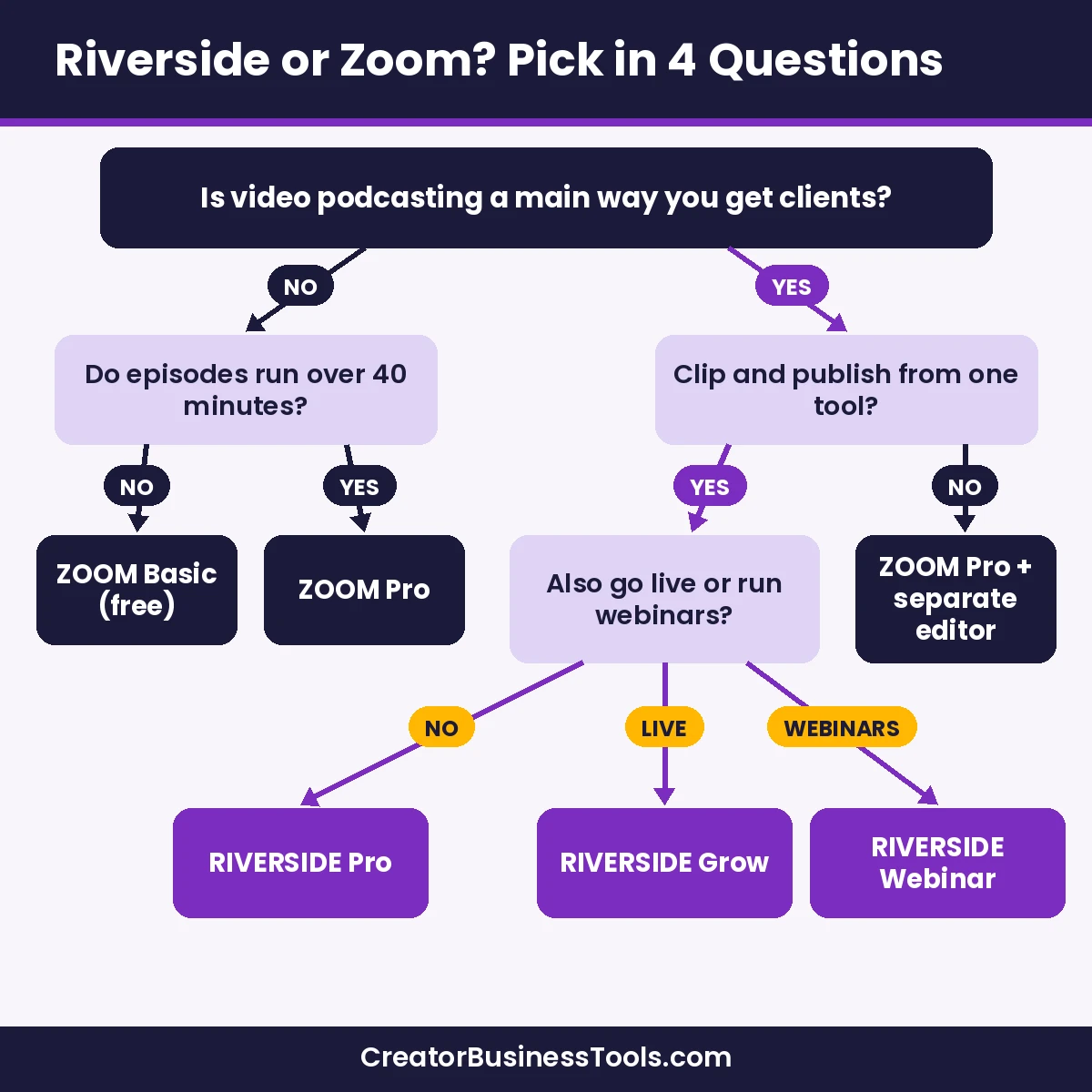
Choose Riverside if…
- Video is central to your marketing, and quality reflects your brand.
- Your guests are remote and their internet connection isn’t always stable.
- You want to turn every episode into clips without a second editing tool.
- You want hosting, editing, and publishing in one account.
Choose Zoom if…
- You already pay for Zoom for client calls.
- Your show is audio-first, and separate audio files are enough.
- You’re testing whether podcasting fits your business.
- You’re comfortable editing in a separate tool.
A fair note on Zoom
Zoom is a dependable meeting platform, and many successful podcasts started there. Its separate-audio setting and free local recording make it a practical starting point.
The trade-off is that it isn’t built around post-production. If you start on Zoom and find yourself spending hours exporting and clipping, that’s the signal to look at a dedicated studio.
Audio-only vs video podcast: does it change the pick?
Your format affects how much the recording tool matters. An audio-only show needs clean, separate voice tracks. A video show also needs sharp, steady video for every person.
| Format | What matters most | Reasonable starting tool |
|---|---|---|
| Audio-only interview | Separate voice tracks, low noise | Zoom with separate audio files, or Riverside |
| Solo video episodes | Camera quality, easy editing | Riverside for built-in editing and clips |
| Remote video interviews | Quality for every guest, separate video tracks | Riverside |
| Recorded client Q&A or group calls | Long sessions, many people | Zoom paid plan |
If you start audio-only and plan to add video later, choose based on where you want to be in six months. Switching tools mid-show is easy, but rebuilding your editing routine takes time.
Plan episodes that clip well
The recording tool can’t fix an episode with no clear moments. A little planning makes every repurposing step faster.
- Pick one question per episode your ideal client is already asking.
- Script three “clip moments”: a bold opinion, a quick tip, and a short story.
- Ask guests for concrete examples, not general advice.
- Repeat the key idea in one sentence so it stands alone in a clip.
- Mention your free resource once, naturally, near the end.
- Keep a running doc of questions from listeners for future episodes.
A simple weekly rhythm
| Day | Task | Output |
|---|---|---|
| Monday | Record the episode | Raw tracks |
| Tuesday | Edit and generate clips | Full episode + short clips |
| Wednesday | Publish the episode and send the newsletter | Episode live, email sent |
| Thursday–Sunday | Post one clip per day | Daily short-form content |
Guest prep: the step that improves any tool
Most quality problems come from the guest’s setup, not the software. A short prep email fixes most of them before you record.
Send every guest this checklist
- Use a laptop or desktop rather than a phone if possible.
- Wear wired headphones to prevent echo.
- Sit facing a window or soft light, not with a window behind you.
- Close other apps and pause large downloads or backups.
- Use the best microphone you have, even a simple USB one.
- Join five minutes early for a quick sound check.
- Stay in the session until any uploads finish (important on Riverside, where each guest’s local tracks upload from their device).
On the day
Do a 30-second test recording and play it back. It catches muted microphones, wrong inputs, and noisy rooms while there is still time to fix them.
Common mistakes to avoid
- Recording without headphones, which causes echo in both tools.
- Relying on one mixed track, which makes it hard to fix one person’s audio.
- Skipping a test recording with a new guest’s setup.
- Publishing clips without captions, which lowers watch time.
- Sending listeners to too many places. One link per episode works best.
- Overbuying. Start on the plan you need now and upgrade when your schedule demands it.
Riverside review
Riverside is a recording and editing platform for podcasts and video. It records locally on each device and includes AI tools for editing and repurposing.
- Local recording, up to 4K video and 48kHz audio.
- Separate audio and video tracks per participant.
- Text-based editor, Magic Clips, and AI show notes.
- Podcast hosting and publishing to major platforms.
- Live streaming and webinars on higher plans.
Keep in mind: Separate track downloads are capped by hours per month on Pro, Grow, and Webinar.
Best for: Coaches and course creators who use a video podcast to attract clients.
Not ideal for: People who only need occasional audio calls recorded.
Zoom review
Zoom is a video meeting platform with reliable recording built in. It’s a sensible starting point for podcasters who already use it.
- Free plan with local recording.
- Separate audio file per participant as a setting.
- Cloud recording and transcripts on paid plans.
- Meetings up to 30 hours on paid plans.
Keep in mind: Zoom has no built-in podcast editor, clip tool, or hosting, so plan on extra tools.
Best for: Simple interview shows and anyone testing podcasting on a budget.
Not ideal for: Creators who want studio-style video and built-in repurposing.
Before you choose
- Plans and features change. Confirm current details on each official pricing page.
- Ask guests to use headphones and a wired connection when possible, whichever tool you choose.
- Check Riverside’s monthly separate-track download allowance against your recording schedule.
- On Zoom’s free plan, meetings are limited to 40 minutes.
How to choose in 5 steps
- Define your goal. Is the podcast a marketing channel or a side experiment?
- Estimate your schedule. Count episodes and hours per month.
- List your outputs. Full episode, clips, show notes, newsletter.
- Count your tools. Zoom plus an editor and host, or Riverside for most steps.
- Run one test episode and time how long post-production takes.
Starter setup checklist
- A USB or XLR microphone.
- Headphones for you and your guest.
- A quiet room with soft surfaces.
- A camera at eye level and soft front lighting.
- A pre-show checklist sent to every guest.
- One lead magnet linked in every episode.
FAQ
Is Riverside better than Zoom for podcasts?
For video podcasts that drive your marketing, Riverside is purpose-built: it records locally on each device and includes editing and clip tools. Zoom works well for simpler shows.
Can I record a podcast on Zoom for free?
Yes. Zoom’s free Basic plan includes local recording, with meetings up to 40 minutes.
Does Zoom record separate audio tracks?
Yes. You can turn on a setting to record a separate audio file for each participant.
Does Riverside have a free plan?
Riverside lets you sign up for free, and its paid plans include a free trial. Check the pricing page for the current free option.
What makes Riverside’s quality different?
Riverside records on each participant’s device instead of over the call, so internet issues are less likely to affect the final files.
Which Riverside plan should a coach start with?
Pro for most solo shows. Move to Grow for live streaming and social scheduling, or Webinar if webinars are part of your sales process.
Can Riverside create short clips automatically?
Yes. Magic Clips creates short clips from your recordings, and you can edit them before publishing.
Is Zoom good enough for a video podcast?
It can be, especially for simple interviews. Zoom’s recording captures the meeting as it appears on screen, so plan your layout before you hit record.
Do I need a separate video editor with Riverside?
Many creators don’t, because Riverside includes a text-based editor, clip creation, and publishing. You can still export files to another editor if you prefer.
Bottom line
Zoom is a solid, fair choice for simple podcasts, especially if you already use it. Free local recording and separate audio files cover the basics.
Riverside is the better fit when your video podcast is a marketing engine. Local studio-quality recording, text-based editing, and built-in clips turn one episode into a week of content that brings people to your list.