
SiteGround Review: Beginner-Friendly WordPress Hosting and What Happens at Renewal (vs Hostinger & Kinsta)
Disclosure: This post contains affiliate links. If you buy through them, we may earn a commission at no extra cost to you. How we make money.
Your web host is the foundation of your blog. A good one keeps your site fast, secure and online without you thinking about it. A poor one turns every week into a support ticket.
SiteGround is one of the most popular hosts for WordPress beginners. It’s known for WordPress-focused tools, helpful support and a low intro price that rises at renewal.
This SiteGround review explains what you get, how pricing works, who it fits, and how it compares with Hostinger and Kinsta. It also includes a step-by-step walkthrough for starting a WordPress blog.
It’s based on SiteGround’s official pricing and product pages, not on our own speed tests.
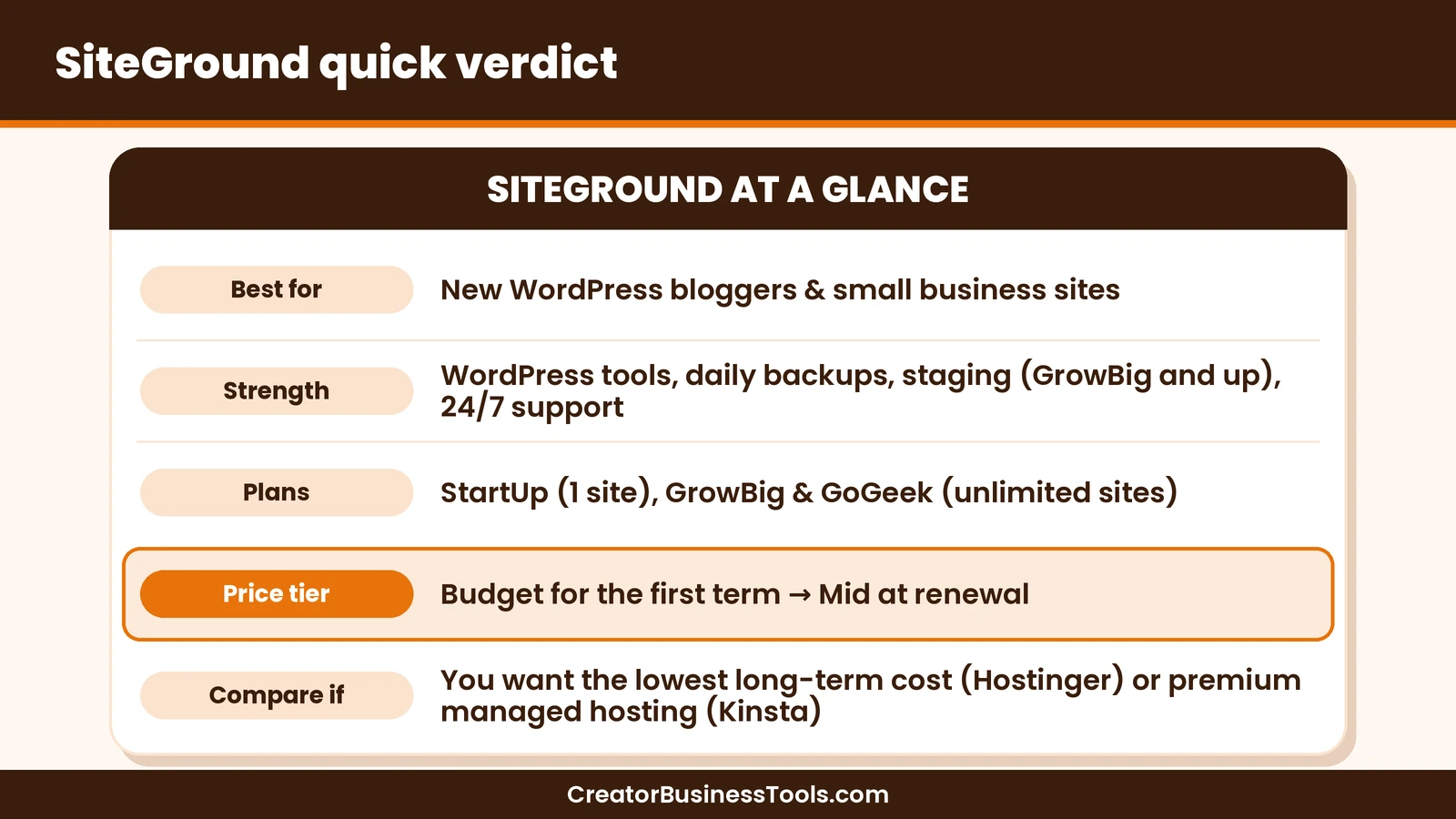
Quick verdict: SiteGround is a strong choice for new bloggers who want managed-style WordPress tools, daily backups and 24/7 support without paying managed-hosting prices. The intro price is low, but renewals cost much more, so budget for that from day one. If the lowest long-term cost matters most, Hostinger is cheaper. If you want premium managed hosting, Kinsta costs more but includes more.
Quick picks
- Best for most new bloggers: SiteGround GrowBig, for unlimited sites, staging and on-demand backups. See SiteGround’s plans
- Best for one small site: SiteGround StartUp.
- Best for lowest long-term cost: Hostinger.
- Best premium managed WordPress host: Kinsta. See our Kinsta vs WP Engine comparison.
What is SiteGround?
SiteGround is a web hosting company with plans built for WordPress. Its WordPress hosting is managed-style: SiteGround handles server-side updates, caching, security and backups, and adds its own WordPress plugins.
Here’s what every WordPress plan includes, according to SiteGround’s plans page:
| Category | What’s included |
|---|---|
| Core | Free SSL, CDN, daily backups, email, multilevel caching, enhanced security, collaborators |
| WordPress services | Free site migrations, managed autoupdates, Speed Optimizer and Security Optimizer plugins, WP-CLI and SSH |
| AI tools | An AI agent for WordPress, access to multiple AI models and free monthly AI tokens |
| Support | 24/7 support |
SiteGround also lets you choose a data center for your site from 11 locations across four continents, and change it later from your Client Area.
Who SiteGround is for
- New bloggers who want WordPress set up for them and support on call.
- Creators with several sites who want unlimited sites on one plan (GrowBig and up).
- Small business sites that need reliable backups and security.
- Freelancers who build sites for clients and want staging, Git and white-label access (GoGeek).
It’s less of a fit if you need the cheapest possible hosting for years, or if your site has heavy traffic that needs a high-end managed host.
SiteGround pricing explained
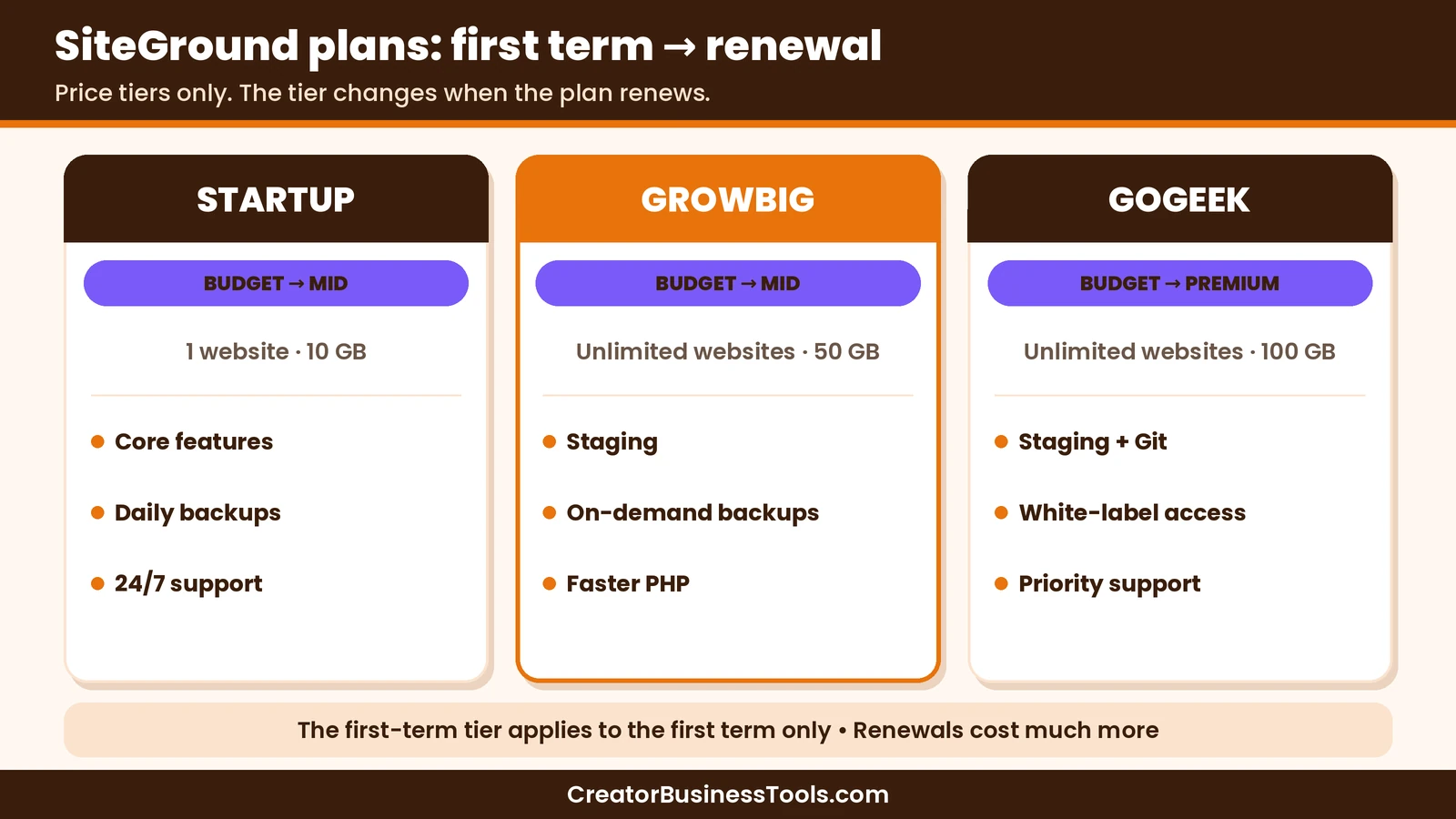
SiteGround has three WordPress plans: StartUp, GrowBig and GoGeek. Each has a low intro price for the first billing term and a much higher renewal price after that.
| Plan | Intro tier | Renewal tier | Websites | Storage | Plan extras |
|---|---|---|---|---|---|
| StartUp | $ | $$ | 1 | 10 GB | Core features only |
| GrowBig | $ | $$ | Unlimited | 50 GB | On-demand backups, faster PHP, staging |
| GoGeek | $ | $$$ | Unlimited | 100 GB | Staging + Git, private DNS, white-label access, priority support |
The renewal price is the real price
SiteGround’s intro price is for the first prepaid term, which its plans page shows as 12 months. After that, the plan renews at its regular price, which is several times higher.
That’s common in shared and cloud hosting, but SiteGround’s jump is large. When you compare hosts, compare renewal prices as well as intro prices.
StartUp or GrowBig?
StartUp hosts one website. If you think you’ll ever start a second site, such as a portfolio or a niche blog, GrowBig is the safer choice.
GrowBig also adds staging, which lets you test theme or plugin changes on a copy of your site before going live. For a growing blog, that’s a valuable safety net.
When GoGeek makes sense
GoGeek adds Git, private DNS, white-label access and priority support. It’s aimed at developers and freelancers who manage client sites.
Key features for WordPress bloggers
Easy WordPress setup and free migrations
SiteGround can install WordPress for you, and it offers free site migrations. If you already have a site elsewhere, its Migrator plugin can move it, and SiteGround says the plugin migration doesn’t cause downtime on your live site.
Speed tools
Every plan includes multilevel caching, a CDN and SiteGround’s Speed Optimizer plugin. GrowBig and GoGeek add what SiteGround describes as faster PHP.
We haven’t run our own speed tests, so we won’t quote speed numbers. Speed also depends heavily on your theme, plugins and images.
Security and backups
SiteGround lists a web application firewall, AI-powered bot protection, free SSL and its Security Optimizer plugin. Daily backups are stored in a different location from your site.
On GrowBig and GoGeek, you can also make on-demand backups, which is handy before big changes.
Staging
Staging creates a copy of your site where you can test updates safely. It’s included on GrowBig and GoGeek.
AI agent for WordPress
SiteGround includes an AI agent for WordPress that connects to your site and helps you manage it through chat. Every plan also includes AI Studio Essential, a workspace for chatting with several AI models.
These are useful extras, but we’d still choose a host on reliability, support and price first.
Support
SiteGround offers 24/7 support. For beginners, good support matters more than almost any feature, because you’ll have questions in the first few months.
How to start a WordPress blog with SiteGround
Here’s a beginner-friendly walkthrough from zero to your first post.
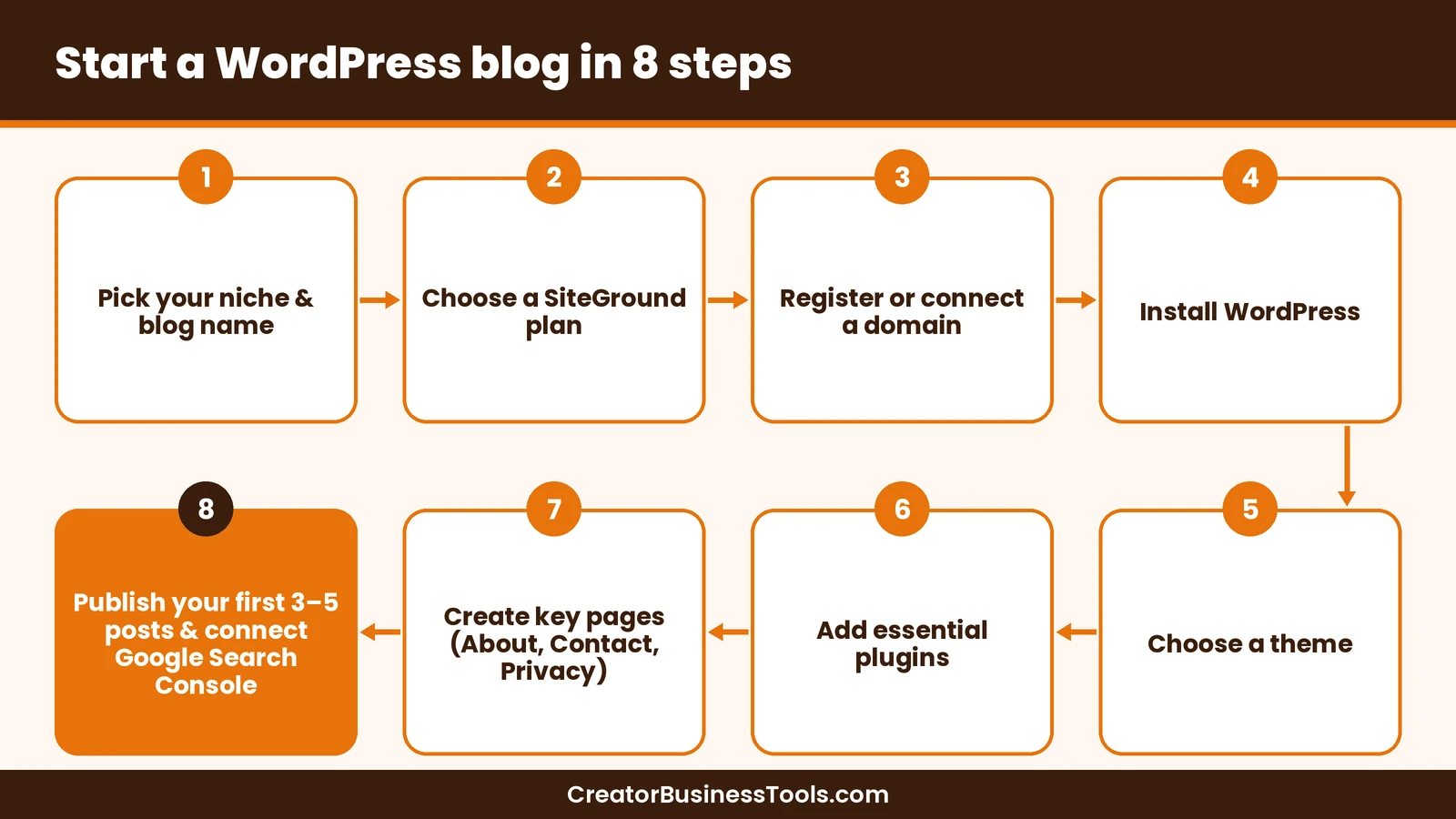
Step 1: Choose your niche and name. Pick a topic you can write 30 or more posts about. Then choose a short, memorable domain name.
Step 2: Pick a plan. StartUp works for one blog. Choose GrowBig if you want staging or plan to run more than one site. See SiteGround’s plans
Step 3: Get your domain. Register a new domain during signup, or connect one you already own. SiteGround lists a free domain for the first year on its plans, but it’s a promotional offer, so check the terms on its site. Domain fees aren’t refundable if you cancel.
Step 4: Install WordPress. During setup, choose to start a new WordPress site. SiteGround installs it and gives you your login details.
Step 5: Choose a theme. Start with a lightweight, well-supported theme. You can switch later, but a simple theme keeps your site fast.
Step 6: Add essential plugins. Keep the list short:
- SiteGround’s Speed Optimizer and Security Optimizer, which come with your hosting
- An SEO plugin to manage titles and sitemaps
- A form plugin for your contact page
- An email opt-in tool to start your list early
Step 7: Create your core pages. Add About, Contact and Privacy Policy pages. If you’ll use affiliate links, add a disclosure page too.
Step 8: Publish and get indexed. Write your first three to five posts, then verify your site in Google Search Console and submit your sitemap.
Choosing your theme and plugins wisely
Your hosting is only part of your site’s speed. Theme and plugin choices often matter just as much.
- Pick a lightweight theme with good reviews and regular updates.
- Avoid installing a page builder unless you need one. The WordPress block editor handles most blog layouts.
- Compress images before uploading. Large photos are the most common cause of slow pages.
- Remove plugins you don’t use. Deactivated plugins still need updates and can add risk.
- Update regularly. SiteGround’s managed autoupdates help, but check your site after major updates.
Basic SEO setup for a new blog
A few small steps help search engines find your posts:
- Set a clean permalink structure, such as post name only.
- Write a clear title and meta description for each post.
- Link new posts to related older posts.
- Submit your sitemap in Google Search Console.
What to do in your first month
- Publish on a schedule you can keep, such as one post a week.
- Start an email list with a simple freebie, like a checklist.
- Make a backup before big changes. On GrowBig, use on-demand backups or staging.
- Check your site on a phone. Most readers will visit on mobile.
- Keep plugins lean. Every plugin adds weight and maintenance.
A quick hypothetical example
Imagine a hypothetical home-baking blogger. They choose GrowBig so they can later add a second site for printable recipe cards.
They install WordPress through SiteGround, pick a light theme, add an SEO plugin and an opt-in form, and publish five recipes in the first month. When they want to try a new theme, they test it on a staging copy first.
Keep in mind: SiteGround’s intro price applies to the first term only, and renewals are much higher. Before you buy, check the renewal price and the prepaid term for your plan on SiteGround’s site. SiteGround offers a 30-day money-back guarantee on shared hosting plans (domain fees excluded).
Is SiteGround worth it after the intro price?
This is the question most reviews skip. The intro price makes SiteGround look like a budget host, but the renewal price puts it closer to the middle of the market.
Here’s how we’d think about it. In the first term, SiteGround is excellent value for what’s included. After renewal, you’re paying a mid-range price for a mid-range-plus service: WordPress tools, daily off-site backups, staging on GrowBig and 24/7 support.
For many bloggers, that’s still fair. Support and backups save time, and time matters when you’re building a blog around a day job.
If your blog isn’t earning yet when renewal arrives, you have options:
- Stay and accept the higher price if the support and tools are worth it to you.
- Move to a lower-cost host such as Hostinger. Migration tools make this easier than it used to be.
- Move up to premium managed hosting like Kinsta if your blog has grown and earns enough to justify it.
Set a calendar reminder a month before renewal so you can decide calmly instead of being surprised by the bill.
How SiteGround fits different creators
| Creator type | Suggested plan | Why |
|---|---|---|
| First-time blogger | StartUp | One site, everything set up for you |
| Blogger planning a second site | GrowBig | Unlimited sites plus staging |
| Course creator or coach | GrowBig | Room for a main site and a sales or course site |
| Small online shop | GrowBig or GoGeek | Staging for safe updates; WooCommerce can be pre-installed on SiteGround’s WooCommerce plans |
| Freelancer building client sites | GoGeek | Git, white-label access and priority support |
Imagine a hypothetical coach who runs a blog and plans to launch a separate course site later. GrowBig lets them host both on one plan, and staging lets them test the course site before it goes live.
SiteGround vs Hostinger vs Kinsta
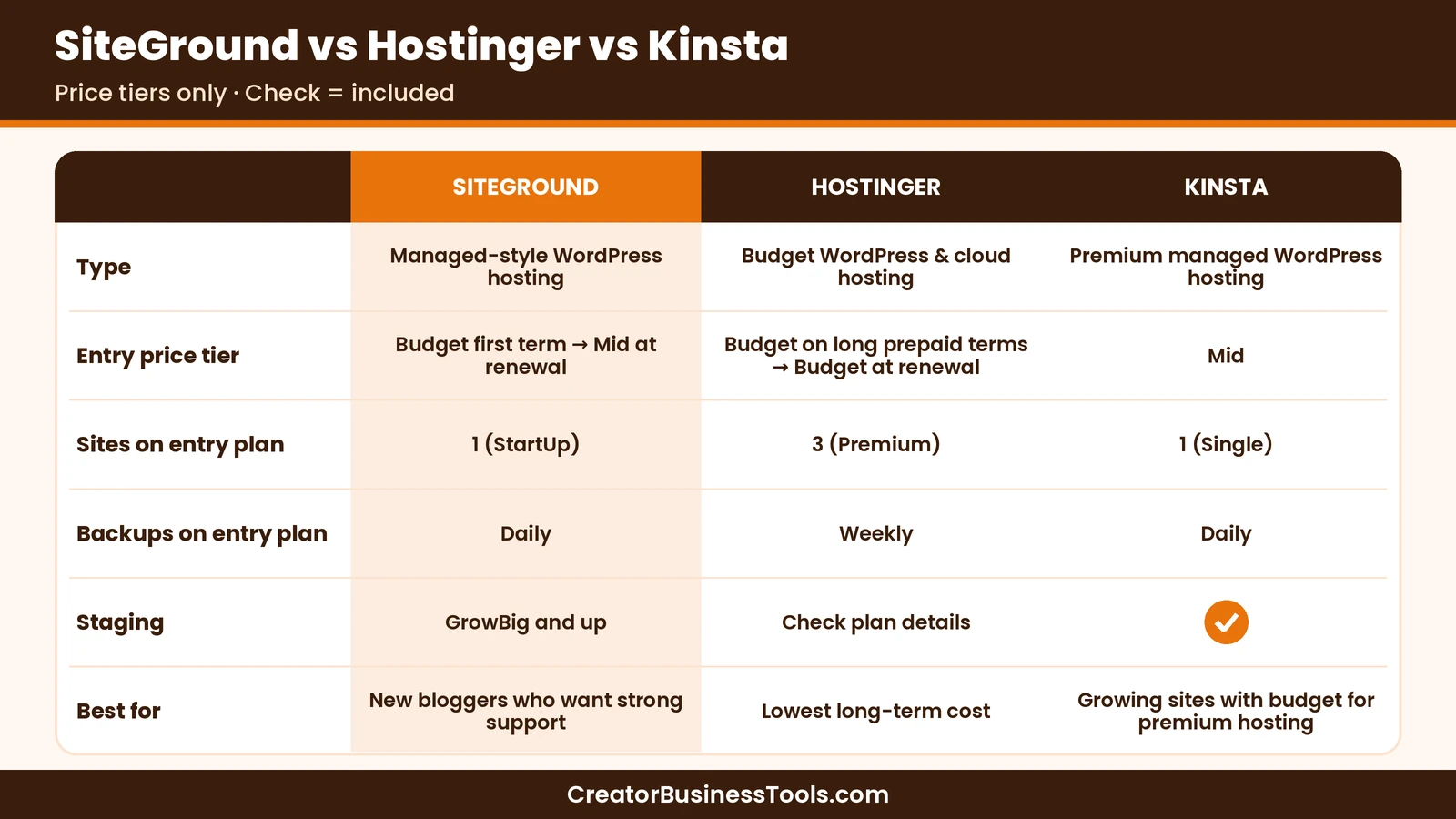
These three hosts cover three different budgets: Hostinger at the low end, SiteGround in the middle, and Kinsta at the premium end.
| SiteGround | Hostinger | Kinsta | |
|---|---|---|---|
| Type | Managed-style WordPress hosting | Budget WordPress and cloud hosting | Premium managed WordPress hosting |
| Entry price | $ intro, $$ at renewal | $ intro on long prepaid terms, $ at renewal | $$ |
| Sites on entry plan | 1 (StartUp) | 3 (Premium) | 1 (Single) |
| Backups on entry plan | Daily | Weekly | Daily |
| Staging | GrowBig and up | Check plan details | Included |
| WordPress tools | Speed and Security Optimizer plugins, AI agent | AI tools, WordPress setup | Managed platform with built-in tools |
| Best for | New bloggers who want strong support | Lowest long-term cost | Growing sites with budget for premium hosting |
When Hostinger is the better pick
Hostinger’s entry WordPress plan has a low intro price on long prepaid terms and a lower renewal price than SiteGround’s entry plan. It also hosts three sites on its entry plan.
If your budget is tight and you’re comfortable with fewer bundled extras, Hostinger usually costs less over time.
When Kinsta is the better pick
Kinsta is a premium managed WordPress host. Its entry plan costs more than SiteGround’s intro price, but you get a fully managed platform, daily backups and staging.
It’s a better fit once your blog earns real money and speed and uptime directly affect income. Our Kinsta vs WP Engine comparison covers it in detail.
When SiteGround is the better pick
SiteGround sits in the middle. It offers WordPress-focused tools, daily backups and 24/7 support at a lower starting tier than Kinsta.
For a new blogger who values support and convenience, it’s a sensible starting point, as long as you plan for the renewal price.
Our take
- Tightest budget: Hostinger.
- Best balance of tools and support for beginners: SiteGround GrowBig.
- Established, income-earning site: Kinsta.
SiteGround pros and cons
Pros
- WordPress-focused tools, including Speed Optimizer and Security Optimizer
- Daily backups stored off-site, plus on-demand backups on GrowBig and up
- Free site migrations and a Migrator plugin
- Staging on GrowBig and GoGeek
- 24/7 support
- Choice of 11 data center locations
Cons - Large jump from intro price to renewal price
- StartUp hosts only one website
- Staging and on-demand backups need GrowBig or higher
- Lower storage than some budget hosts
Best for: new WordPress bloggers and small business sites that want helpful tools and support at a mid-range price.
Not ideal for: anyone who needs the lowest long-term hosting cost, or high-traffic sites that need premium managed hosting.
Common hosting mistakes new bloggers make
Comparing intro prices only. The renewal price is what you’ll pay for most of your blog’s life. Compare it first.
Buying the smallest plan when you’ll need more. If you’re likely to start a second site, a single-site plan means upgrading soon.
Skipping backups. Even with daily backups included, make a manual backup before major changes.
Overloading plugins. A slow site is often a plugin problem, not a hosting problem.
Ignoring data center location. Choose the data center closest to most of your readers.
FAQ
Is SiteGround good for beginners?
Yes. SiteGround installs WordPress for you, includes WordPress tools and backups, and offers 24/7 support, which suits beginners well.
Why does SiteGround’s price go up?
The low price is an intro rate for your first term. After that, your plan renews at SiteGround’s regular price, which is much higher.
Which SiteGround plan should I choose?
StartUp suits a single blog. GrowBig is better if you want staging, on-demand backups or more than one site. GoGeek is aimed at developers and freelancers.
Is SiteGround better than Hostinger?
SiteGround offers more WordPress-focused extras on its plans, while Hostinger usually costs less over time. Choose based on whether support and tools or long-term price matter more.
Is SiteGround managed WordPress hosting?
SiteGround describes its WordPress plans as managed hosting, with automatic updates, caching, security and backups handled for you.
Can I move my existing blog to SiteGround?
Yes. SiteGround offers free site migrations and a Migrator plugin, and says plugin migrations don’t cause downtime on your live site.
Can I change my data center later?
Yes. SiteGround says you can choose from 11 data center locations and change your site’s location anytime from your Client Area. Pick the one closest to most of your readers.
Does SiteGround include a domain?
SiteGround lists a free domain for the first year on its plans as a promotional offer. Check the terms on its site before you buy, and note that domain fees aren’t covered by its money-back guarantee.
Bottom line
SiteGround is a reliable, beginner-friendly WordPress host with helpful tools, daily backups and 24/7 support. Its main drawback is the big jump at renewal.
If you’re starting your first WordPress blog and want support on hand, SiteGround GrowBig is a strong place to begin. See SiteGround’s plans
Need the lowest long-term price? Consider Hostinger. Ready for premium managed hosting? Look at Kinsta.
Contact us to request a copy.
Pricing and features from official vendor pages, last checked October 21, 2026.