
Webflow Pricing: Basic vs Premium Site Plans for Creators
Disclosure: This post contains affiliate links. If you buy through them, we may earn a commission at no extra cost to you. How we make money.
Webflow pricing looks complicated at first because there are Site plans, Workspace plans, add-ons, and enterprise options. For a creator building a portfolio or a lead-generation site, the choice is much simpler: it’s usually Basic or Premium.
Quick verdict: Pick Basic if your site is a handful of static pages, like a portfolio, services page, and contact form. Pick Premium if you need a blog, resource library, or any content managed through Webflow’s CMS. Start on the free Starter plan to build, and pay only when you’re ready to publish on your own domain.
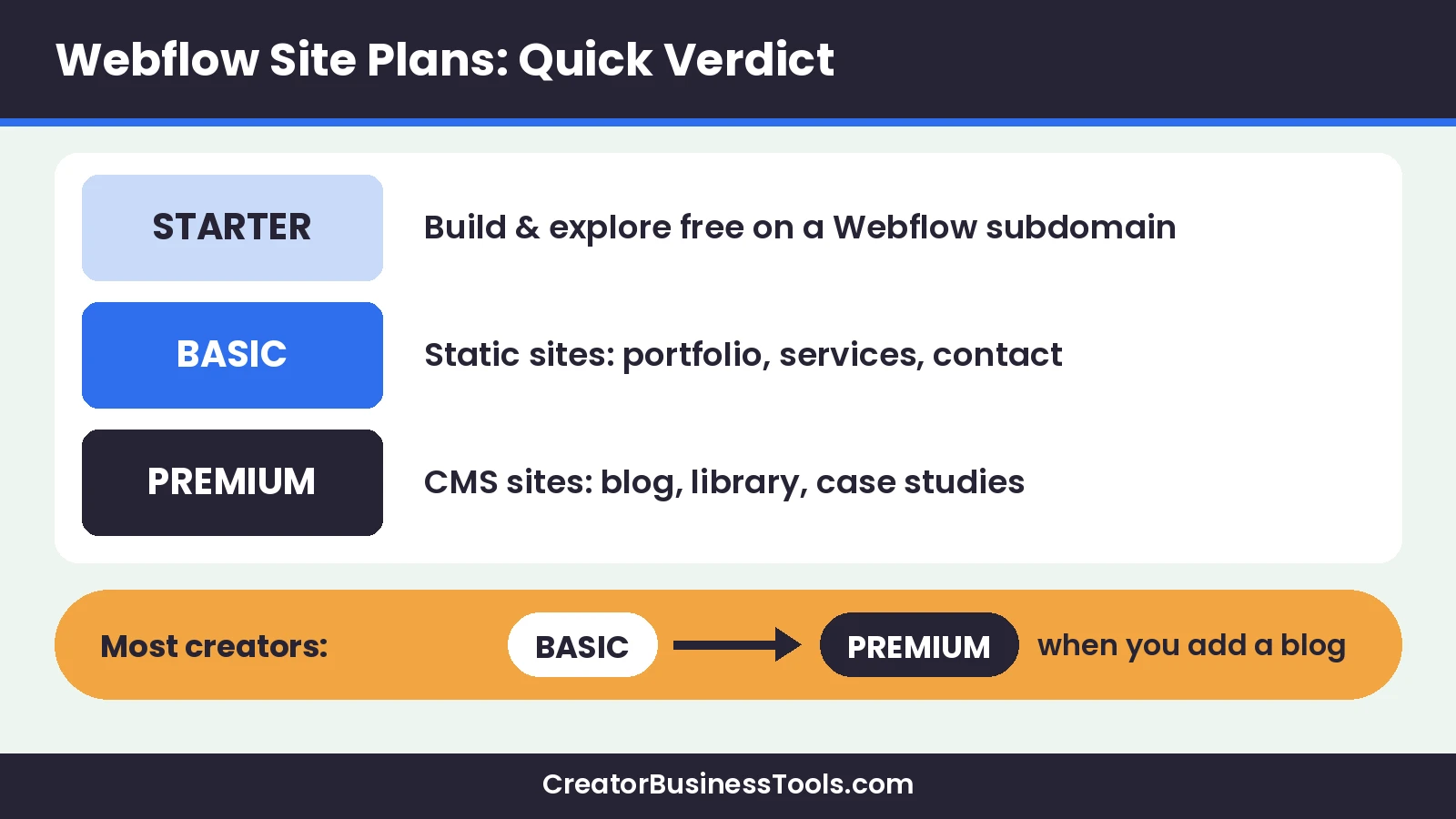
Webflow plan names, explained
Webflow simplified its Site plans in May. The former CMS and Business plans were combined into a single Premium plan for new purchases, according to Webflow’s help center.
If you’ve seen older guides comparing “Basic vs CMS vs Business,” those names are out of date. Today’s self-serve Site plans are Starter, Basic, and Premium, with Team and Enterprise above them.
| Old name | Current name | What happened |
|---|---|---|
| Basic | Basic | Static page limit increased |
| CMS | Premium | Merged into Premium with higher CMS limits |
| Business | Premium | Merged into Premium |
| Ecommerce plans | Ecommerce plans | No change announced |
Existing sites move to the new plans on a schedule Webflow published in its help center. If you already pay for an older plan, check that article for your date.
Webflow pricing at a glance
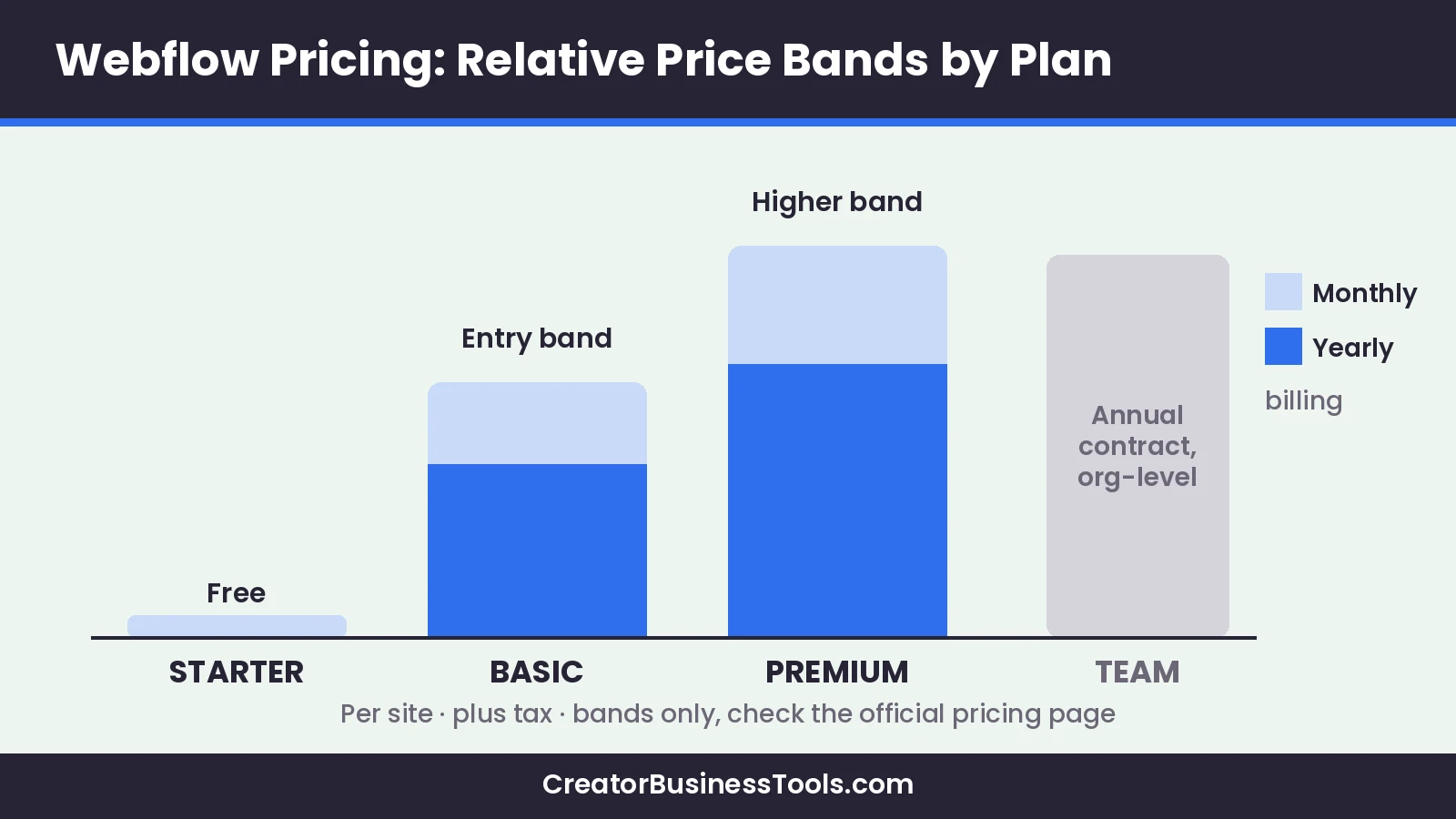
Site plans are priced per site. Yearly billing costs less than monthly billing.
| Plan | Price tier | Best for | Key features |
|---|---|---|---|
| Starter | Free | Building and exploring | Webflow subdomain, limited CMS, 2 static pages, 1 GB bandwidth, 50 form submissions |
| Basic | $–$$ (low to mid) | Simple sites without a CMS | Custom domain, 300 static pages, 10 GB bandwidth, unlimited form submissions, password protection |
| Premium | $$ (mid) | Content-rich sites | Webflow CMS, bandwidth tiers from 50 GB, site search, code components, form file upload |
| Team | $$$ (high), annual contract | Growing organizations | Localize, publishing workflows, page branching, more seats and governance |
| Enterprise | Custom | Large organizations | Custom roles, advanced governance, dedicated account manager |
Where a tier spans two levels, the lower level reflects yearly billing and the higher level reflects monthly billing. Prices exclude tax.
Basic vs Premium: the real decision
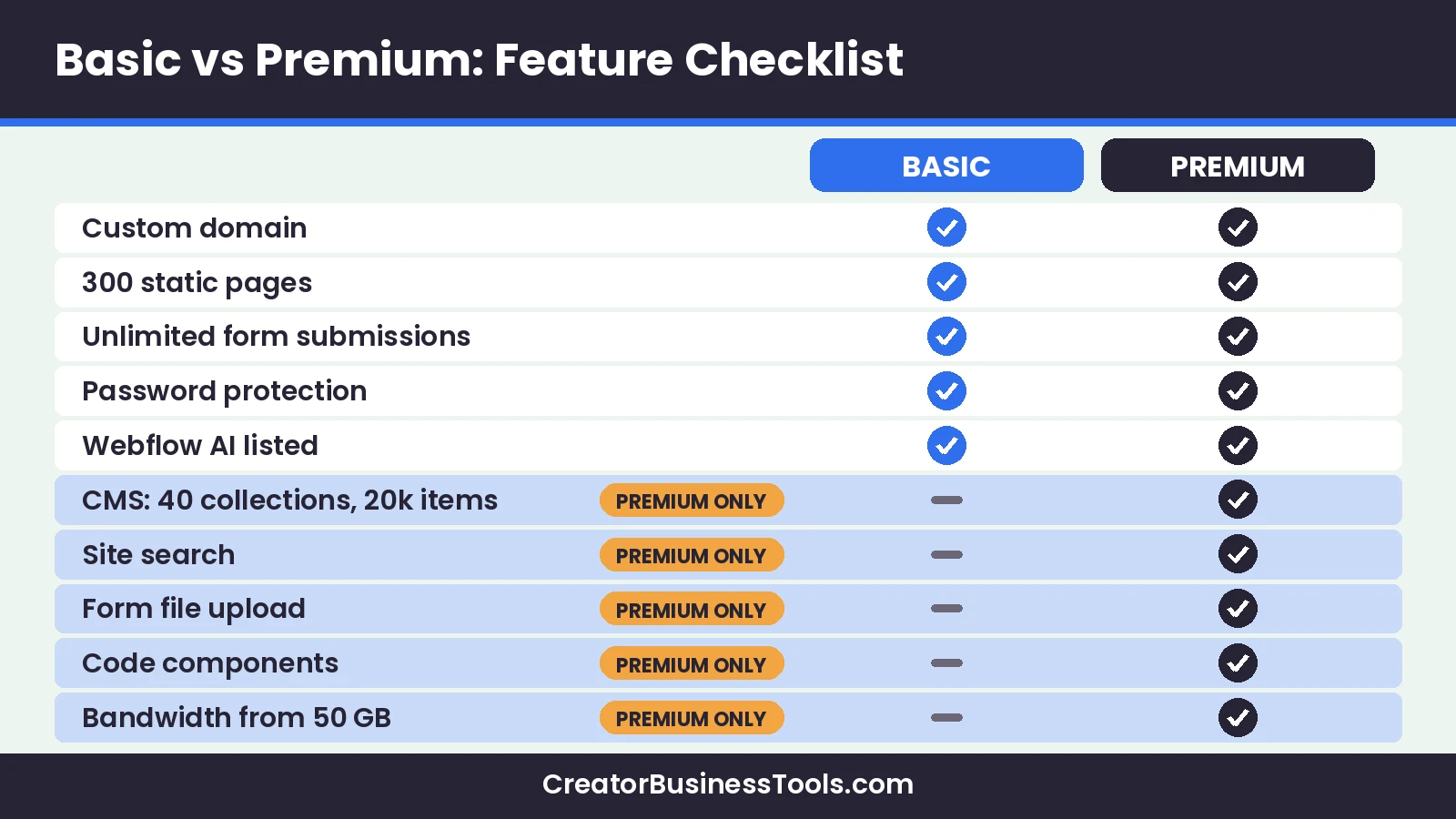
For most creators, this is the only comparison that matters.
| Feature | Basic | Premium |
|---|---|---|
| Custom domain | Yes | Yes |
| Static pages | 300 | 300 |
| Webflow CMS | No | Yes: 40 collections, 20,000 items |
| Bandwidth | 10 GB | From 50 GB, with add-ons up to 2.5 TB |
| Form submissions | Unlimited | Unlimited, plus file uploads |
| Site search | No | Yes |
| Code components | No | Yes |
| Password protection | Yes | Yes |
| Webflow AI | Listed | Listed |
Choose Basic if…
- Your site is a portfolio, services page, or personal brand site with fixed pages.
- You update content rarely and can edit pages directly.
- You collect inquiries through a contact form.
- You don’t need a blog or a filterable list of projects.
Choose Premium if…
- You want a blog, podcast archive, or resource library.
- You manage case studies or projects as CMS items with templates.
- You need site search so visitors can find content.
- You expect more traffic than Basic’s bandwidth covers.
- You want visitors to upload files through forms, like briefs or applications.
Upgrade signals
Start on Basic and upgrade when one of these shows up: you’re copying the same page layout over and over, you want to publish posts regularly, or you’re approaching the bandwidth limit.
Site plans vs Workspace plans
Webflow has two kinds of plans, and this confuses many first-time buyers.
- Site plans pay for publishing and hosting one website: domain, pages, CMS, bandwidth.
- Workspace plans cover the people and collaboration side of your account.
Webflow’s help center says AI credits are now included in all Workspace plans. If you work alone on one site, focus on the Site plan first and check the Workspace options on the pricing page.
Add-ons that change your real cost
Add-ons are priced separately from Site plans. They’re optional, but they can raise your monthly bill.
| Add-on | What it does | Starting tier | Who needs it |
|---|---|---|---|
| Analyze | Page views, sessions, clicks, page-level insights | $ (usage-based) | Creators who want analytics inside Webflow |
| Localize Essential | AI-powered translation, localized SEO, CMS localization | $ (usage-based) | Creators serving a second language |
| Localize Advanced | More locales and words, localized URLs, visitor routing | $–$$ (usage-based) | Multi-language sites |
| Optimize | A/B testing, personalization, audience targeting | $$$ (usage-based) | High-traffic sites running experiments |
| Extra bandwidth | More bandwidth on Premium | Varies by amount | Sites with heavy traffic or media |
Each add-on scales with usage, such as sessions, page views, or locales. Webflow also notes you can preview basic Localize features for free before publishing.
If you’re already on an older Webflow plan
Webflow’s help center lays out what changes for existing customers. The changes apply at your next renewal or when you make a billable change, such as switching plans or billing periods.
| Your current plan | What Webflow says changes |
|---|---|
| Basic | Price changes and the static page limit doubles from 150 to 300 |
| CMS | Moves to Premium; CMS items rise from 2,000 to 20,000 and collections from 20 to 40; file form upload and well-known files added |
| Business | Moves to Premium; CMS items rise to 20,000; included bandwidth drops from 100 GB to 50 GB, with bandwidth add-ons added if your recent usage was higher |
| Ecommerce | No change at this time |
Key dates in plain English
- Mid-May: new Site plans went live for new purchases.
- Late June: changes began applying to most existing sites.
- Mid-November: changes apply to sites in Freelancer or Agency Workspaces and to sites on older legacy pricing.
Webflow also notes that switching from monthly to yearly billing before the change applies to your account lets you keep your current plan for one more year. If you’re on an older plan you like, check your date in the help center.
Business plan users: watch bandwidth
Webflow’s own examples show that former Business plan users with high bandwidth may pay about the same or more after the change, because extra bandwidth is now bought as add-ons. Use Webflow’s pricing change calculator to check your situation.
Monthly vs yearly billing
Webflow’s pricing page advertises savings of up to 40% on yearly billing. The gap is easy to see in the tiers: Basic moves from the low tier on yearly billing toward the mid tier on monthly billing.
| Situation | Better choice |
|---|---|
| Testing whether Webflow suits you | Monthly |
| Launching a short-lived campaign site | Monthly |
| Running your main brand or portfolio site | Yearly |
| Planning to add a blog within a few months | Monthly on Basic, then yearly once you move to Premium |
Bandwidth, explained simply
Bandwidth is the amount of data your site sends to visitors each month. Images, videos, and downloadable files use the most.
- Starter: 1 GB, enough for building and previewing.
- Basic: 10 GB, which suits a light portfolio with optimized images.
- Premium: starts at 50 GB, with add-ons available up to 2.5 TB.
If your portfolio is image-heavy or you plan to host downloads, compress images and consider hosting large videos on a video platform. That keeps you comfortably within your plan.
Forms and lead capture by plan
For creators, the site’s main job is often collecting inquiries or newsletter sign-ups. Here’s how Webflow forms differ by plan.
| Plan | Form submissions | Extras |
|---|---|---|
| Starter | 50 | Good for testing only |
| Basic | Unlimited | Password protection for private pages |
| Premium | Unlimited | File uploads in forms |
Many creators also embed a sign-up form from their email tool instead of using native forms. That way new subscribers go straight into a welcome sequence.
A realistic path for a creator site
Most creator sites grow in stages. Here’s how plan choices usually follow that growth.
- Build: design on Starter while you gather your work and write your copy.
- Launch: move to Basic, connect your domain, and publish your portfolio and contact page.
- Publish content: when you start a blog or case-study library, upgrade to Premium.
- Expand: add Localize for a second language or Analyze for built-in insights if you need them.
- Commit: switch to yearly billing once the site is clearly here to stay.
Common pricing mistakes to avoid
- Paying for Premium before you have any CMS content.
- Staying on monthly billing for years on a stable site.
- Forgetting that a second website needs its own Site plan.
- Adding Optimize before the site has enough traffic to test.
- Hosting large videos directly and running into bandwidth limits.
Selection flowchart
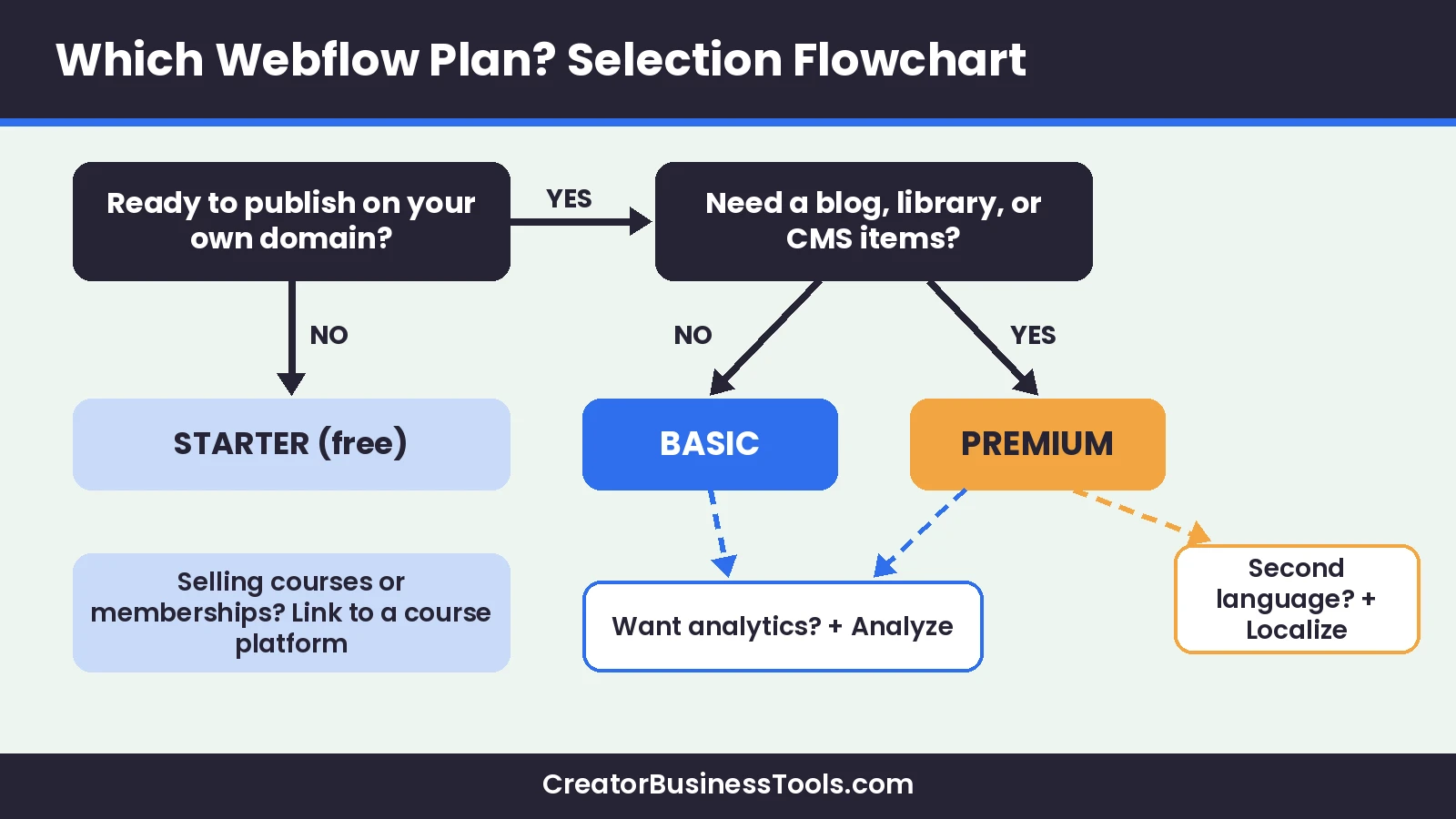
What a creator site typically costs on Webflow
Here’s how common creator sites map to plans. Your total depends on billing period and any add-ons.
| Site type | Plan | Common add-ons |
|---|---|---|
| Portfolio with 5–15 pages | Basic | None |
| Coach or consultant site with services and contact form | Basic | Optional Analyze |
| Creator site with a weekly blog | Premium | Optional Analyze |
| Podcast site with episode archive | Premium | Bandwidth if you host media |
| Bilingual brand site | Basic or Premium | Localize |
Ways to keep costs down
- Build on Starter until the site is ready to launch.
- Choose yearly billing once you’re confident the site will stay on Webflow.
- Start on Basic and upgrade only when you need the CMS.
- Not sure Webflow is the right builder? Our Framer vs Webflow comparison covers the main alternative for creator sites.
- Add analytics only if your existing tools don’t cover it.
- Review bandwidth before adding large videos or downloads.
Do creators ever need Team or Enterprise?
Rarely. Webflow describes Team as an all-in-one plan for fast-growing teams that have outgrown self-serve but aren’t ready for Enterprise, and it’s only available on annual billing.
According to Webflow’s help center, Team bundles a site with 100 CMS collections, 10 seats, Webflow Localize, and features like page branching and single-page publishing. That’s built for companies with marketing teams, not solo creators.
If you’re one person or a small studio, Basic or Premium plus the add-ons you need will almost always cost far less.
AI features and credits
Webflow lists Webflow AI and an MCP server on its Site plans. Its help center says AI credits are the unit used to measure certain AI features and are included in all Workspace plans.
The exact credit allowances can change, so check Webflow’s AI credits help page if AI tools are a big part of how you plan to build.
What Webflow pricing doesn’t include
A Webflow site plan covers your website. It doesn’t replace the other tools in a creator business.
- Email marketing: connect your newsletter tool through a sign-up form. Our guide to the best email marketing for creatives compares options.
- Courses and memberships: a dedicated platform usually fits better; see our Kajabi vs Teachable comparison.
- Online stores: Webflow has separate Ecommerce plans, which this guide doesn’t cover.
Learning curve and time cost
Webflow gives you detailed control over layout, styles, and CMS structure. That control comes with more to learn than simpler builders.
Webflow offers Webflow University and templates to help you get started. Budget time for learning in your first weeks, especially if you plan to use the CMS.
First-week setup checklist
- Pick a template or start from a blank page.
- Set up your global styles: fonts, colors, and spacing.
- Build your home, about, services, and contact pages.
- Decide whether you need CMS collections now or later.
- Connect your email sign-up form.
- Choose Basic or Premium and connect your domain.
Webflow review summary
- Clear entry path from free Starter to Basic and Premium.
- Generous static page limit on Basic.
- Strong CMS on Premium with high item and collection limits.
- Optional add-ons for analytics, translation, and testing.
Keep in mind: The CMS isn’t on Basic, prices are per site, and add-ons can raise your real monthly cost. Monthly billing is noticeably higher than yearly.
Best for: Creators who want a professional site with room to grow into a content hub.
Not ideal for: Anyone who needs built-in course hosting or wants the quickest possible setup with minimal learning.
Webflow pricing cheat sheet
Save this list for the moment you’re about to buy.
- Free to build: Starter lets you design and preview on a Webflow subdomain.
- Own domain: requires a paid Site plan, starting with Basic.
- Blog or library: requires Premium for the CMS.
- Per site: every published site needs its own Site plan.
- Billing: yearly costs less per month than monthly.
- Add-ons: Analyze, Localize, Optimize, and extra bandwidth are billed separately.
- Team plan: annual only and aimed at organizations, not solo creators.
- Older plans: CMS and Business now map to Premium on Webflow’s schedule.
- Stores: Ecommerce plans are separate and weren’t changed in the latest update.
Caveats before you commit
- Webflow updated its plans recently. Always check the official pricing page before buying.
- Prices are per site and exclude tax.
- Existing customers move to new plans on Webflow’s published schedule, so your current price may differ.
- Add-ons, extra bandwidth, and Workspace plans are billed separately.
- This guide is based on official product information, not performance benchmarks.
How to choose a Webflow plan
- List your pages. Count static pages and any repeating content like posts or projects.
- Decide on the CMS. Repeating content usually means Premium.
- Estimate traffic. Compare expected bandwidth with Basic’s limit.
- Pick a billing period. Yearly saves money once you’re committed.
- Add only the add-ons you need. Analytics and translation can wait.
- Build on Starter first. Upgrade when you’re ready to publish on your domain.
FAQ
What are Webflow’s current site plans?
Starter (free), Basic, and Premium for most users, with Team and Enterprise for larger organizations.
What happened to the CMS and Business plans?
Webflow combined them into the Premium plan for new purchases. Existing sites move over on Webflow’s published schedule.
Is Webflow free?
The Starter plan is free for building and exploring on a Webflow subdomain. You need a paid Site plan to use your own domain.
Does Basic include the CMS?
No. Webflow describes Basic as for simple sites that don’t need a CMS. The CMS comes with Premium.
Is monthly or yearly billing better?
Yearly billing has a lower effective monthly price. Monthly makes sense while you’re testing.
Do I pay per site?
Yes. Site plans are priced per site, so two websites need two plans.
Can I add a second language?
Yes, through the Localize add-on, which is priced separately.
Does Webflow include AI features?
Webflow AI is listed on its site plans, and AI credits are included in Workspace plans.
What happens if I’m on the old Business plan?
Your site moves to Premium at renewal or after a billable change. Check bandwidth, since included bandwidth on Premium starts lower than the old Business plan.
Can I lock in my current price?
Webflow says switching from monthly to yearly billing before the change applies to your account lets you keep your current plan for one more year.
How much bandwidth do I get?
Starter includes 1 GB, Basic 10 GB, and Premium starts at 50 GB with add-ons available.
Do I need Analyze if I already use another analytics tool?
Not necessarily. Analyze is an optional add-on for creators who want insights inside Webflow.
Bottom line
Webflow pricing is simpler than it looks. Most creators only need to choose between Basic for a static portfolio and Premium for a site with a blog or content library.
Start free on Starter, publish on Basic, and move to Premium when your content outgrows static pages. Add extras only when they solve a real need.
Considering Squarespace too? See our Squarespace vs Webflow vs Framer comparison for portfolios, small stores and coaching sites.