
Framer vs Webflow: Best Website Builder for Creators?
Disclosure: This post contains affiliate links. If you buy through them, we may earn a commission at no extra cost to you. How we make money.
You need a site that makes your work look good and helps the right people get in touch. Framer and Webflow are the two no-code builders creators ask about most, and they take very different routes to the same goal.
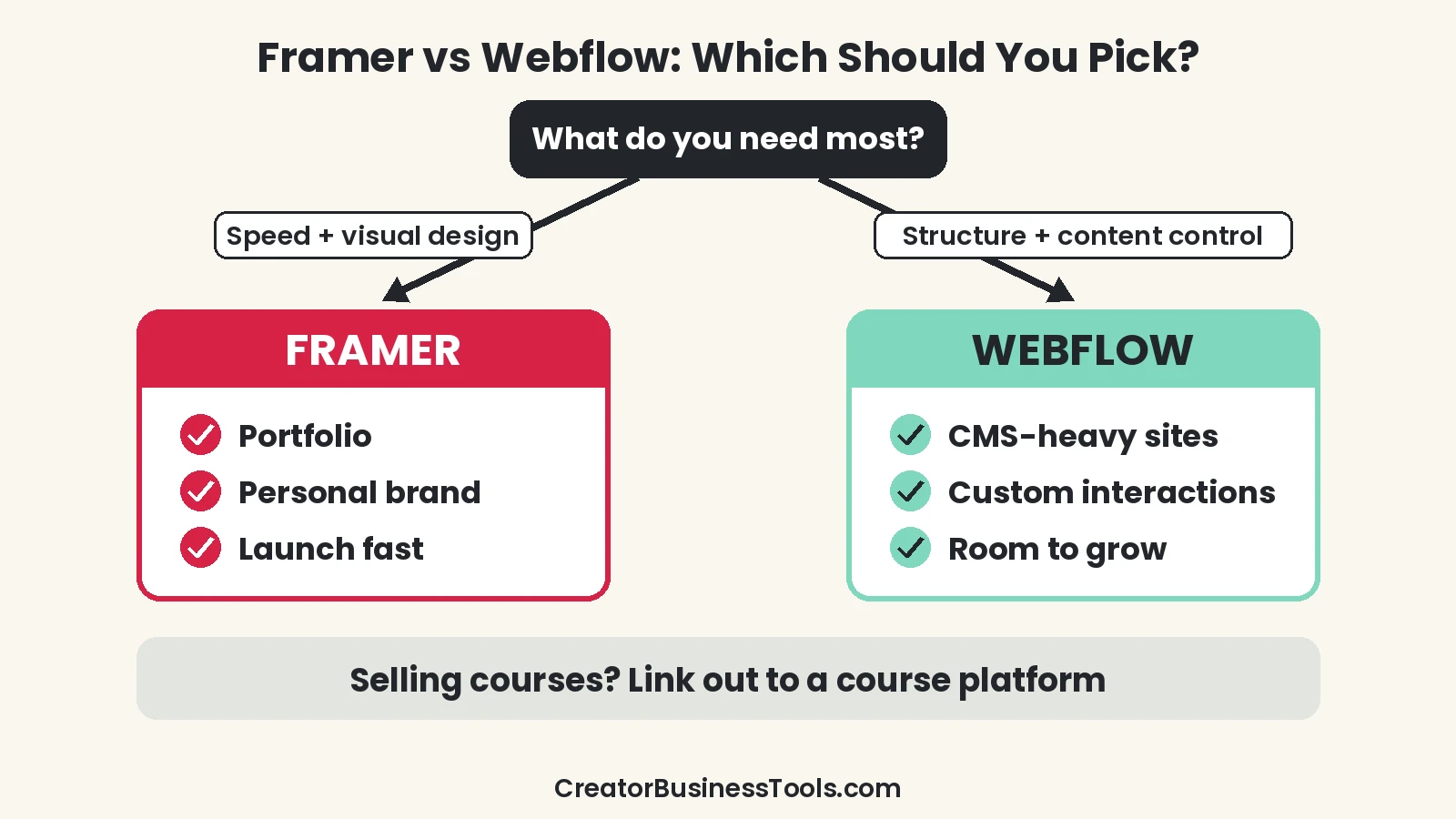
Quick verdict: Choose Framer if you want a polished portfolio or personal brand site fast, with a design-tool feel and simple publishing. Choose Webflow if you want deeper control over structure, content, and interactions, and you’re willing to learn more. Both are website builders, not sales-funnel tools.
Quick picks
| If you want… | Pick | Why |
|---|---|---|
| A beautiful portfolio live this week | Framer Basic | Custom domain, CMS basics, built-in SEO, design-first editor |
| A growing studio or brand site with staging | Framer Pro | More pages and CMS, redirects, staging, branching previews |
| A simple site without a blog or CMS | Webflow Basic | Custom domain, many static pages, unlimited form submissions |
| A content-rich site with a CMS-driven blog or library | Webflow Premium | Webflow CMS, site search, form file uploads |
| To sell courses, memberships, or run a checkout funnel | Neither as your core tool | Use a course or funnel platform and link to it from your site |
Framer vs Webflow at a glance
| Category | Framer | Webflow |
|---|---|---|
| Best known for | Design-first sites that publish quickly | Visual development with detailed control |
| Free plan | Yes; aimed at non-commercial use, Framer domain only | Yes (Starter); Webflow subdomain, 2 static pages |
| Entry paid plan band | Budget ($) (Basic) | Budget ($) (Basic) |
| Next plan band | Mid ($$) (Pro) | Mid ($$) and up (Premium) |
| CMS on entry plan | Yes, 2 collections on Basic | No; Webflow CMS starts on Premium |
| Pages on entry plan | 30 pages | 300 static pages |
| AI features | Monthly AI credits for Agents, localization and more | Webflow AI listed on every site plan |
| Localization | Add-on | Localize add-on |
| A/B testing | Convert add-on (Pro) | Optimize add-on |
| Analytics | Built in; history length depends on plan | Analyze add-on |
| Staging | Pro | Check plan details |
| Pricing unit | Per site, plus paid editors | Per site, with separate Workspace plans |
What each tool is really for
Framer in one sentence
Framer is a website builder that feels like a design tool. You lay out pages visually, publish to a custom domain on a paid plan, and add CMS content, localization, or testing as you grow.
Framer’s own plan guide says the Free plan suits non-commercial use, Basic suits students, freelancers, and small studios, and Pro is for teams that run their marketing site on Framer.
Webflow in one sentence
Webflow is a visual development platform. You work with page structure, styles, and a CMS in more detail, which gives you more control and a steeper learning curve.
Its pricing page separates Site plans (for publishing one site) from Workspace plans (for collaboration), with add-ons for analytics, testing, and localization.
Neither is a funnel builder
If your main goal is selling a course, running a membership, or building a checkout with upsells, a website builder isn’t the right core tool. Use a dedicated platform for that and link to it from your Framer or Webflow site.
Our Kajabi vs Teachable comparison covers course platforms if that’s your next step.
Framer pricing: Basic vs Pro
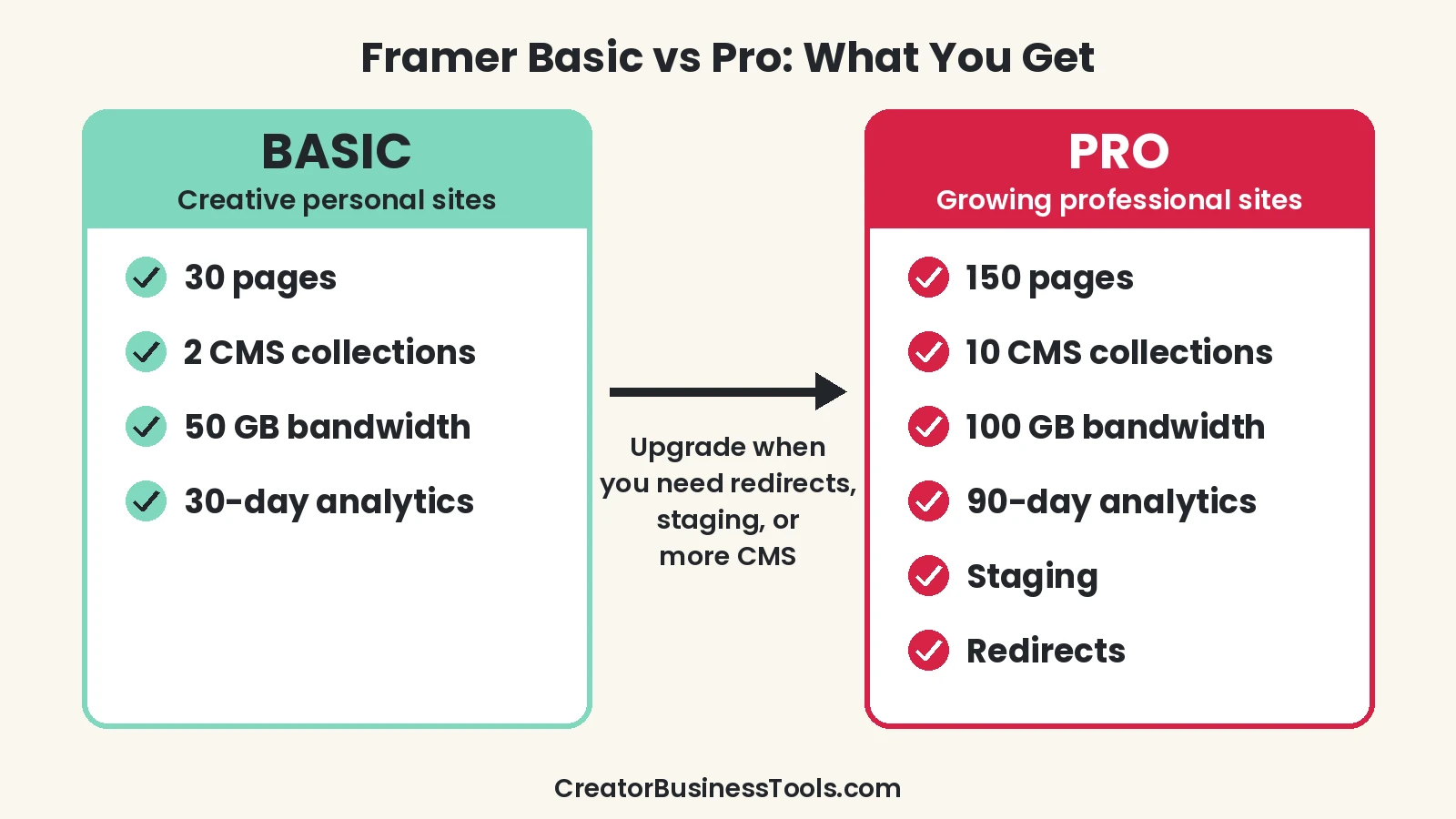
Framer bills per site, with yearly billing lowering the monthly price. Here’s how Basic and Pro compare on the official pricing page.
| Feature | Basic | Pro |
|---|---|---|
| Price tier | Budget ($) | Mid ($$) |
| Framer’s description | Creative personal sites | Growing professional sites |
| Custom domain | Yes (complimentary domain on yearly billing) | Yes (complimentary domain on yearly billing) |
| Pages | 30 | 150, expandable with add-ons |
| CMS collections | 2 | 10, expandable |
| CMS items | 1,000 | 2,500, expandable |
| Bandwidth | 50 GB | 100 GB, expandable |
| Analytics history | 30 days | 90 days |
| AI credits | 1,000 per month (base) | 3,000 per month (base) |
| Site redirects | No | Yes |
| Staging and branching | No | Yes |
| A/B testing | No | Convert add-on |
Who should stay on Basic
- A portfolio with a handful of case studies.
- A personal brand site with an about page, services, and contact form.
- A small blog or project list that fits in two CMS collections.
- Solo creators who publish changes directly without a review step.
When Pro makes sense
- You’re moving an existing site and need redirects to protect old URLs.
- You want staging to test changes before they go live.
- Your content library needs more than two CMS collections.
- You want longer analytics history or to run A/B tests.
Extra costs to know about
- Editors: additional editors are billed per seat; viewers are free.
- Add-ons: localization, A/B testing, and advanced hosting cost extra.
- Overages: for bandwidth, Framer says it lets you exceed the limit for one month and emails you so you can upgrade.
Webflow pricing in brief
Webflow’s Site plans are priced per site, and its pricing page advertises savings on yearly billing. Annual billing is cheaper than monthly billing.
| Plan | Price tier | Key limits and features |
|---|---|---|
| Starter | Free | Webflow subdomain, limited CMS, 2 static pages, 50 form submissions |
| Basic | Budget ($) | Custom domain, 300 static pages, 10 GB bandwidth, unlimited form submissions, password protection |
| Premium | Mid ($$) and up | Webflow CMS, bandwidth tiers from 50 GB, site search, form file upload |
Webflow also lists Team and Enterprise platform plans for larger organizations. Those are priced for companies, not individual creators, so most readers can ignore them.
Webflow add-ons
- Analyze: site analytics, priced by sessions.
- Optimize: A/B testing and personalization, priced by page views.
- Localize: translation and localized SEO, priced by locales.
Design and editing experience
Framer: fast, visual, template-friendly
Framer’s editor is built around visual layout. If you’ve used design apps, the canvas will feel familiar.
The Framer template marketplace offers ready-made sites you can adapt. For a portfolio, starting from a template is often the quickest way to a finished site.
Webflow: more control, more to learn
Webflow exposes more of how a website is built: structure, classes, and CMS fields. That’s powerful if you want a site that behaves exactly as you imagine.
Webflow’s site navigation highlights Interactions, GSAP support, and Webflow University for learning. Expect to spend time on tutorials before you feel fluent.
Side-by-side checklist
| You’ll be happier with… | If you… |
|---|---|
| Framer | Think visually, want to publish quickly, and prefer fewer settings |
| Framer | Want to start from a polished template and swap in your work |
| Webflow | Want a structured CMS with many fields and page templates |
| Webflow | Enjoy learning how sites work under the hood |
| Either | Need a professional site with a custom domain and contact form |
CMS and content
Framer CMS
Every Framer paid plan includes CMS collections: two on Basic and ten on Pro, with add-ons to expand Pro further. That’s enough for a portfolio, a blog, or a list of services.
Webflow CMS
Webflow’s CMS starts on the Premium site plan. Basic is aimed at simple sites that don’t need a CMS, according to Webflow’s own description.
If a blog or resource library is central to your plan, compare Framer Basic with Webflow Premium rather than with Webflow Basic.
Which is better for a creator blog?
- Small blog alongside a portfolio: Framer Basic covers it.
- Large, structured library: Webflow Premium or Framer Pro, depending on which editor you prefer.
SEO, analytics, and growth features
Both platforms let you build search-friendly sites. Framer lists built-in SEO on Basic, and Webflow lists SEO among its core product features.
| Growth feature | Framer | Webflow |
|---|---|---|
| Built-in SEO settings | Listed on Basic | Listed as a core product feature |
| Redirects | Pro | Check plan details |
| Analytics | Included, 30 or 90 days of history | Analyze add-on |
| A/B testing | Convert add-on on Pro | Optimize add-on |
| Translation | Localization add-on | Localize add-on |
Lead capture without a funnel
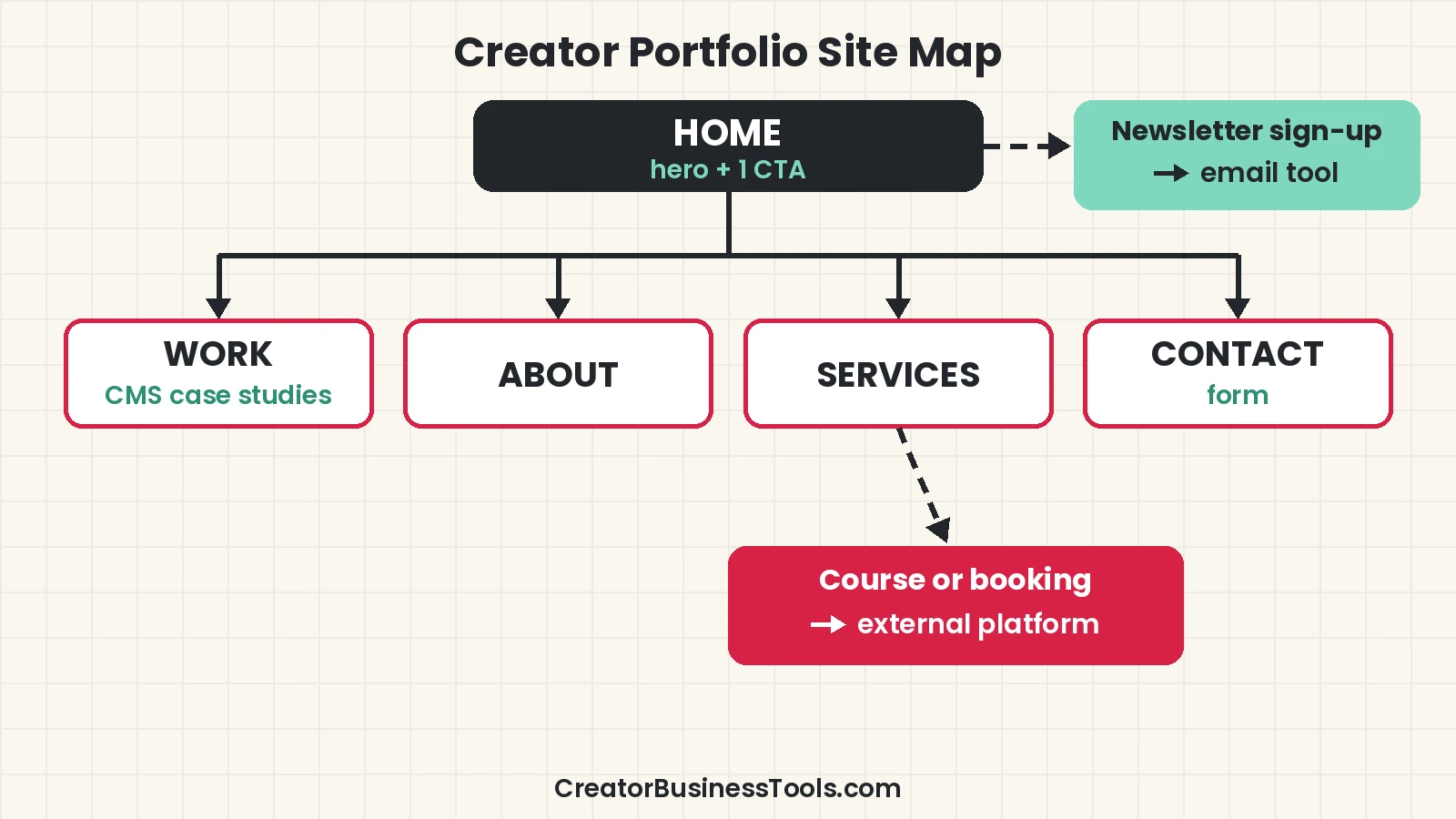
You don’t need a funnel builder to collect leads from a portfolio. A contact form, a newsletter sign-up embed from your email tool, and a clear call to action on every page usually do the job.
For choosing that email tool, see our guide to the best email marketing for course creators, or our picks for email marketing for artists and designers if your site is a portfolio.
AI features
Framer includes monthly AI credits on paid plans. Its FAQ says credits power Agents, localization, and other AI features, and they’re shared across your workspace.
Webflow lists Webflow AI and an MCP server on its site plans. Both companies are adding AI quickly, so check each pricing page for what’s included today rather than relying on older reviews.
Collaboration and clients
Framer
Framer’s pricing page lists a workspace owner, free viewers who can comment, and paid seats for editors and content editors. That works well for a solo creator who occasionally invites a collaborator.
Webflow
Webflow separates Workspace plans from Site plans. Freelancers building sites for clients often use both, so factor in the Workspace side if you’ll manage several client sites.
Framer review summary
- Design-first editor with a familiar canvas.
- CMS on every paid plan, starting with two collections.
- Clear upgrade path to Pro for redirects, staging, and more content.
- AI credits included each month.
Keep in mind: Basic has a lower page cap than Webflow Basic. Some growth features, like A/B testing and localization, are paid add-ons.
Best for: Creators, freelancers, and small studios who want a striking portfolio or brand site quickly.
Not ideal for: Very large content libraries on a tight budget, or anyone needing built-in course or checkout features.
Webflow review summary
- Deep visual control over structure and styles.
- Robust CMS on Premium for content-heavy sites.
- Many static pages and unlimited form submissions on Basic.
- Rich learning resources through Webflow University.
Keep in mind: The CMS isn’t on Basic, the learning curve is steeper, and analytics and testing are add-ons.
Best for: Creators who want a content-rich site and enjoy learning the tool, or freelancers building client sites.
Not ideal for: Anyone who wants to launch a simple portfolio this weekend with minimal setup.
Which plan fits your kind of creator site?
Here’s how common creator sites map to plans, based on the limits each company publishes. Use it as a starting point, then check your own page and content count.
| Creator type | Typical site | Framer plan | Webflow plan |
|---|---|---|---|
| Photographer or illustrator | Gallery, about, contact | Basic | Basic (no CMS) or Premium for a large gallery CMS |
| Coach or consultant | Services, testimonials, booking link, newsletter sign-up | Basic | Basic |
| Writer or podcaster | Blog or episode archive | Basic for a small archive, Pro for a large one | Premium |
| Designer selling templates elsewhere | Showcase plus links to the store | Basic or Pro | Basic or Premium |
| Small studio with several editors | Portfolio, case studies, careers | Pro plus editor seats | Premium plus a Workspace plan |
Switching later: what to plan for
Picking a builder isn’t permanent, but moving a site takes work. Each platform has its own editor and CMS, so you rebuild pages rather than export and import them in one click.
Protect your existing links
If you already have a site with traffic, redirects keep old URLs working after a move. On Framer, site redirects are a Pro feature, so budget for Pro during a migration even if Basic fits afterwards.
Keep your audience off-platform
Your email list is the asset that survives any website change. Collect sign-ups through your email tool’s form or embed, so subscribers stay with you whichever builder you use.
A quick migration checklist
- List every page and its URL before you start.
- Rebuild the most visited pages first.
- Recreate CMS content in the new collections.
- Set up redirects for any URL that changes.
- Reconnect your domain and test forms after launch.
A 7-day launch plan for a creator site
You don’t need months to launch. This plan works on either platform.
- Day 1: Write one sentence about who the site is for and what visitors should do next.
- Day 2: Pick a template or layout and gather your best five to ten pieces of work.
- Day 3: Build the home page with a single, clear call to action.
- Day 4: Add work or case study pages, using the CMS if you have many.
- Day 5: Add about, services, and contact pages, plus your newsletter sign-up.
- Day 6: Fill in page titles and descriptions for search, and check the site on mobile.
- Day 7: Upgrade to a paid plan, connect your domain, and publish.
Caveats before you commit
- Prices and plan limits change often. Check Framer’s and Webflow’s official pricing pages before you buy.
- Both companies bill per site, so multiple sites mean multiple plans.
- Add-ons such as localization, testing, and analytics can raise your real monthly cost.
- Neither tool replaces a course platform, membership platform, or checkout system.
- This guide is based on official product information, not hands-on benchmarks.
How to choose between Framer and Webflow
- Define the site’s job. Portfolio and inquiries, or a large content library?
- Count your pages and content types. Small and simple favors Framer Basic; heavy CMS needs favor Webflow Premium or Framer Pro.
- Be honest about learning time. If you want to publish soon, lean toward Framer.
- List the extras you need. Redirects, staging, translation, or testing may push you to a higher plan or add-on.
- Decide where you’ll sell. Link out to a course or membership platform rather than forcing a website builder to do it.
- Start free. Both have free plans for building and exploring before you pay to publish on a custom domain.
FAQ
Is Framer cheaper than Webflow?
At the entry level, both have budget-tier ($) paid plans, and annual billing is cheaper. The real difference depends on whether you need a CMS: Framer includes one on Basic, while Webflow’s starts on Premium.
Can I use Framer for free?
Yes. Framer’s Free plan suits non-commercial use and includes a Framer domain. You need a paid plan to connect your own domain.
Is Webflow harder to learn than Framer?
Webflow exposes more of the site’s structure, which usually means more learning. Webflow University exists to help with that.
Which is better for a portfolio?
For most creators, Framer gets a polished portfolio live faster. Webflow suits portfolios with large, structured content.
Can Framer or Webflow sell my course?
Neither is designed as a course or funnel platform. Use a dedicated tool and link to it from your site.
Do both offer AI features?
Yes. Framer includes monthly AI credits; Webflow lists Webflow AI on its site plans.
Does Framer Pro include A/B testing?
A/B testing is available through Framer’s Convert add-on on Pro, billed by analytics events.
Do I pay per site or per account?
Both price their site plans per site. If you run a portfolio and a separate project site, budget for two plans.
Can a client or assistant edit content without breaking the design?
Framer offers lower-cost content editor seats for updating CMS items and on-page text. Webflow handles collaboration through its Workspace plans, so check those if others will edit your site.
What happens if my Framer site suddenly gets a lot of traffic?
Framer says it lets you exceed bandwidth limits for one month and emails you so you can upgrade. Other limits prompt an upgrade inside the editor.
Can I connect my own domain on the free plans?
No. Framer and Webflow both require a paid site plan to publish on your own custom domain.
Bottom line
Framer and Webflow both build professional sites, but they suit different creators. Framer is the faster, design-first path to a portfolio or brand site, and Basic covers most solo creators. Webflow rewards the time you invest with more control and a stronger CMS on Premium.
Pick based on your content needs and how much you want to learn, and keep course sales or funnels on a platform built for them.
Compare Framer plans · Compare Webflow plans
Considering Squarespace too? See our Squarespace vs Webflow vs Framer comparison for portfolios, small stores and coaching sites.
Need to embed testimonials with Senja on a coach site? That pairs well with either builder.