
Hostinger AI Website Builder Review: Can You Launch a WordPress Site from a Prompt?
Disclosure: This post contains affiliate links. If you buy through them, we may earn a commission at no extra cost to you. How we make money.
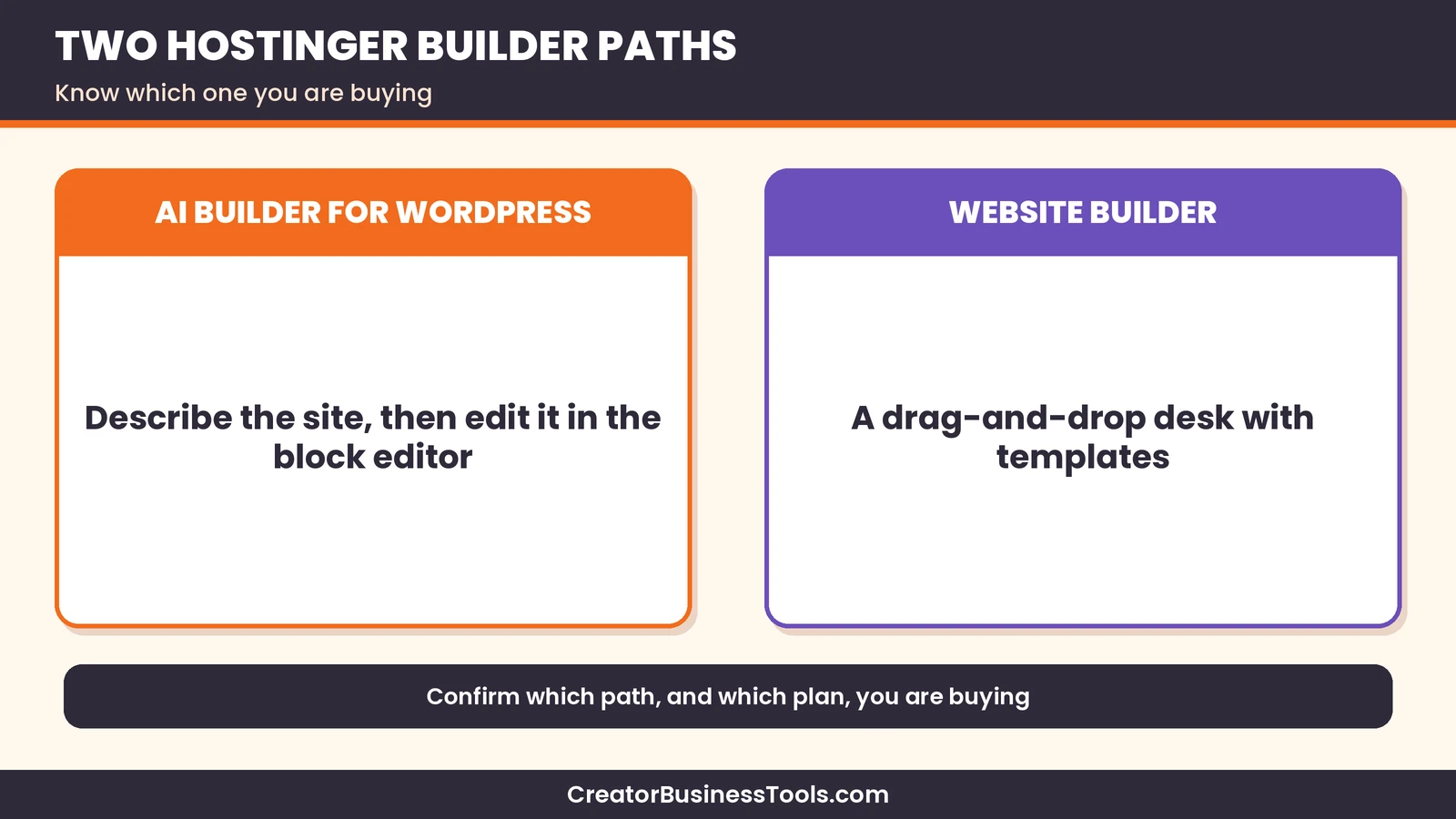
This Hostinger AI Website Builder review looks at the official AI website builder path for WordPress: you describe a site, receive a layout with starter content, and edit it in the block editor. Hostinger also offers a separate drag-and-drop website builder, which is not the same product. I am using official product pages, not a timed build test, so you can decide whether a prompt-to-layout flow is the right start for a new site.
The reader’s problem: a blank WordPress dashboard can stall a new site
Many people want a site and do not want to start from an empty theme. A prompt-to-layout tool can feel like a shortcut. It can also leave you with starter text you did not write, and a plan-inclusion rule that is not obvious.
A useful Hostinger AI Website Builder review starts with what the official flow actually does, which builder you are looking at, and which official plan you need to confirm. Then you decide whether the first page should be generated, or written from a simple theme.
Three criteria for this review
Criterion one: the official flow, not the slogan
Official pages describe a prompt, a generated layout, and an editing step in WordPress. That is the product under review.
Criterion two: plan inclusion you can confirm
Official wording about which hosting rungs include the AI website builder for WordPress is not identical on every page. Confirm the current official rule for the plan you pick.
Criterion three: a finished site still needs your writing
A generated layout is a start. About pages, offers, and blog posts still need your voice.
Hostinger AI Website Builder review, at a glance
| Product | Best for | Key strength | Drawback | Price tier |
|---|---|---|---|---|
| Hostinger AI Website Builder for WordPress | Beginners who want a first WordPress layout from a written description | Official prompt-to-layout flow, then block-editor edits | Official plan-inclusion wording should be confirmed | Follows the hosting plan you pick, in budget to mid-range prepaid rungs |
| Hostinger Website Builder (drag-and-drop) | People who want templates and a builder that is not the WordPress block editor | Official template-based builder path | A different desk, and a different editing habit | Follows the hosting or builder plan you pick |
| A classic WordPress theme on Hostinger | People who want to write the first page themselves | A familiar post-and-page desk | You start with more empty space | Included with a WordPress hosting plan |
What the AI website builder is
According to official Hostinger pages, the AI website builder for WordPress lets you describe the site you want. The product then generates a layout with starter pages and content, and you edit that result in the WordPress block editor. Official materials also describe related AI tools around copy, images, or layout help, depending on the page you read.
This is not the same as the official Website Builder, which is a drag-and-drop product with a large template library. If you wanted a non-WordPress builder, that is a different path. This review stays with the WordPress AI flow.
Pros of the Hostinger AI website builder path
- A written description can produce a first layout
- Editing happens in the WordPress block editor, so you stay on a WordPress desk
- Official pages position it as a way to start faster than a blank theme
- It can sit in the same product family as hosting, a domain workflow, and email
Cons to keep in mind
- Official plan-inclusion wording is not identical on every page
- Generated text is starter content, not a finished brand voice
- A layout is not a published offer, blog, or store
- I did not run a timed build or quality test for this review
How the official flow is supposed to work
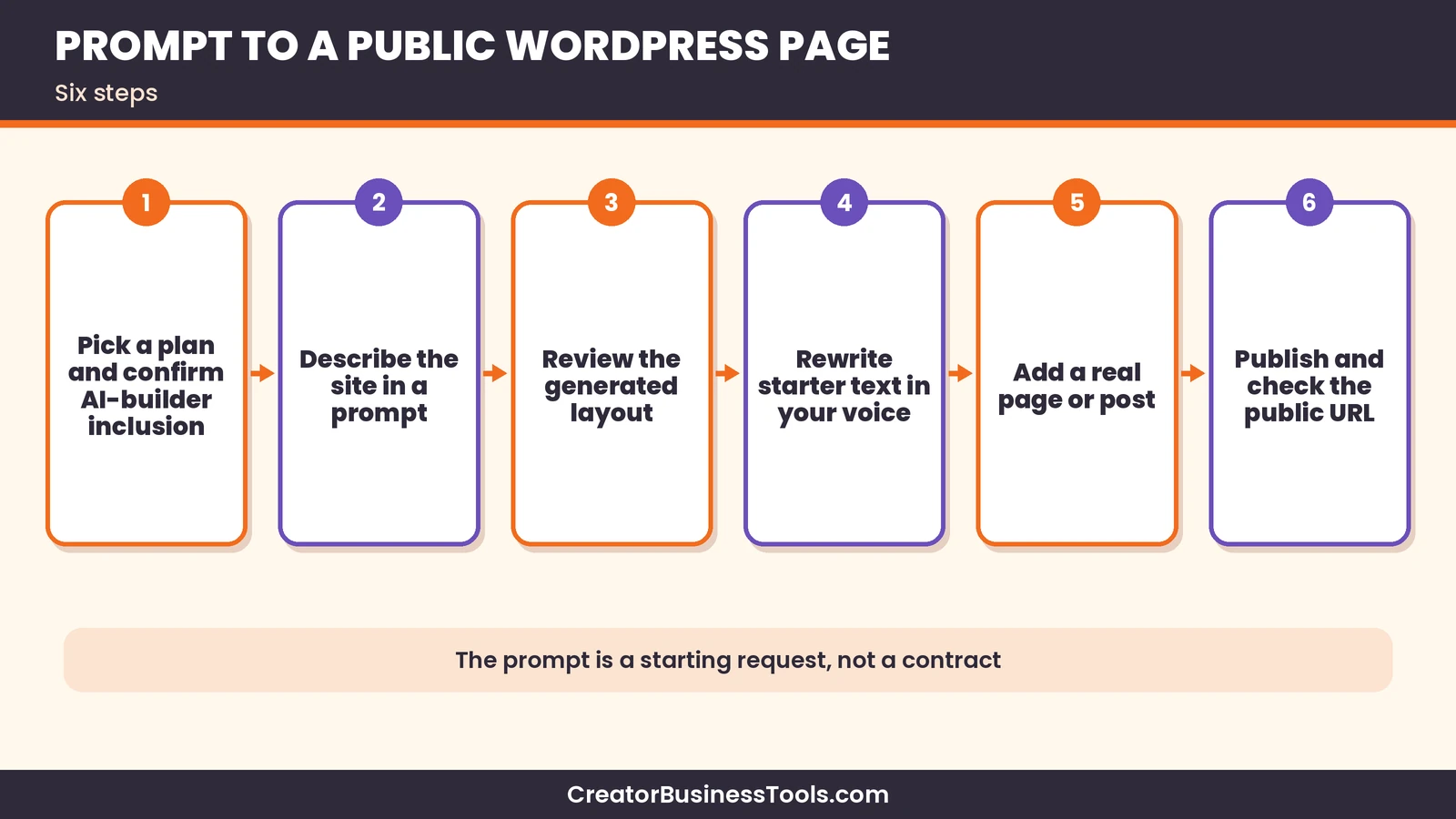
Step one: pick an official hosting rung and confirm, on the current official page, that the AI website builder for WordPress is included.
Step two: describe the site in clear language — the reader, the offer or topic, and the pages you need.
Step three: review the generated layout on a desktop and a phone. Note anything that does not match the site you described.
Step four: rewrite the About page and any starter headlines in your voice. Delete pages you will not use.
Step five: add one real page or post that you wrote, not only generated copy.
Step six: publish and open the public URL in a private window.
If a step in official onboarding looks different, follow the screens in front of you. This is a map, not a timed walkthrough.
How it compares with the other two starting points
The drag-and-drop Website Builder is useful if you do not want WordPress. You will learn a different editor, and you should confirm official plan rules for that product too.
A classic WordPress theme is useful if you already know the block editor, or if you want the first sentence on the site to be yours from the start. Official Hostinger WordPress hosting can start this way without the AI flow.
The AI path sits between those two: you stay in WordPress, but you do not start from a blank page.
Best-use-case recommendations
| Situation | Pick | Why |
|---|---|---|
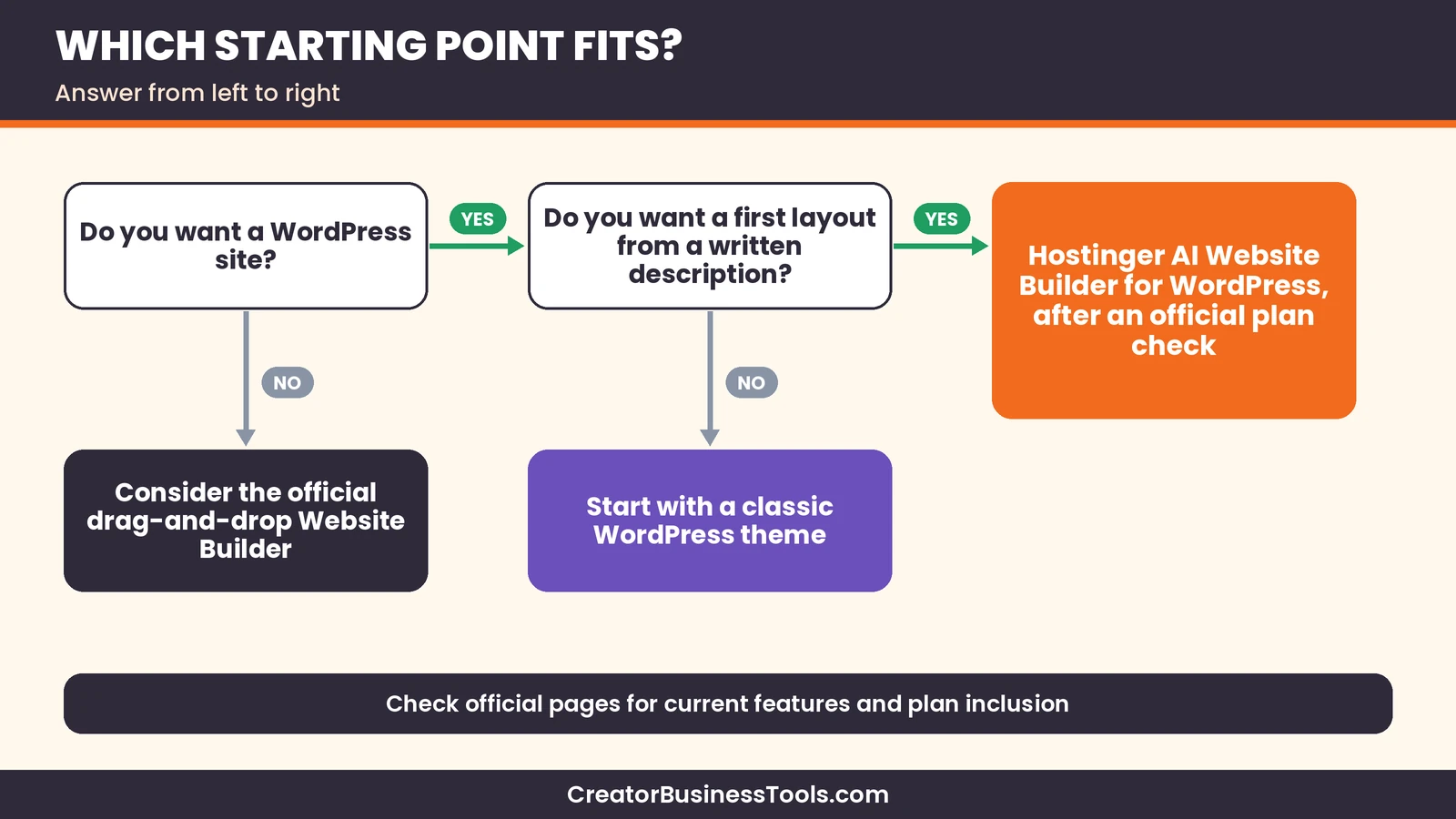
| A first WordPress site, and a blank theme feels too open | Hostinger AI Website Builder, after an official plan check | Official prompt-to-layout flow |
| You do not want WordPress | The official drag-and-drop Website Builder | A different official desk |
| You already write easily in WordPress | A classic theme on a Hostinger WordPress plan | You skip generated starter copy |
| A blog that needs a first post more than a generated home page | WordPress posts first, AI layout optional | The blog is the writing, not the prompt |
Pricing structure, without the noise
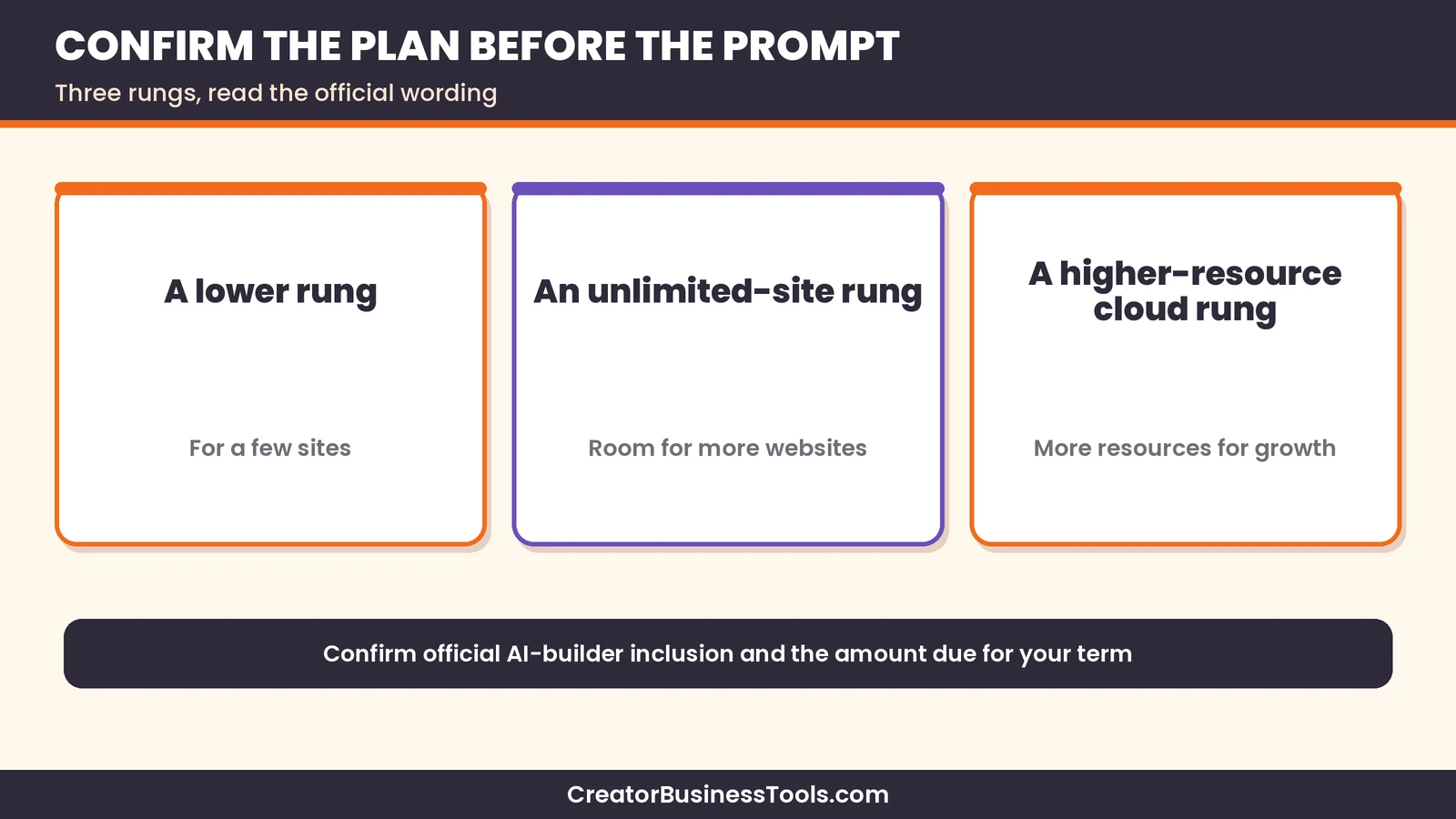
The AI website builder is not a separate public price ladder in the way a hosting plan is. Official pages attach it to hosting rungs, and the inclusion wording is not identical everywhere. Hostinger sells prepaid hosting plans in more than one term length, and official pages show more than one amount for the same rung. Read the official pricing page for the amount due, and confirm builder inclusion for that exact rung. I am not restating dollar amounts here.
Public official rungs in this review include a lower plan for a few sites, an unlimited-site plan, and a higher-resource cloud plan. Confirm which of those officially include the WordPress AI builder before you count on the flow.
When this builder is a good fit
It is a good fit if you want a WordPress site, you can describe the business or blog in a short prompt, and you are willing to rewrite the starter copy. It is also a fit if you already planned to use Hostinger for hosting and want the first layout to appear inside that same desk.
When you should pick a different path
Pick the drag-and-drop Website Builder if WordPress is not the desk you want.
Pick a classic theme if generated copy would slow you down, or if you already have a written home page.
Pick a different host if you already decided on another WordPress desk. Our SiteGround review covers one alternative, and Kinsta vs WP Engine covers a higher-tier path.
Mistakes I would avoid
- Assuming every official hosting rung includes the WordPress AI builder
- Publishing generated About-page copy without a rewrite
- Confusing the AI WordPress path with the drag-and-drop Website Builder
- Adding a store, a blog, and a booking page in the first prompt, then publishing all of it unedited
- Treating this review as a build test; I did not run one
- Buying a high-resource rung only because the builder looked impressive in a demo
How I would use it for one real site
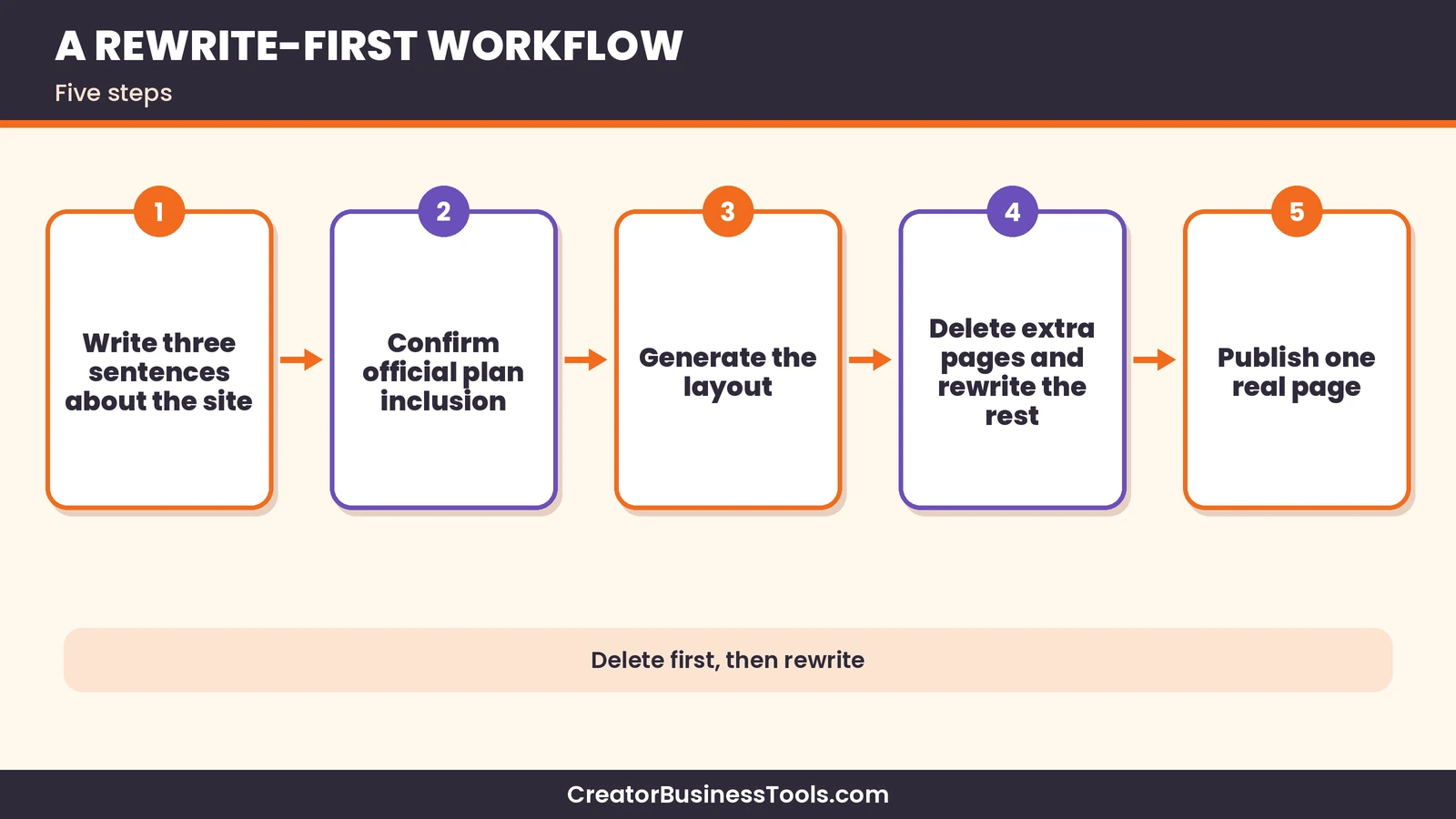
Write the site in three sentences before you open the builder: who it is for, what the first page should say, and which pages you actually need. Confirm official plan inclusion. Generate the layout. Then spend your first session deleting extra pages and rewriting the remaining text. Publish only when the public page sounds like you.
If you later want a different visual layer for WordPress, our Elementor alternatives guide can help you compare builders. Do not add that layer until the first page is already public and rewritten.
What official pages do not replace
Official screenshots and feature lists will not tell you whether the generated layout matches your brand. They also will not settle plan inclusion if two official pages disagree. In that case, use the plan page you are buying from, or official support, before you start the prompt.
I did not generate a site for this review, so I am not describing layout quality, typography, or how close a result came to a prompt. Those are things you should judge on your own official flow.
Support, domain, and the rest of the desk
A generated layout still needs a domain, SSL, and a hosting plan. Official Hostinger pages describe those as part of the broader hosting story. Confirm mailbox limits if you want email on the same domain. Confirm backup rhythm for the rung you pick.
The builder is one tool on the desk. The host still holds the files and the address.
What to put in the prompt, and what to leave out
A useful prompt is short. Name the reader, the topic or offer, and the pages you actually need. “A quiet craft blog for beginners, with a home page, a blog, an About page, and a Contact page” is enough.
Leave out a shop, a booking calendar, a membership area, and a second brand voice unless those are already real parts of the business. Official tools may be able to generate extra pages. Extra pages are also how a first site becomes a pile of unused sections.
After the layout appears, your first job is deletion. Remove the pages you will not keep. Then rewrite the remaining headlines and body text in your voice. Then add one page or post that was not generated.
If the official flow offers image or copy tools, treat them as drafts. A generated image can fill a slot. It should not be the only proof that the site is yours.
Navigation, mobile view, and a short quality bar
Before you publish, open the generated layout on a phone. Check that the menu points to the pages you kept, that the first screen says who the site is for, and that contact details are real. Official Hostinger pages will not do this check for you.
I would also look at heading order, spacing, and whether two pages repeat the same sentence. Starter content often repeats. A rewrite should leave one clear idea per page.
If a section does not match the three-sentence brief you wrote, change it or delete it. The prompt is a starting request, not a contract with the layout.
A calm first-week cadence after you publish
Day one after publish: share the URL with one person you trust, and fix anything they cannot find.
The next writing session: add or rewrite one real page, or publish a first blog post if this is a blog.
The session after that: confirm official backups and the domain path, then stop editing the theme for a bit.
This cadence keeps the AI website builder in its place. It helped you leave a blank dashboard. It should not become a loop of new prompts that replace writing.
If you feel the urge to generate a second site before the first one has a rhythm, pause. Finish the public page you already have.
Questions to confirm on official pages
- Whether the AI website builder for WordPress is included on your exact rung
- How that path differs from the drag-and-drop Website Builder
- Site, storage, and backup caps
- The amount due for the term you pick
- What official AI credits or related tools, if any, are listed for that plan
My honest take
The honest way to read a Hostinger AI Website Builder review is as a start-up flow, not as a finished-site promise. Hostinger offers an official path from a written description to a WordPress layout you can edit. That can help a beginner who is stalled by a blank dashboard. It still asks you to confirm plan inclusion, rewrite the starter copy, and publish a page you actually stand behind.
I would not treat the prompt as the writing. I would treat it as a first arrangement of pages. I did not run a build, so judge the result on the official flow in front of you. I would also keep the hosting plan and the builder path in the same note, so a later edit does not assume a tool that official pages do not include on that rung. A short note is easier to trust than a second prompt.
If you work with a helper, decide who rewrites the generated text before the site is public. A quiet first week is easier when the voice of the site has an owner.
Related reading: SiteGround review, Kinsta vs WP Engine, Elementor alternatives.
FAQ
What is the Hostinger AI Website Builder?
It is an official Hostinger path for WordPress: you describe a site, receive a generated layout with starter content, and edit it in the block editor. It is not the same as the official drag-and-drop Website Builder.
Is the AI website builder included with every Hostinger plan?
Official wording is not identical on every page. Confirm inclusion on the official plan page you are buying from.
Can I launch a WordPress site from a prompt alone?
You can start from a prompt, according to official pages. Launching a site you are proud of still takes a rewrite, a domain, and a published page.
Should I use this if I already know WordPress?
Only if a generated layout would help. If you already have a written home page, a classic theme may be simpler.
Can I use this for a blog?
Yes, as a first layout. You still need to write and publish posts. A generated home page is not a blog by itself.
Get the free AI-builder checklist
Free checklist: Get our free Ai-Builder Checklist — for confirming plan inclusion, writing a prompt, and rewriting starter copy before you publish. Contact us to request a copy.
Conclusion: a Hostinger AI Website Builder review verdict
This Hostinger AI Website Builder review comes down to a simple test. If you want a WordPress site, you can describe it clearly, and you will rewrite the starter copy, the official prompt-to-layout path on Hostinger is a reasonable way to leave a blank dashboard behind. Confirm official plan inclusion, keep the drag-and-drop builder separate in your mind, and publish only after the public page sounds like you. A prompt can start the layout. It cannot finish the site.