
Make Pricing Explained: Free vs Core vs Pro vs Teams for Creators
Disclosure: This post contains affiliate links. If you buy through them, we may earn a commission at no extra cost to you. How we make money.
If you’ve opened Make’s pricing page, dragged the credit slider back and forth, and closed the tab without deciding, you’re in good company. Make pricing looks simple at first: a free plan, a few paid plans, and a slider. The confusing part is that the price depends less on the plan name and more on how many credits your automations burn each month, and most creators have no idea what that number is before they start.
That’s the problem this guide solves. You’re probably a course creator, coach, or solo business owner with a payment tool, an email platform, and maybe a community, and you want them talking to each other without paying for a plan that’s far bigger than you need. Or you’re already on the free plan and you’ve hit a limit, and now you’re wondering whether Core is enough or whether you’ll regret not picking Pro.
This guide walks through what each Make plan includes, how credits work in plain English, how to estimate your monthly usage before you pay, and which plan tends to fit which kind of creator business. It sticks to price tiers instead of exact dollar amounts, because Make adjusts its prices and credit tiers from time to time, and the official pricing page is the place to confirm the final number.
If you’re still deciding whether Make is the right tool at all, start with our Make review or the head-to-head Make vs Zapier guide. This article assumes you’ve picked Make and now want to pick the right plan. It’s based on Make’s official pricing page and help center, not on hands-on benchmarks.
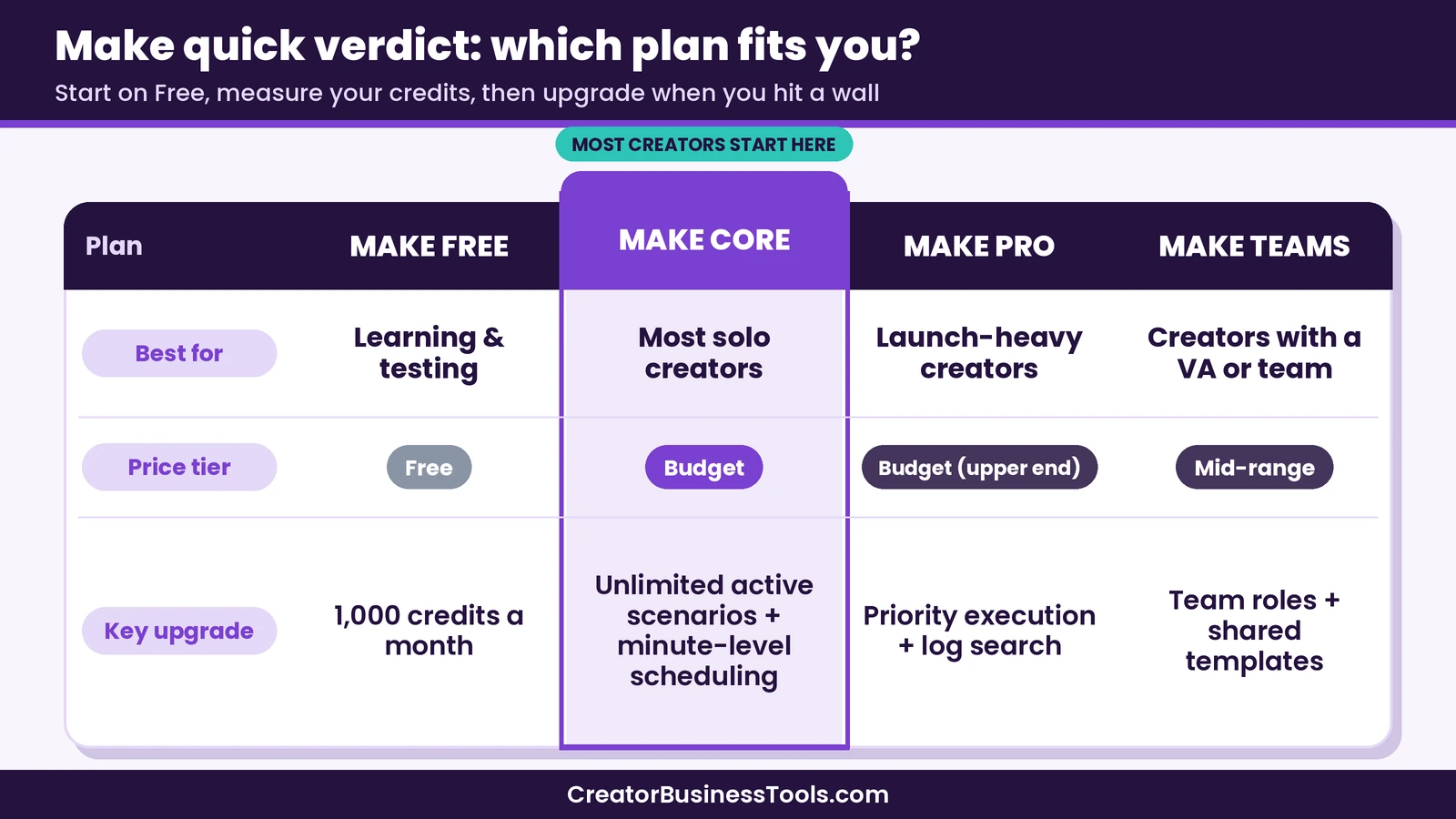
Quick verdict: Start on Make Free to learn the builder and measure your real credit use. Move to Core, the budget tier, once you need more active scenarios or minute-level scheduling; it fits most solo course creators and coaches. Choose Pro for launch-heavy businesses that want priority execution and log search, and Teams only when a VA or teammate helps maintain your automations.
Quick picks
- Best place to start: Make Free, with no time limit on the plan. Try Make free
- Best for most solo creators: Make Core, with unlimited active scenarios and minute-level scheduling in the budget tier. Try Make free
- Best for launch-heavy businesses: Make Pro, with priority execution and full-text log search.
- Best for creators with a VA or small team: Make Teams, with team roles and shared templates.
Why Make Pricing Feels Confusing (and Why It Matters for a Small Business)
Most software you buy as a creator charges by seats or by contacts. Make charges by usage. Every time a step in one of your automations does something, such as reading a new payment, adding a subscriber, or writing a spreadsheet row, it uses credits. Your plan gives you a monthly (or yearly) pool of those credits, and the price rises as you choose a bigger pool.
That model is genuinely good news for small businesses, because a solo creator with a handful of automations can run on a very small credit amount. But it also creates two common mistakes:
- Overbuying. You pick a large credit tier “just in case” and pay for credits that expire unused.
- Underbuying. You pick the smallest tier, your launch week spikes your usage, and your scenarios pause right when buyers are waiting for their welcome email.
Here’s a common version of this trap, and it isn’t about Make at all. Picture a creator who pays upfront for a full year of a social media scheduling tool because the annual discount looks too good to skip. They pick a tier based on the posting schedule they hope to keep, not the one they actually keep. A few months in, they’re using a fraction of what they paid for, and by the renewal date they’ve mostly moved on. It isn’t a huge loss, but the lesson applies directly to Make: size a usage-based plan from real numbers, start small, and upgrade only when you hit a wall. That’s the approach this guide recommends throughout.
Three Universal Criteria for Choosing a Make Plan
Before comparing plans, it helps to know which questions actually change the decision. These three matter far more than any line on the feature grid.
1. How many credits will your scenarios use each month?
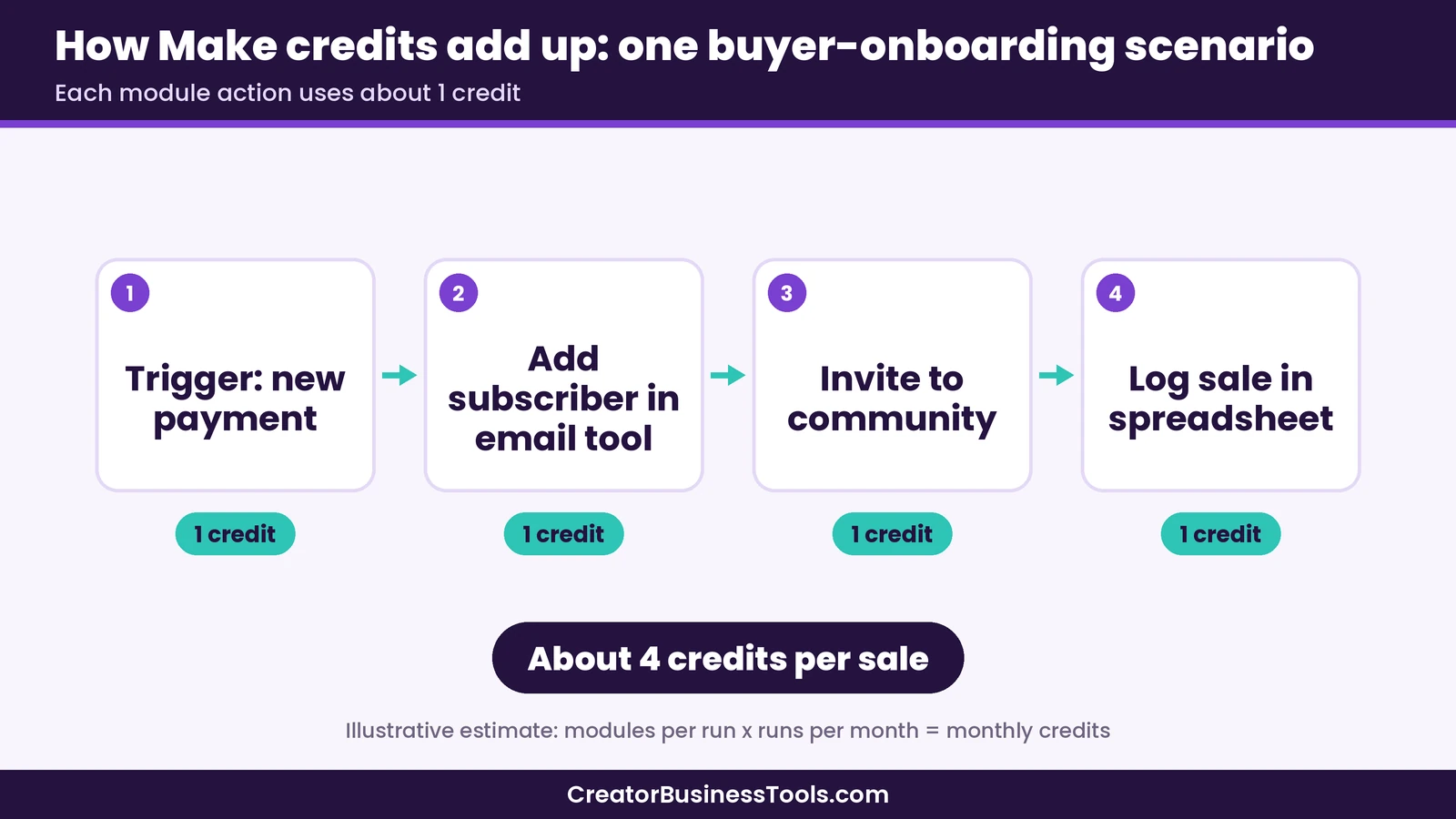
This is the big one. According to Make’s pricing FAQ, each module action in a scenario uses credits, and most actions use one credit. Things that count include reading data from an app or webhook, searching for data, creating, updating, or deleting data, transforming data with built-in tools, and aggregating or iterating rows. A few modules don’t use credits at all: Make lists the Router and the error handler modules (Rollback, Break, Resume, Commit, Ignore) as exceptions.
Some AI features work differently. Make’s help center explains that its built-in AI tools, such as Make AI Agents and the Make AI Toolkit, can use a varying number of credits based on tokens when you use Make’s own AI provider. On paid plans you can connect your own AI provider account instead, in which case you pay Make for operations and pay the AI provider directly for tokens.
A quick way to estimate: count the modules in each scenario, multiply by how many times it runs per month, and add a buffer for busy weeks.
For example, a buyer-onboarding scenario with four steps (receive the payment, add the buyer to your email list with a tag, invite them to your community, log the sale in a spreadsheet) uses roughly four credits per sale. At 150 sales a month, that’s around 600 credits. Add a refund-cleanup scenario and a weekly summary, and you may still be in the low thousands. This is an illustrative estimate, not a quote, but it shows why many solo creators need far fewer credits than they expect.
The flip side: scenarios that poll an app very frequently or loop through big lists can add up quickly, because reading and iterating data count too.
2. How fast and how often do your automations need to run?
The free plan has a 15-minute minimum interval between scheduled runs, according to Make’s pricing page. Paid plans let you schedule scenarios down to the minute. If your buyers expect access to a course within moments of paying, speed matters. If your automation is a weekly report, it doesn’t.
Pro adds priority scenario execution, which Make positions as its high-performance execution tier. For a creator, that mostly matters during launches when timing feels urgent.
3. Who else touches your automations?
If you’re the only person building and fixing scenarios, the solo plans are fine. If a virtual assistant, contractor, or teammate helps maintain them, the Teams plan adds teams and team roles and lets you create and share scenario templates. That’s the line where the plan choice stops being about credits and starts being about collaboration.
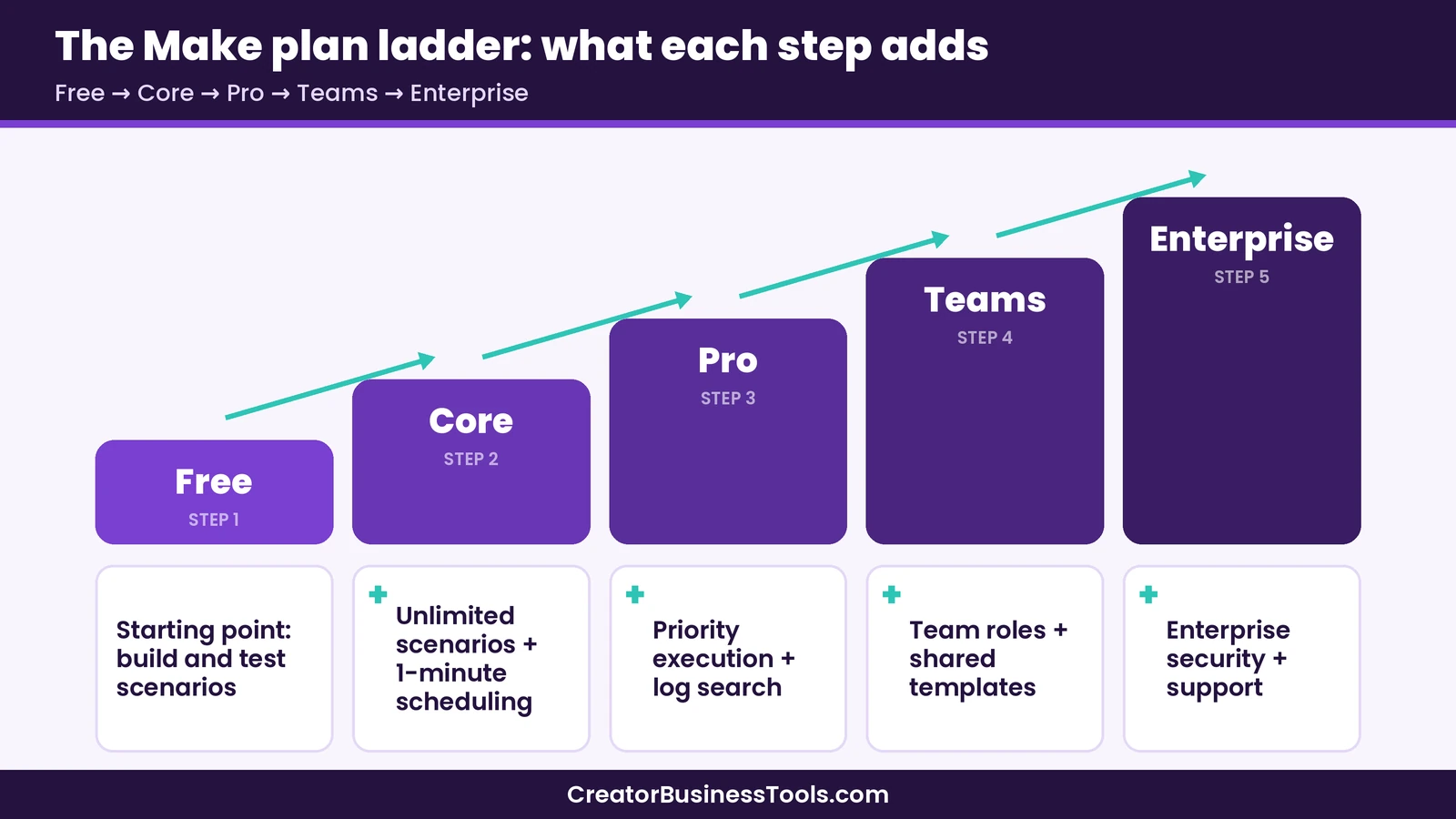
Make Pricing Comparison Table: Free vs Core vs Pro vs Teams vs Enterprise
Here’s how the five Make plans compare at a glance. Price tiers reflect the smallest credit amount on each plan: $ = budget, $$ = mid-range, $$$ = premium. Prices rise on every paid plan as you move the credit slider up.
| Plan | Best for | Key strength | Main drawback | Price tier |
|---|---|---|---|---|
| Make Free | Building and testing your first scenarios | 1,000 credits a month with no time limit on the plan | Limited active scenarios and a 15-minute minimum interval | Free |
| Make Core | Most solo creators and coaches | Unlimited active scenarios, minute-level scheduling, Make API access | Credit tiers cap out lower than Pro; annual billing still resets credits monthly | $ |
| Make Pro | Launch-heavy creators who want speed and better troubleshooting | Priority execution, custom variables, full-text execution log search | Costs more than Core at the same credit amount | $ (upper end) |
| Make Teams | Creators working with a VA or small team | Teams, team roles, and shareable scenario templates | More than a solo creator needs | $$ |
| Make Enterprise | Larger organizations with security and support needs | Enterprise apps, custom functions, overage protection, 24/7 enterprise support | Custom pricing through sales; overkill for small businesses | $$$ (custom) |
Compare Make’s plans on the official pricing page
A few rules apply across paid plans, based on Make’s pricing FAQ and help center:
- Credits expire. Unused credits don’t roll over at the end of the term.
- Annual is cheaper. Make says paying annually in advance costs less than paying monthly.
- Running out pauses scenarios. Scenarios stop until credits are added. Incoming webhooks are queued up to your webhook queue allowance and processed once you resume.
- Extra credits cost more per credit. Make’s help center says extra credits, whether bought manually or through auto-purchasing, include a 25% additional cost compared with the credits in your plan.
- You can cancel anytime. Your paid plan runs to the end of the billing term, then the organization moves to the Free plan.
Pros and Cons of Each Make Plan
Make Free
The Make Free plan is where we suggest almost everyone begins. Make says there’s no time limit on it, so it works as a real sandbox rather than a short trial. You get 1,000 credits per month, the full visual workflow builder, access to Make’s app library, routers and filters, and customer support.
Pros
- No cost and no time limit, so you can learn the canvas at your own pace.
- 1,000 monthly credits is enough to build and test a real multi-step scenario.
- Includes routers and filters, so you can try branching logic before paying.
Cons
- Limited number of active scenarios. Make’s paid plans add “unlimited active scenarios.”
- 15-minute minimum interval between scheduled runs.
- One data store with 1 MB of storage, based on Make’s usage allowance explanation.
Keep in mind: Free is for learning and light use; time-sensitive automations will feel the scheduling limit.
Best for: testing whether Make fits your brain and your stack before spending anything.
Not ideal for: anything that needs to run within moments, or more than a couple of always-on scenarios.
Make Core
Make Core is the plan we’d point most creators toward once the free plan feels tight. It includes everything in Free, plus unlimited active scenarios, scheduling down to the minute, higher data transfer limits, and access to the Make API.
Pros
- Budget price tier at its smallest credit amount.
- Unlimited active scenarios, so you can split work into small, focused automations instead of one fragile giant.
- Minute-level scheduling for faster follow-up.
- Make’s help center says custom AI provider connections are available on all paid plans, including Core, so you can bring your own AI account.
Cons
- Make’s help center says Core tops out at a lower monthly credit amount than Pro. Very high-volume users get moved to Pro.
- On annual billing, Core credits still reset monthly. Extra credits you buy on an annual Core plan also expire at each monthly reset.
- No priority execution or full-text log search.
Keep in mind: Pick the smallest credit tier that covers your estimate plus a buffer, and check usage after a few weeks.
Best for: course creators and coaches connecting payments, email, and a community with a modest monthly volume.
Not ideal for: very high-volume accounts or anyone who needs priority execution during big launches.
Make Pro
Make Pro adds three things on top of Core: priority scenario execution, custom variables, and full-text execution log search. It also supports much larger credit tiers.
Pros
- Priority execution can help during launches when timing matters.
- Full-text execution log search makes it easier to find what happened to a specific buyer, which tends to be a lifesaver when someone emails “I paid but didn’t get access.”
- Custom variables let you store values (like a product ID or community link) once and reuse them across scenarios.
- On annual billing, Make’s help center says Pro gets the year’s credits as one pool, which helps if your usage is lumpy, such as two big launches a year.
Cons
- Higher price tier than Core at the same credit amount.
- If your volume is steady and modest, the extra features may sit unused.
Keep in mind: Pro’s yearly credit pool only applies on annual billing.
Best for: creators whose revenue depends on launch weeks, or anyone who spends real time debugging scenarios.
Not ideal for: steady, low-volume setups where Core already covers everything.
Make Teams
Make Teams includes everything in Pro, plus teams and team roles and the ability to create and share scenario templates.
Pros
- Team roles let a VA or contractor work on scenarios without full access to everything.
- Shared templates make it easier to repeat a proven setup for each new course or client.
- Like Pro, annual billing gives you a yearly credit pool.
Cons
- Mid-range price tier, which is more than most solo creators need.
- The added features only matter if more than one person maintains automations.
Keep in mind: Teams adds collaboration features, not extra credits at the same tier.
Best for: creator businesses with a small team, or service providers who build similar automations for several offers.
Not ideal for: solo creators who build and maintain every scenario themselves.
Make Enterprise
Make Enterprise is built for larger organizations. Make lists custom functions support, enterprise app integrations, 24/7 enterprise support, access to its Value Engineering team, overage protection, and advanced security features.
Pros
- Overage protection and enterprise support reduce risk for mission-critical workflows.
- Enterprise app integrations and advanced security options.
Cons
- Custom pricing, handled through Make’s sales team.
- Far beyond what a creator or small business typically needs.
Keep in mind: Pricing is custom and handled through Make’s sales team.
Best for: larger companies, not most readers of this site. It’s included so the comparison is complete.
Not ideal for: creators and small businesses.
Before you pick a Make plan
- Prices and credit tiers change. Confirm the current price for your credit amount on Make’s official pricing page.
- Unused credits expire at the end of the term, so a bigger tier isn’t automatically better value.
- Extra credits cost more per credit than the credits in your plan. Upgrade if you regularly run over.
- Scenarios pause when credits run out. Leave a buffer for launch weeks.
- This guide is based on official information, not hands-on benchmarks.
Which Make Plan Should You Choose? Recommendations by Reader Type
Here’s how we’d match Make’s plans to common creator situations. These are starting points; your credit estimate should have the final say.
You’re just exploring automation. Start on Make Free. Build one scenario that saves you real time, like adding buyers to your email list with a tag. Watch your credit usage for a few weeks before paying for anything.
You sell a course or coaching program and want buyers onboarded automatically. Make Core is the natural fit for most people here. Unlimited active scenarios mean you can keep onboarding, refunds, and reporting as separate automations, and minute-level scheduling helps buyers get access quickly. Pick the smallest credit tier that covers your estimate plus a buffer.
Your income comes in big launch spikes. Consider Make Pro, especially on annual billing, where the yearly credit pool can absorb a heavy launch month. Priority execution and log search also help when the stakes are highest.
You work with a VA, contractor, or small team. Make Teams adds the roles and template sharing that keep collaboration tidy.
You’re comparing Make with other tools on price. Make’s credit model tends to be economical for multi-step workflows. If you want to compare the math, our Make vs Zapier guide walks through a full payment-to-email-to-community example, and our Make vs n8n guide covers per-run billing and self-hosting.
How to choose your Make plan in five steps
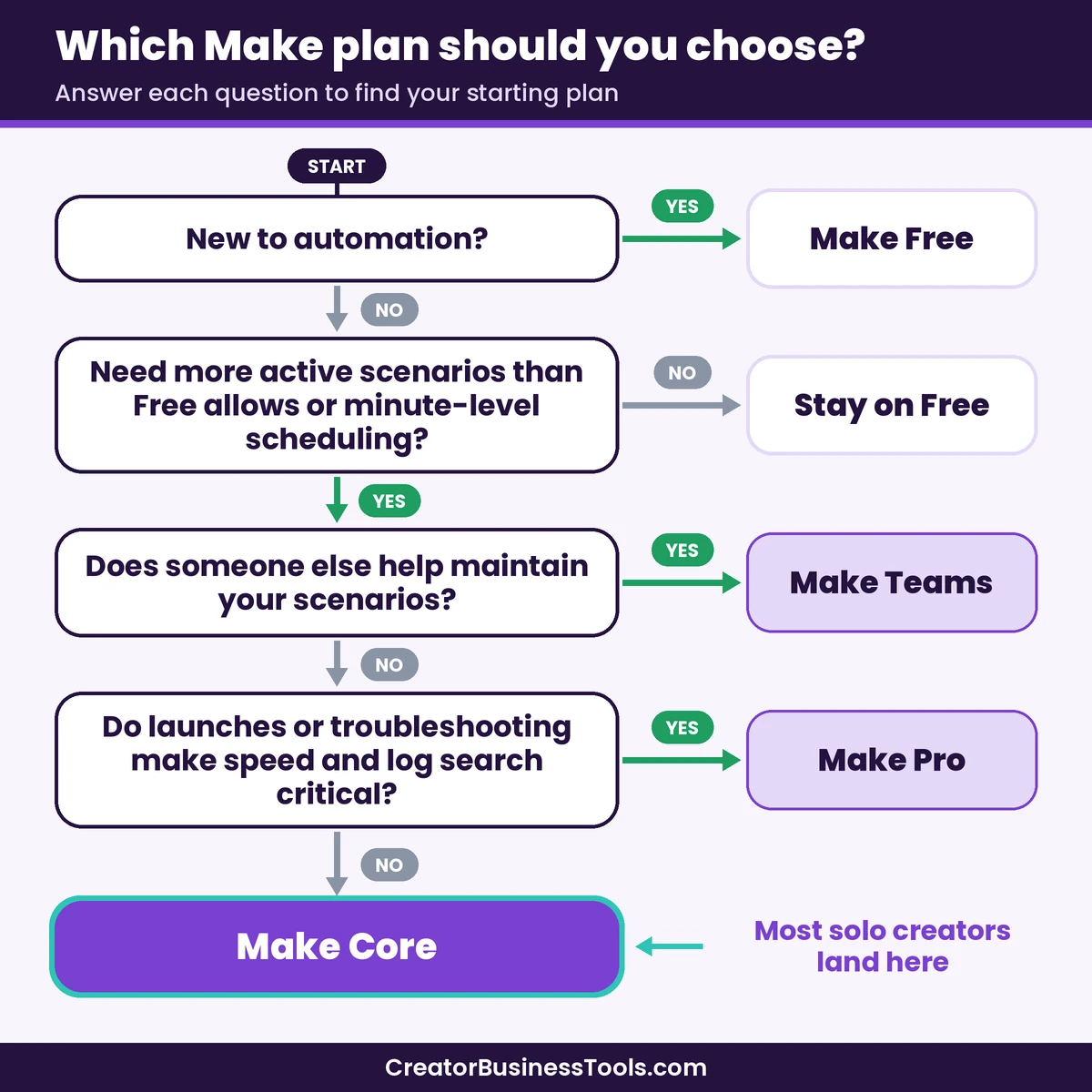
- List your scenarios. Write down each automation you want, with its trigger and steps.
- Estimate credits. Multiply the modules in each scenario by its monthly runs, then add a buffer for busy weeks.
- Check your speed needs. If buyers expect instant access, you need a paid plan’s minute-level scheduling.
- Count the people involved. A VA or teammate is the main reason to choose Teams.
- Start small and review. Begin on Free or the smallest Core tier, check real usage after a few weeks, then adjust.
How to keep your Make bill in the budget tier
- Prefer instant triggers. Where an app supports webhooks or instant triggers, use them instead of checking every minute, since reading data uses credits.
- Filter early. Put filters near the start of a scenario so runs that don’t qualify stop before they use more credits.
- Use routers freely. Make doesn’t count credits for the Router module, so branching itself is affordable.
- Size from real usage. After a few weeks, check your actual usage and move up or down a tier.
- Upgrade instead of topping up repeatedly. Make’s help center notes that extra credits include a 25% additional cost and suggests moving to a plan that matches your usage if you regularly run over. Higher tiers also have lower per-credit costs, according to Make.
Make Pricing FAQ
Is Make free to use?
Yes. Make has a free plan with 1,000 credits per month and no time limit on the plan. It has a limited number of active scenarios and a 15-minute minimum interval between scheduled runs.
What’s the difference between Make Core and Pro?
Pro includes everything in Core, plus priority scenario execution, custom variables, and full-text execution log search. Pro also supports much larger credit tiers, and on annual billing it gives you the year’s credits as one pool, while Core keeps a monthly allocation.
What happens if I run out of Make credits?
Your scenarios pause until credits are added. Make says incoming webhooks are queued up to your plan’s webhook queue allowance and processed once scenarios resume. You can buy extra credits, turn on auto-purchasing on Core, Pro, or Teams, or upgrade.
Do unused Make credits roll over?
No. Make says credits expire at the end of the term. Extra credits expire at the end of the current billing cycle, and on an annual Core plan they expire at each monthly reset.
Should I pay monthly or annually?
Make says annual payment is cheaper. For most people, we’d suggest paying monthly until your usage feels predictable, then switching to annual once you know which tier you actually need.
Bottom line: start small, measure, then upgrade
Make pricing stops being confusing once you see it for what it is: you’re buying a pool of credits, and the plan name mostly decides which extra features sit on top. For most creators, the smart path looks like this: learn on Make Free, move to Core once you need more active scenarios or faster scheduling, and step up to Pro or Teams only when launches, troubleshooting, or teammates give you a clear reason.
If you remember one thing, make it this: estimate your credits from real scenarios, start with a smaller tier, and upgrade when your usage proves you need it. That one habit tends to save more money than any discount code.
Ready to try it? Start with Make’s free plan and build the one automation that would save you an hour this week.
Free download: the Creator Automation Credit Calculator. Want a simple worksheet that helps you count your scenario steps, estimate monthly credits, and pick the right Make plan before you pay? Contact us and we’ll send you the free one-page calculator, plus a checklist of the five creator automations worth building first.
Pricing and features from official vendor pages, last checked October 18, 2026.