
Make Review: Is Make Worth It for Creators and Solo Businesses?
Disclosure: This post contains affiliate links. If you buy through them, we may earn a commission at no extra cost to you. How we make money.
You finally have an email list, a small community, and a payment page that works. Then launch week arrives, and you spend the evening copying buyer names from one tool into another. This Make review is for that moment: when you suspect software could do the busywork, but you don’t want to sink a weekend into a tool you’ll abandon.
Here’s why this topic matters. Imagine a creator who just sold her first watercolor course. The night the cart closes, she’s at her kitchen table pasting buyer emails into her email platform one by one, with a spreadsheet open to keep track. By midnight, two buyers have still been missed, and one of them emails asking where her welcome lesson is. A night like that makes the case for automation better than any feature list could.
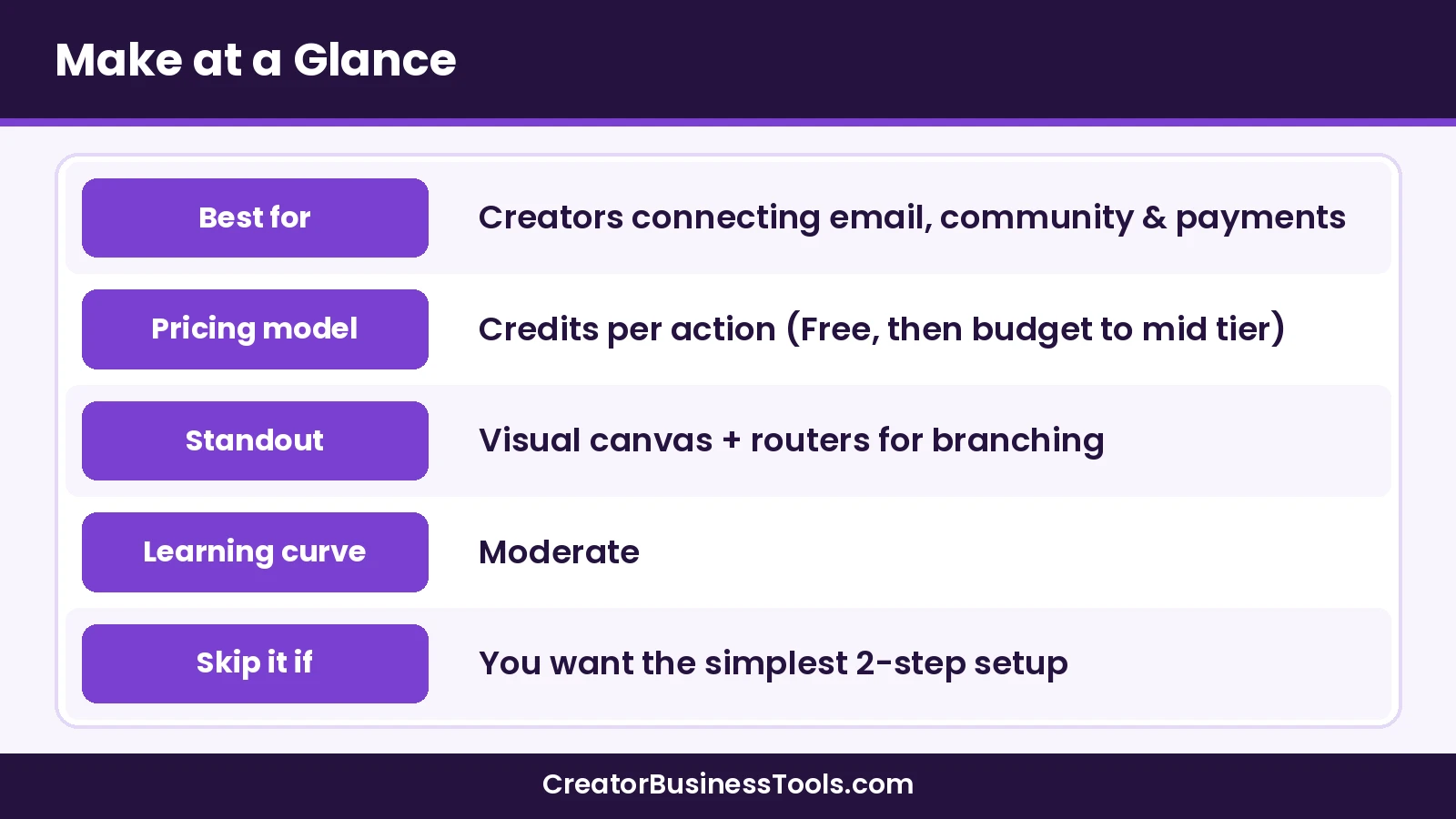
Quick verdict: Make is a strong fit for creators and solo business owners who want flexible, multi-step automations at a budget price tier and don’t mind learning a visual canvas. It’s less ideal if you want the simplest possible setup or if you’d rather self-host and pay per workflow run.
Quick picks
- Best overall for budget-minded creators: Make (Core plan) for multi-step automations at a low price tier. Try Make free
- Best for the simplest setup: Zapier, if ease matters more than price. See our Make vs Zapier guide.
- Best for technical founders who want to self-host: n8n, billed per workflow run.
- Best for lifetime-deal hunters: Pabbly Connect, which has offered one-time-payment plans alongside subscriptions. See our Pabbly Connect review.
What Make actually does
Make is a no-code automation platform. You connect the apps you already use, such as your email tool, community platform, payment processor, and spreadsheets, so data moves between them without copy-and-paste.
Each automated workflow in Make is called a scenario. Make describes a scenario as a flow that triggers when it receives data from one app, transforms that data however you need, and then sends it to another app. You build scenarios on a visual canvas by linking modules, where each module is one step, like “watch for a payment” or “add a subscriber.”
A few building blocks are worth knowing before you sign up:
- Routers split one trigger into several paths, so each product or customer type can get its own follow-up.
- Filters let a path continue only when conditions are met, such as “only if the product name contains Course.”
- Scheduling decides how often a scenario runs. Paid plans can run down to every minute, and the free plan has a 15-minute minimum interval.
- Error handlers let you decide what happens when a step fails, instead of the whole scenario quietly stopping.
Make lists thousands of pre-built app integrations, including apps creators commonly use like Kit, Circle, Stripe, and ManyChat. For apps without a ready-made module, Make supports custom apps and API connections, and it offers a Code app for JavaScript or Python steps when you outgrow pure no-code.
Three criteria that matter most for creators
Feature lists for automation tools are long, and most of it won’t affect a solo business. When we compare tools for creators, we come back to three questions.
- Can you build and maintain it yourself? If a workflow breaks during a launch, you need to understand it well enough to fix it fast.
- Does the pricing model match how your automations run? Some tools charge per action, others per workflow run, and that difference can matter more than the sticker price.
- Does it connect your stack and leave room to grow? The tool should support the apps you rely on and the more complex flows you may want later.
Here’s how Make measures up on each one.
Criterion 1: Building and maintaining scenarios
Make’s visual canvas is its signature. You can see the whole workflow at once, with branches drawn out instead of hidden in a list. For visual thinkers, that makes troubleshooting easier because you can spot where a path splits or where data stops.
The trade-off is a moderate learning curve. Concepts like mapping data between modules, iterating over lists, and handling errors take some practice. Make offers Make Academy, a free eLearning hub, plus templates and a help center, which helps shorten that curve.
Verdict on ease: Good for creators willing to spend a few sessions learning the basics. Less ideal if you want two-step automations with zero learning.
Criterion 2: Pricing model fit
Make bills in credits. According to its pricing page, each module action, such as reading a record, adding a spreadsheet row, or creating a subscriber, typically uses one credit. Some advanced AI features may use more. Router and error handler modules don’t use credits.
That model rewards lean scenarios. A three-step flow that runs a few hundred times a month uses a modest number of credits, which is why many solo creators can stay on the entry paid tier for a long time. It’s less friendly to scenarios that check an app very frequently or loop over large lists, because reading and iterating data count as credits too.
Verdict on pricing: Strong value for typical creator workflows, as long as you watch polling frequency and large loops. If you want the detailed credit math, our Make vs Zapier guide walks through a full Stripe → Kit → Circle example.
Criterion 3: Integrations and room to grow
Make covers the common creator stack well, and its routers, filters, subscenarios, and Code app give you room to build more advanced logic later. Make also lists AI features on its pricing and product pages, including Maia by Make for building automations through conversation, Make AI Agents, and a Make MCP Server for connecting AI tools to your scenarios.
Verdict on growth: Make scales from a single “buyer → tag in email” scenario to multi-branch workflows without forcing you to switch platforms.
Make pricing explained in tiers
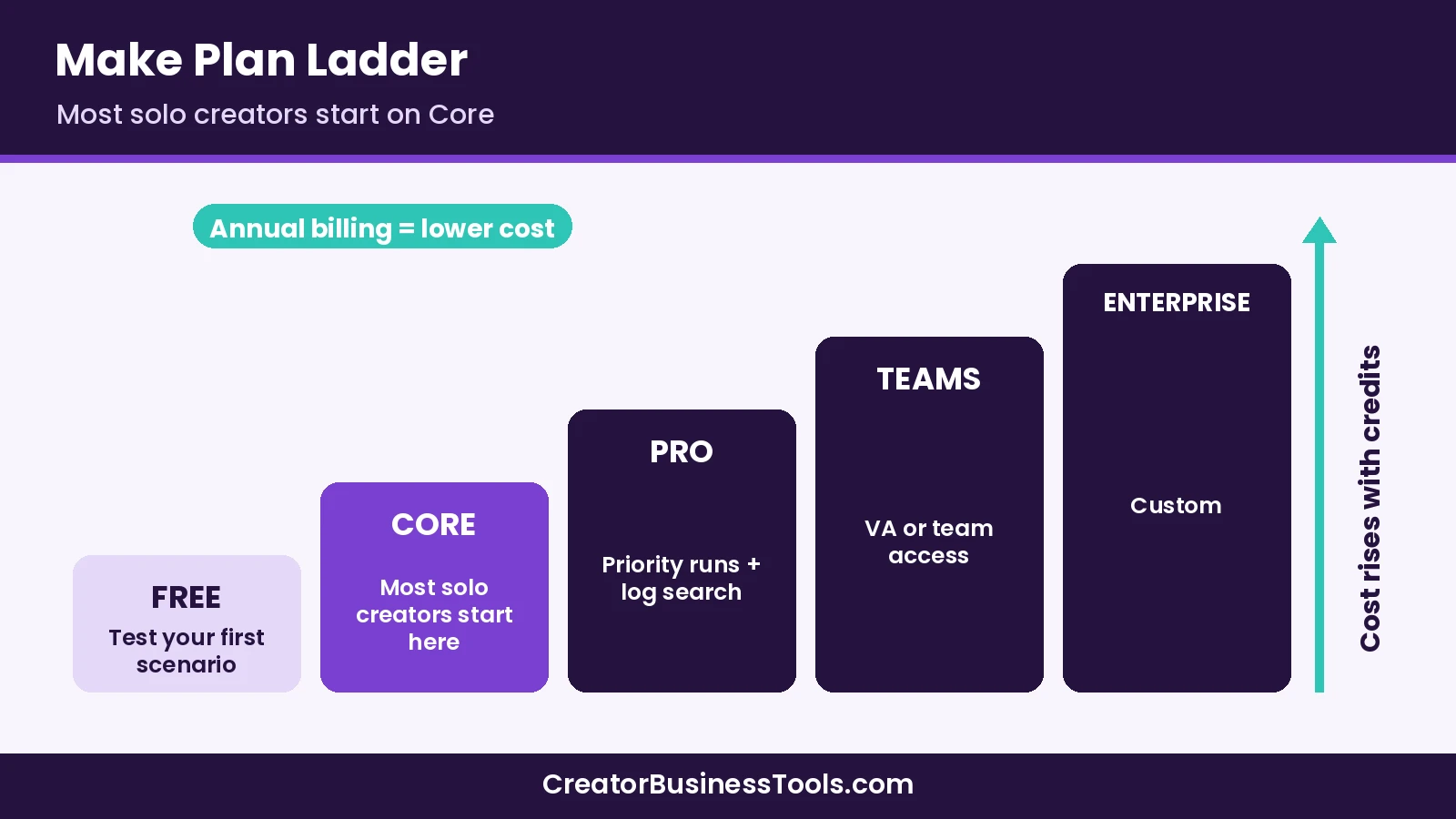
Make’s plans are Free, Core, Pro, Teams, and Enterprise. Paid plans start at a base monthly credit amount, and the price rises as you choose more credits on the slider. Make’s FAQ says paying annually in advance is cheaper than paying monthly.
We use price tiers here instead of exact prices, because they change: $ = budget, $$ = mid-range, $$$ = premium.
| Plan | Price tier (smallest credit amount) | What it adds | Who it suits |
|---|---|---|---|
| Free | Free | Monthly credit allowance, limited active scenarios, 15-minute minimum interval | Building and testing your first scenario |
| Core | $ | Unlimited active scenarios, scheduling down to the minute, Make API access | Most solo creators |
| Pro | $ (upper end) | Priority scenario execution, custom variables, full-text execution log search | Launch-critical automations |
| Teams | $$ | Teams and team roles, create and share scenario templates | Creators with a VA or small team |
| Enterprise | Custom | Enterprise apps, custom functions, advanced security, enterprise support | Larger organizations |
Pricing details worth knowing
- Credits expire. Unused credits don’t roll over at the end of the term, and extra credits follow the same rule.
- Running out pauses scenarios. Make says scenarios stop until credits are added, while incoming webhooks are queued up to your storage allowance.
- You can top up. Extra credits come in bundles, and Core, Pro, and Teams can turn on automatic extra-credit purchases.
- Annual billing changes how credits arrive. Make’s help center says Core keeps a monthly allocation even on annual billing, while Pro and Teams annual plans get the year’s credits as one pool.
- You can cancel anytime. Your paid plan runs until the end of the billing term, then the organization moves to the Free plan.
Make vs the alternatives at a glance
Make isn’t the only way to automate a creator business. Here’s how it compares with three alternatives creators often consider.
| Product | Best for | Key strength | Main drawback | Price tier |
|---|---|---|---|---|
| Make | Creators who want flexible multi-step automations on a budget | Visual canvas with routers and filters | Credits count reads and loops; moderate learning curve | Free, then $ to $$ |
| Zapier | Creators who want the simplest setup | Straightforward step-by-step builder and a very large app library | Paid plans sit in a higher price tier; free plan is two-step only | Free, then $$ to $$$ |
| n8n | Technical founders who want control or self-hosting | Billed per full workflow run; self-hosted Community Edition | Self-hosting needs technical skills; no free cloud plan | Free (self-hosted) or $$ to $$$ (cloud) |
| Pabbly Connect | Budget buyers with steady multi-step workflows | Triggers and internal steps don’t use tasks; has offered one-time-payment plans | Smaller app library than Make or Zapier | Free, then $ to $$ |
Make review: pros and cons
Make
Make earns its place as the default recommendation for many creators because it balances power and price. Here’s the honest list.
Pros
- Visual canvas shows the whole workflow, including branches.
- Entry paid plan sits in a budget price tier with unlimited active scenarios.
- Routers and error handlers don’t use credits, so branching is affordable.
- Free plan is enough to build and test a real multi-step scenario.
- Thousands of app integrations, plus custom apps, API calls, and a Code app.
- AI features such as Maia and Make AI Agents are built into the same canvas.
Cons
- Reading, searching, and looping over data all use credits, so frequent polling can add up.
- The canvas and data mapping take a few sessions to learn.
- Unused credits expire at the end of the term.
- Cloud-only, so it isn’t an option if you need to self-host.
Best for: creators linking email, community, and payment tools who want flexible workflows at a low price tier.
Not ideal for: anyone who wants the absolute simplest setup, or technical founders who prefer to self-host.
See Make’s plans and start free
Make alternatives worth a look
Zapier
Zapier is the best-known automation tool, built around a step-by-step list of a trigger and actions called a Zap. Its pricing page lists 9,000+ apps, and it counts tasks only for successful actions, so checking for fresh data doesn’t use your allowance.
Pros
- Very approachable builder for first-time automators.
- Huge app library.
- Triggers, polling, and built-in tools like Filter and Formatter don’t use tasks.
Cons
- Paid plans start in a higher price tier than Make’s.
- The free plan only supports two-step Zaps.
We compare the two head-to-head, including usage math, in Make vs Zapier for Creators. See Zapier’s plans
n8n
n8n is a workflow automation platform aimed at technical teams. You can use the hosted n8n Cloud or self-host the free Community Edition on your own server. Instead of charging per step, n8n bills cloud plans by executions, where one execution is a full run of a workflow, no matter how many steps it has.
Pros
- Self-hosted Community Edition is free to run, apart from your server costs.
- Per-run billing can be economical for long, data-heavy workflows.
- JavaScript or Python code can sit anywhere in a workflow.
Cons
- Self-hosting means you handle setup, updates, and security.
- No free cloud plan, only a trial.
- Fewer pre-built integrations than Make, so you may rely more on HTTP requests.
If you’re torn between the two, our Make vs n8n guide breaks down hosting, pricing models, and learning curve. See n8n’s plans
Pabbly Connect
Pabbly Connect is a budget-focused automation tool with subscription plans and one-time-payment lifetime plans. It says triggers and internal steps, like filters, routers, and formatters, don’t count toward your task allowance.
Pros
- Budget price tier, with lifetime options.
- Triggers and internal steps don’t use tasks.
- Multi-step workflows, routers, and code steps on paid plans.
Cons
- Its app library is smaller than Make’s or Zapier’s.
- On its one-time plans, Pabbly says Standard and Ultimate are self-service with no customer support included, while Ultimate Plus includes one year of support.
Our Pabbly Connect review covers task counting, plan tiers, and how it compares with Zapier and Make. See Pabbly Connect’s plans
Who Make fits, and who should skip it
Here’s how we’d match Make to common creator situations.
| Your situation | Suggested pick | Why |
|---|---|---|
| Course creator connecting payments, email, and a community | Make Core | Multi-step flows with routers at a budget price tier |
| Coach who wants one or two simple automations | Make Free or Zapier Free | Test before paying; choose by builder style |
| Creator whose launches depend on instant follow-up | Make Pro | Priority execution and full-text log search |
| Small team or VA managing automations | Make Teams | Team roles and shared scenario templates |
| Technical founder comfortable with servers | n8n | Self-hosting and per-run billing |
| Creator who values setup speed over price | Zapier | Simplest builder and largest app library |
Make is a good fit if you…
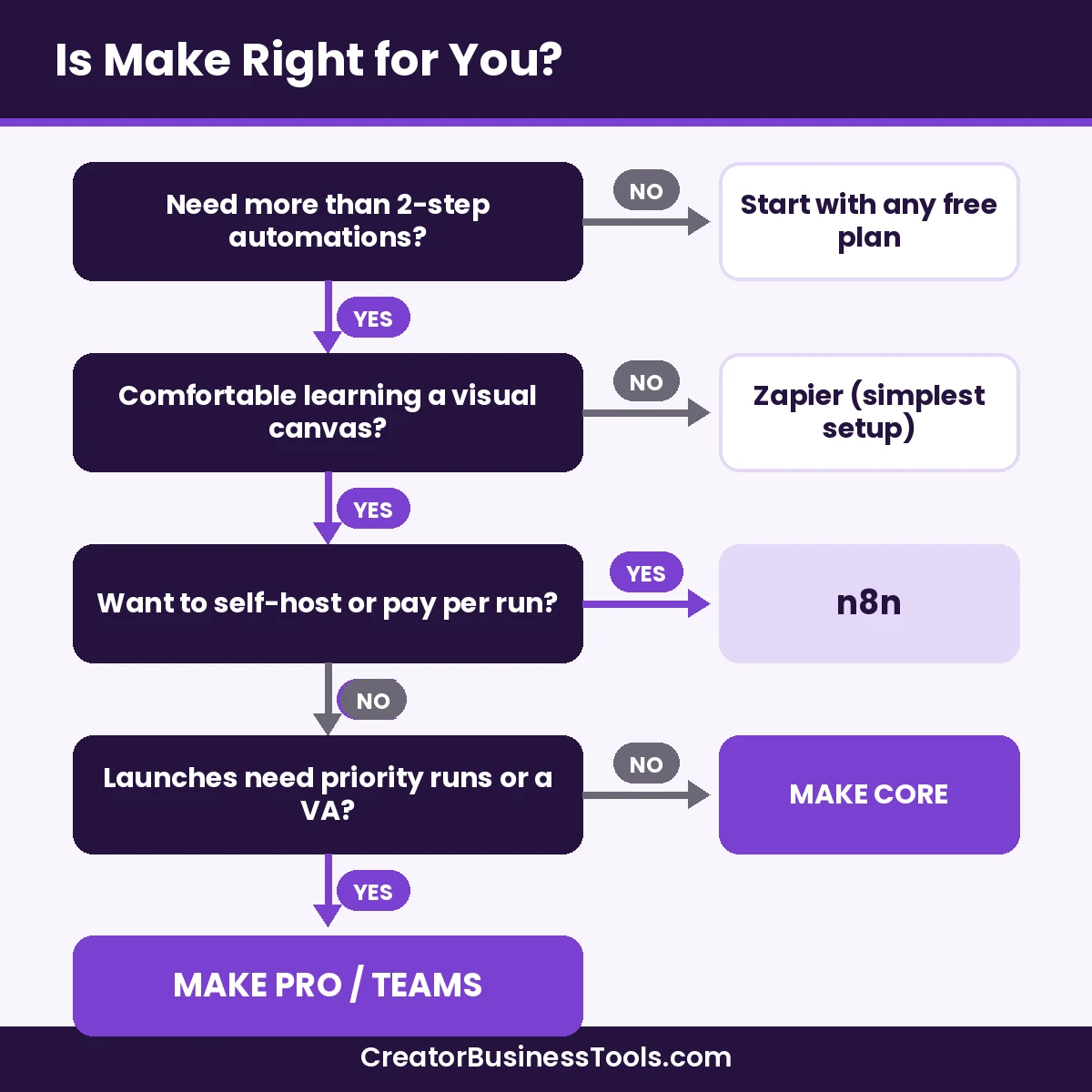
- ✅ Use three or more tools that need to share customer data.
- ✅ Want branching logic, like different follow-ups per product.
- ✅ Prefer to see a workflow as a picture rather than a list.
- ✅ Want to keep automation costs in a budget tier.
You might skip Make if you…
- Only need one or two simple two-step automations and value setup speed most.
- Need to run everything on your own servers.
- Run scenarios that poll apps constantly or process huge lists, and don’t want to manage credit usage.
Creator automations to build first
If you do sign up, start with one automation that saves real time. These are common starting points for creators.
- Buyer onboarding: a successful payment adds the buyer to your email tool with a product tag and invites them to your community.
- Refund cleanup: a refund removes the tag or access, so former buyers don’t keep receiving course emails.
- Lead capture from social: a chat or DM tool sends captured emails into your list. Make lists a ManyChat app, and our Instagram DM automation guide covers that side.
- Sales log: each sale adds a row to a spreadsheet for bookkeeping.
- Weekly digest: collect the week’s community posts or sales and send yourself a summary.
If you’re still choosing an email platform for these flows, see GetResponse vs Kit vs MailerLite.
Tips for keeping credit use low
- Use instant triggers or webhooks where an app supports them, instead of frequent polling.
- Keep scenarios small and focused rather than building one giant flow.
- Use routers and filters early, so unneeded paths stop before they use credits.
- Check your usage after the first few weeks and adjust schedules.
Before you commit to Make
- Prices depend on your credit amount and billing period. Check Make’s official pricing page before you buy.
- Confirm that the exact triggers and actions you need exist on each app’s integration page.
- Unused credits expire at the end of the term, so don’t overbuy.
- Run a test purchase or sign-up through every scenario before a launch.
- This review is based on official product information, not hands-on benchmarks.
FAQ
Is Make worth it for a solo creator?
For many solo creators, yes. If you connect three or more tools and want multi-step workflows, Make’s entry paid plan sits in a budget price tier. If you only need one simple automation, a free plan may be enough.
Is Make free?
Make has a free plan with a monthly credit allowance and a limited number of active scenarios. It’s enough to build and test a real workflow before paying.
What is a Make credit?
Make’s billing unit. Most module actions use one credit, while routers and error handlers use none. Some advanced AI features may use more.
Is Make hard to learn?
It has a moderate learning curve. The visual canvas is intuitive, but data mapping and error handling take practice. Make Academy and templates help.
Make vs Zapier: which is better for creators?
Make tends to be cheaper for multi-step flows; Zapier tends to be simpler to set up. Our Make vs Zapier guide covers the details.
Can Make connect Kit, Circle, and Stripe?
Make lists integrations for all three. Check each app page for the specific triggers and actions you need.
What happens if I run out of credits?
Your scenarios pause until you add credits or upgrade. Make says incoming webhooks are queued up to your storage allowance and processed once you resume.
Can I cancel Make anytime?
Yes. Make says your paid plan runs until the end of the billing term, and then your organization moves to the Free plan.
Bottom line
So, is Make worth it? For most creators and solo business owners who juggle an email tool, a community, and a payment processor, this Make review comes out positive: it offers flexible, visual, multi-step automation at a budget price tier, with room to grow into AI features and more complex logic. The main costs are a moderate learning curve and the need to keep an eye on credits.
If you want the simplest possible setup, look at Zapier. If you’re technical and want to self-host, look at n8n. Otherwise, start with Make’s free plan, build one automation that saves you an hour a week, and upgrade only when you hit a clear limit.
Free checklist: Want help choosing your first automation? Grab our free Creator Automation Starter Checklist, a one-page list of the five workflows to automate first and the questions to ask before you pay for any tool. Contact us to request a copy.