
How to Schedule Pinterest Pins with SocialPilot: A Beginner Path from Board to Queue
Disclosure: This post contains affiliate links. If you buy through them, we may earn a commission at no extra cost to you. How we make money.
This guide to how to schedule Pinterest Pins with SocialPilot is for bloggers, small shops, and small agencies who want Pins in the same calendar as the rest of their social week. I am following official SocialPilot product and help pages, then comparing the path with Buffer, Tailwind, and Pallyy. This is a walkthrough of the official route, not a live publishing test.
The reader’s problem: Pins stall because the path is split
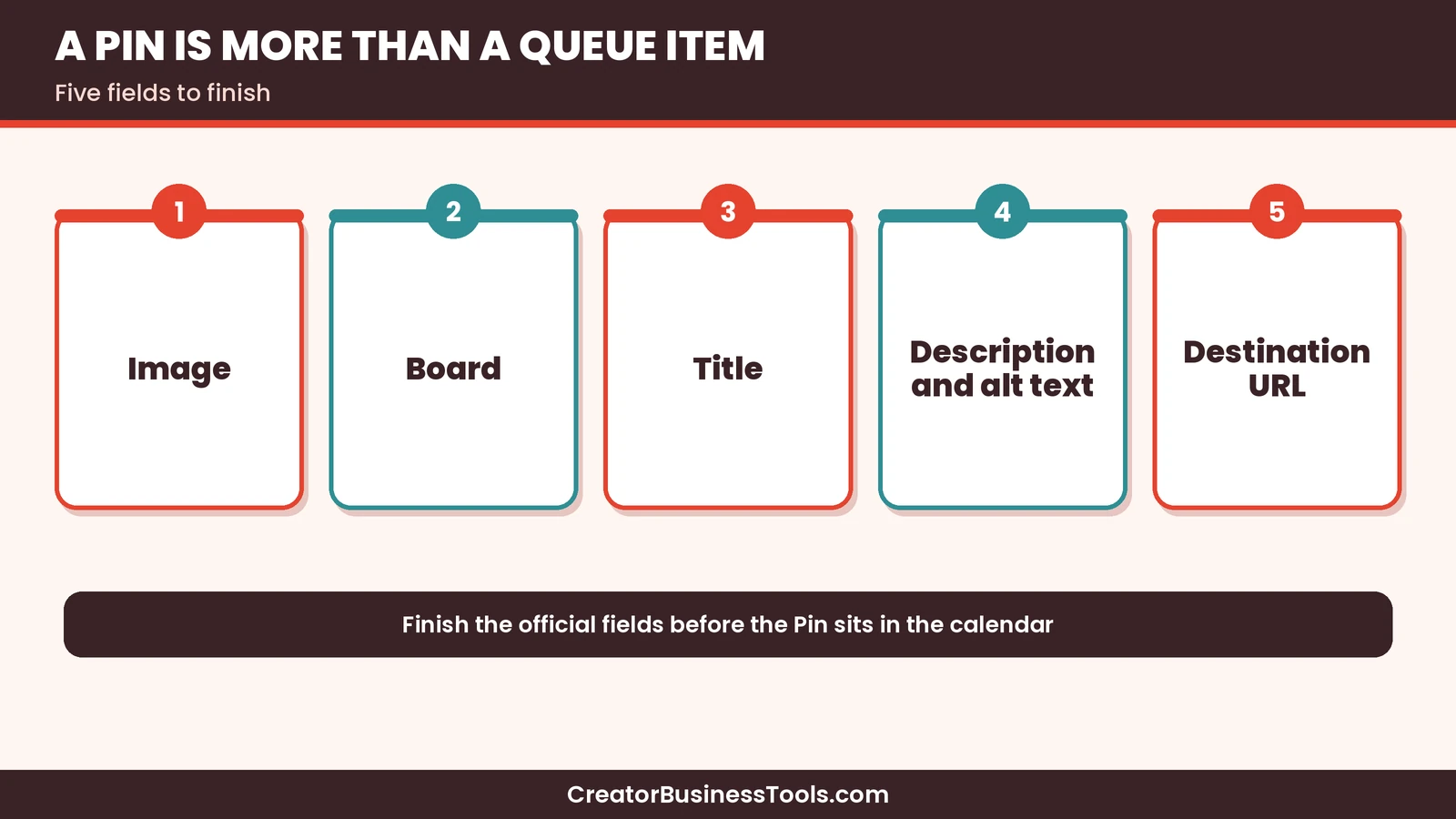
A Pin needs a board, a title, a description, alt text, and a destination link. A regular social post often needs less than that. When the Pin path lives in a second tab, the week slips. When it lives in the same desk, you still have to follow the official fields, or the Pin goes out unfinished.
The goal is a path you can repeat: one composer, one board choice, one queue.
Three criteria before you begin
Criterion one: a Pinterest account you already control
You need access to the Pinterest account and the boards you will use. Official SocialPilot help also notes that a username change on Pinterest may require a reconnect so boards stay available.
Criterion two: the official composer path
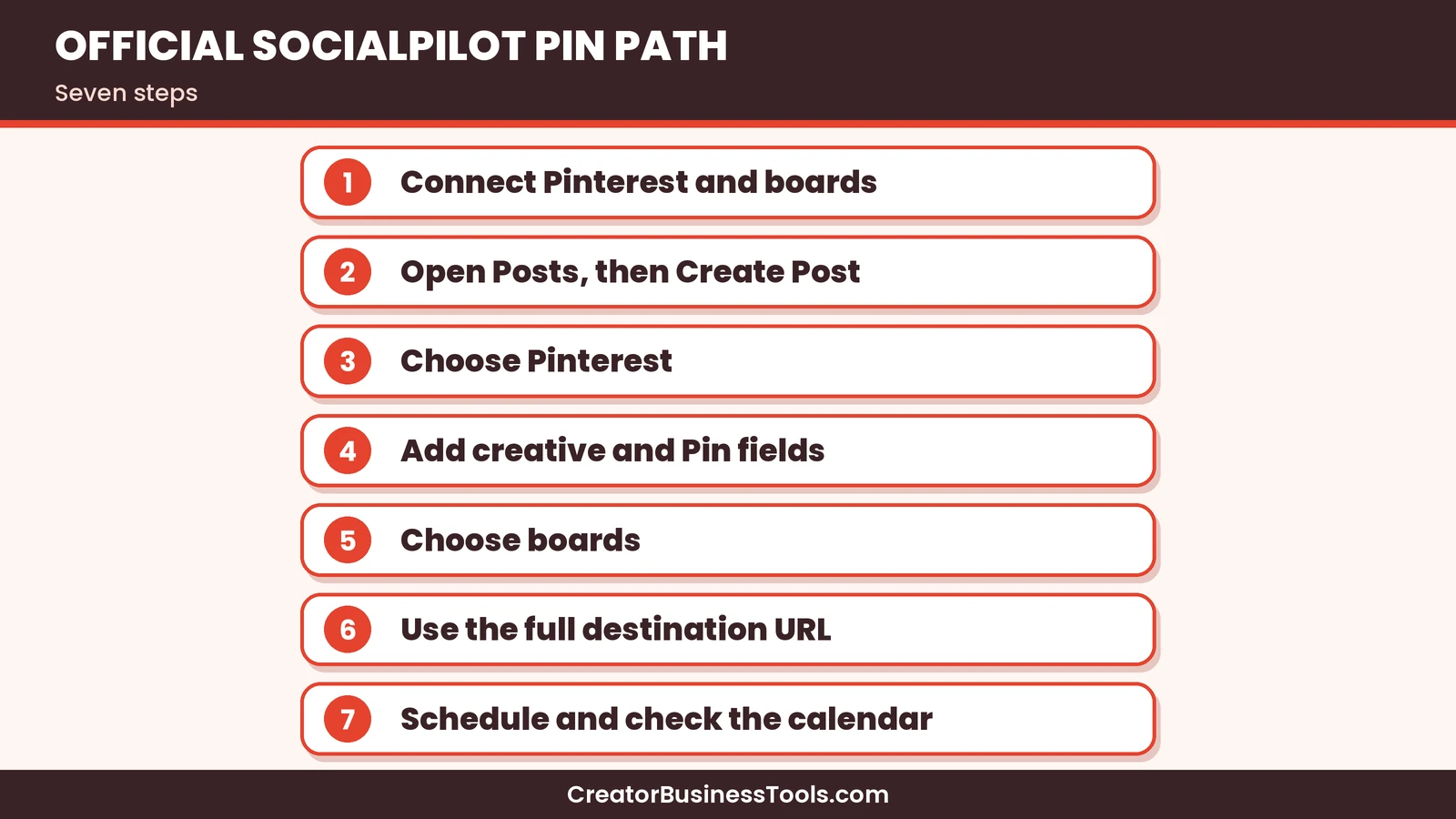
The official scheduler pages describe a Create Post path: open Posts, create a post, choose Pinterest, choose boards, then set a date and time.
Criterion three: the right official rung for the volume you want
You can schedule Pins on the paid SocialPilot ladder. Bulk scheduling and CSV upload sit on higher rungs, even though official marketing mentions a large bulk cap. Confirm the rung before you plan a month of Pins in one upload.
How to schedule Pinterest Pins with SocialPilot, at a glance
| Product | Best for | Key strength | Drawback | Price tier |
|---|---|---|---|---|
| SocialPilot | People who want Pins inside a multi-network calendar | Official Create Post path for Pinterest, with boards and Pin fields | Bulk scheduling sits on higher rungs | Budget to premium paid rungs |
| Buffer | A short channel list and a free plan with limits | Official Pinterest channel support, including automatic publishing for business accounts | It is a general desk, not a Pinterest-specialist workflow | A free plan with limits, then budget to mid-range per channel |
| Tailwind | A Pinterest-first scheduling week | Official Pin scheduling module, with a stated credit cost per scheduled Pin | Current official plans are for Pinterest | Mid-range Pinterest modules |
| Pallyy | Client-shaped sets that also need Pins | Official set-based ladder and a free plan with limits | The free plan is tightly capped | A free plan with limits, then budget to premium set-based rungs |
If you later want a deeper Pinterest-specialist read, use the published Tailwind Review. For set-based scheduling, see the published Pallyy Review.
How to schedule Pinterest Pins with SocialPilot, step by step
The steps below follow official SocialPilot scheduler and help pages. I did not click through a live composer for this guide, so treat this as the official path to confirm in your own account.
Step 1: connect the Pinterest account and boards
Log in to SocialPilot and connect the Pinterest account you will use. Official help says that if the Pinterest username has changed, you should refresh the connection from the account settings so boards stay in sync. Reconnecting one board can refresh the rest of the boards on that account, according to official help.
Step 2: open Create Post and choose Pinterest
Official scheduler pages describe this route: go to Posts in the sidebar, open Create Post, and select Pinterest. This is the start of the official Pin path, not a generic “share everywhere” shortcut.
Step 3: add the creative, then fill official Pin fields
Add the image or images. Official SocialPilot help lists a small cap for how many images can go in one Pinterest post. Official help also describes alt text, a title (with a character cap), and a destination URL under Pinterest options. The description sits in the caption area.
Official help says the newer Create Post path uses one title and one description for all images in a multi-image post. If you need a unique title on every image, confirm the current official rule before you build a long set.
Step 4: choose the boards
Official pages say you can choose your Pinterest boards in the same flow, and that posting to multiple boards inside one account does not, by itself, add extra paid social accounts. That is useful when one idea belongs on more than one board.
Step 5: use the full destination URL
Official help warns that Pinterest flags shortened URLs as spam, and that you should use the full link. If you use UTM parameters, official help says they can be added automatically. Do not shorten the link just to make the field look tidy.
Step 6: set the date and time, then schedule
Official FAQ steps end here: choose Schedule Post, set a date and time, and confirm. Official pages also say you can preview scheduled Pins in the content calendar and edit before they go out.
Step 7: check the calendar, not just the success message
Open the calendar view and confirm the Pin sits on the day you intended, on the board you intended. If a teammate must approve the post, confirm that your official rung includes the approval path you need.
What SocialPilot is adding to this path
Pros of scheduling Pins in SocialPilot
- Official steps are short and sit inside the same Create Post desk
- Official help lists Pin-specific fields, not only a caption box
- Multiple boards can be chosen inside one Pinterest account
- The same desk can also hold the rest of a social week
- A calendar preview is part of the official story
Cons to keep in mind
- I did not run this path live, so you should confirm the composer in your own account
- Official FAQ and marketing pages do not describe Pin types in exactly the same way
- Bulk scheduling is not on every rung
- A multi-network desk will not replace a Pinterest keyword research tool
Official scheduler FAQ describes image and GIF Pins. Official marketing on the same product family also mentions video and carousel Pins. If those Pin types matter to you, confirm them in the official composer before you plan a whole month around them.
A note on Buffer, Tailwind, and Pallyy
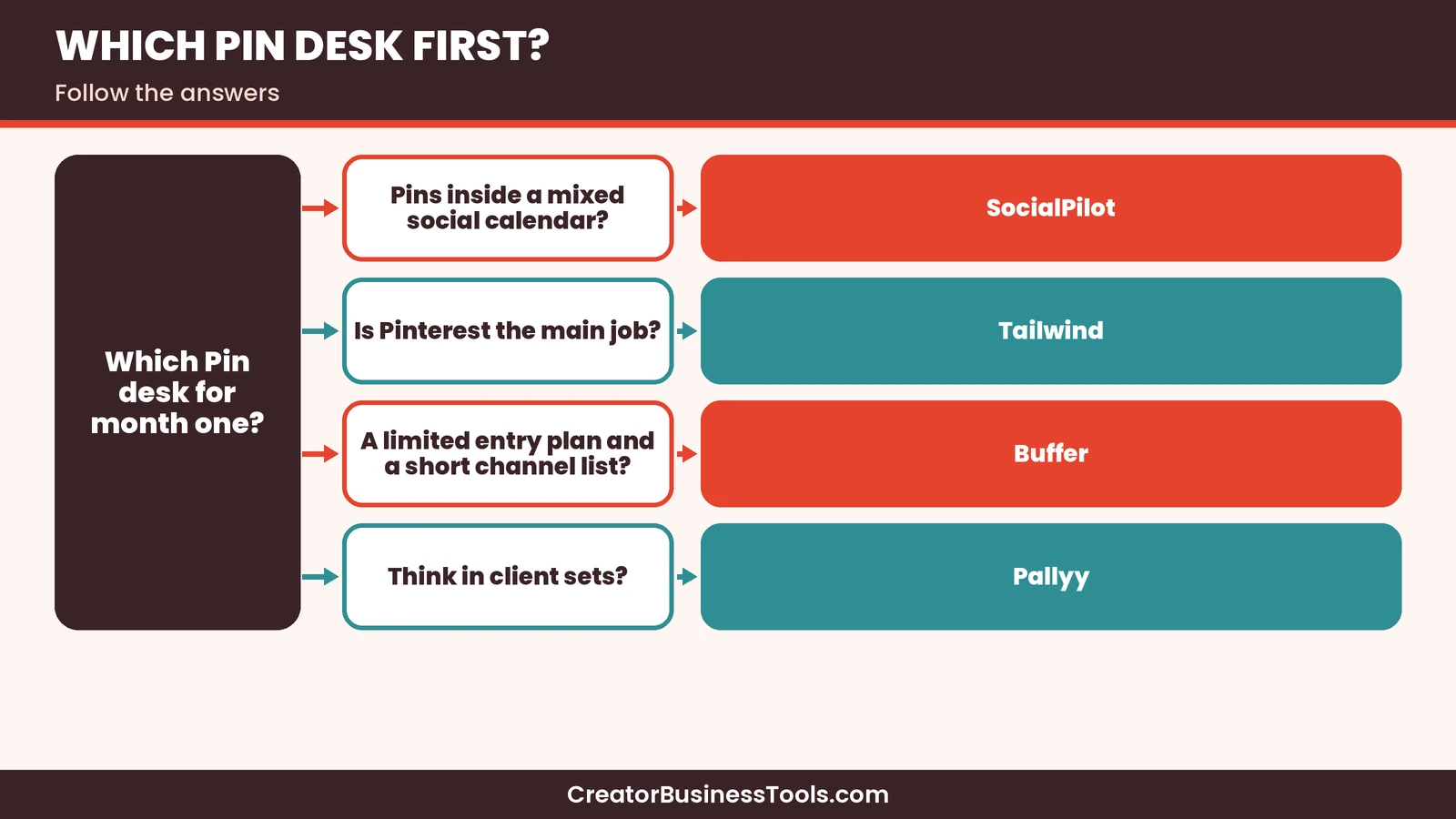
Buffer can be the simpler alternative if you want a free plan with limits and you already think in channels. Official pages list Pinterest as a supported channel. It is still a general desk. See also Pallyy vs Buffer if you are choosing a general scheduler shape.
Tailwind can be the better path if Pinterest is the main job. Official current plans are Pinterest modules, and official help states that scheduling a Pin spends a credit from a monthly allowance.
Pallyy can fit if you organize work in client sets and still need Pins in that set. Official pages include a free plan with limits, then paid rungs that raise the number of sets.
Best-use-case recommendations
| Situation | Pick | Why |
|---|---|---|
| Pins plus other networks in one official calendar | SocialPilot | Official Create Post path for Pinterest inside a multi-network desk |
| A small channel list and a free plan with limits | Buffer | Official per-channel model and a capped free plan |
| Pinterest is the main job | Tailwind | Official Pinterest-first scheduling module |
| Client-shaped sets that include Pins | Pallyy | Official social-set ladder |
| A large batch of Pins in one upload | A higher SocialPilot rung that includes bulk scheduling | Official bulk and CSV tools begin above the first rungs |
| You only need a specialist keyword desk for Pinterest | Tailwind’s SEO module, or a split-desk plan | Official Tailwind tools are sold separately |
Pricing structure, without the noise
SocialPilot uses paid rungs based on social accounts, users, and unlocked tools. You can follow the official Pin path on the paid ladder, but bulk upload tools sit higher. Buffer uses a free plan with limits, then per-channel paid rungs. Tailwind uses Pinterest modules and a credit allowance. Pallyy uses a free plan with limits, then set-based paid rungs.
I am not restating dollar amounts here. Read official pages when you buy, and confirm whether the rung you pick includes any bulk tool you were counting on.
A simple first-month Pin rhythm
Week one: connect the account, reconnect boards if needed, and schedule a small set of Pins with complete fields.
Week two: repeat the same official path, and check the calendar preview before you add volume.
Week three: only then consider a bulk tool, and only if your official rung includes it.
Week four: review official caps for accounts, users, and, if you use Tailwind as a second desk, credits.
Do not fill every board you have in the first week. One finished, correctly linked Pin path is the goal.
When you should wait
Wait if the Pinterest account or the boards are not ready. Wait if you do not yet have destination URLs for the pages you want to feature. Wait if you were planning to bulk upload on a rung that does not include bulk scheduling.
A queue of unfinished Pins is harder to clean up than a short delay.
Mistakes I would avoid
- Scheduling a Pin with a shortened URL
- Skipping alt text because the image “looks obvious”
- Assuming every SocialPilot rung includes bulk scheduling
- Treating official marketing language about Pin types as a substitute for the official help article
- Connecting two schedulers to the same board without a reason
- Treating this walkthrough as a live test; I did not run one
How I would use the official path for one real week
I am writing this guide to how to schedule Pinterest Pins with SocialPilot from official help and product pages, not from a week inside the composer. If I were setting up one real week from those pages alone, I would connect one Pinterest account, confirm the boards, and write five Pins with a full destination URL, a title, a description, and alt text.
I would use SocialPilot if those Pins had to live beside other networks. I would use Tailwind if the week was Pinterest only. I would not turn on a second scheduler for the same board unless the official path was missing a field I needed.
Titles, descriptions, and a calm public path
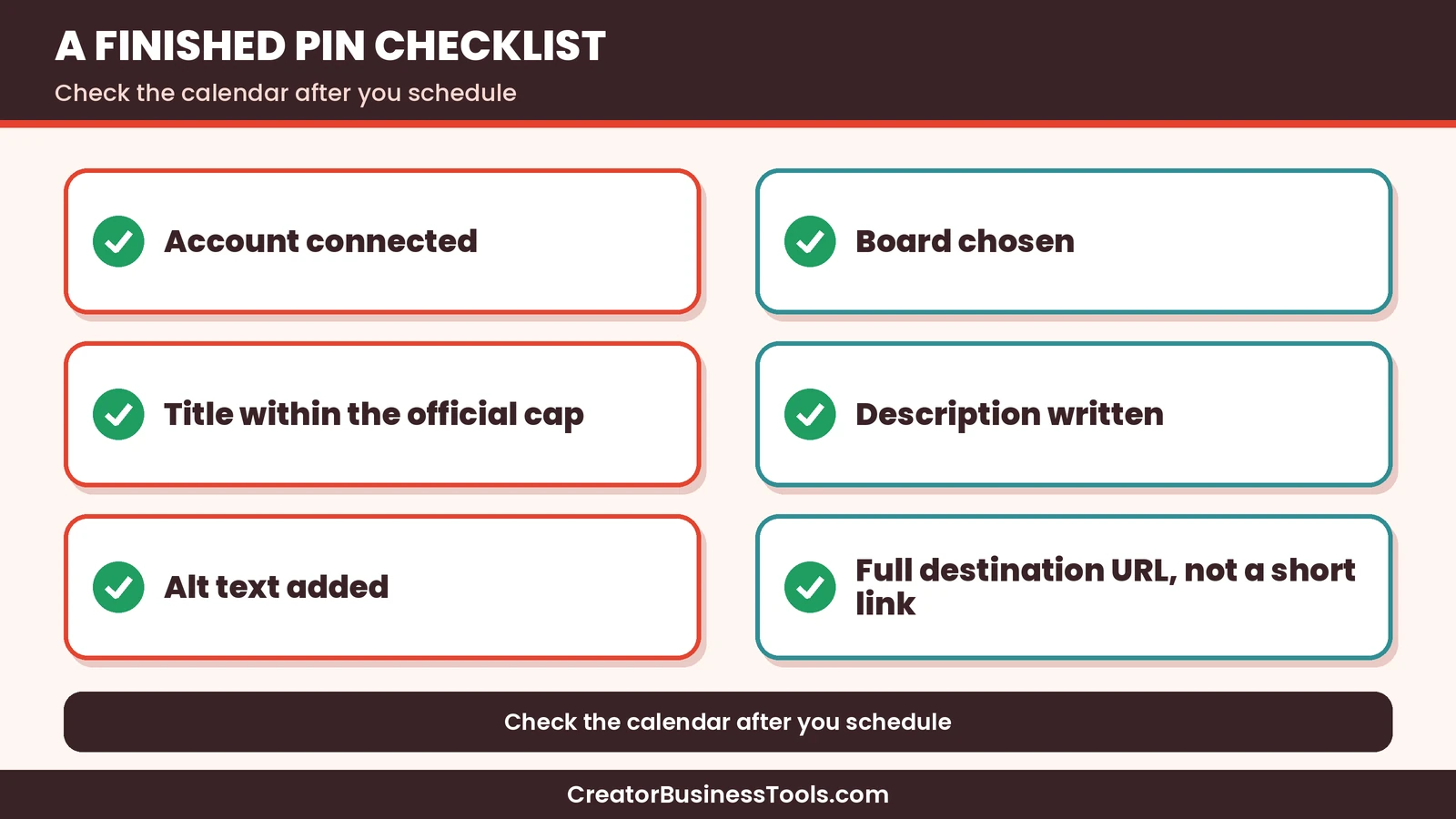
Pick a title style and keep it. Official help gives a character cap for the Pin title, so the style should be short enough to reuse. The destination URL should point to a page that matches the image. A pretty Pin that leads to the wrong page wastes the schedule.
Keep the public path boring on purpose. Same board naming. Same title style. Same place to check the calendar. If a helper joins, give them a named role and confirm the official approval tool on your rung.
What official pages will not do for you
Official steps will not write a title that matches the page, and they will not crop a weak image into a strong Pin. They will tell you which fields exist, how boards are chosen, and where a large batch tool begins on the plan ladder.
If a page promises that scheduling alone will grow the account, treat that as marketing. The official path is a desk. The creative is still your job.
Approvals, helpers, and one board owner
If a helper will draft Pins, decide who publishes. Official SocialPilot pages place manager approval and client approval on mid or high rungs. If your official rung does not include the approval tool you need, the helper path should stay simple: one person drafts, one person checks the calendar, and only one person hits schedule.
Name one owner for each Pinterest account. Two people scheduling to the same board from two tabs will collide. If you later add a specialist desk such as Tailwind, give that desk a different job, not a second queue for the same board.
Images, previews, and a short quality bar
Official help describes an image editor and a preview path. Use them to check crop and text, not to postpone the destination URL. A Pin that looks finished in the preview can still miss alt text or a board.
Set a short quality bar before the first week is full: the image is readable on a phone, the title matches the page, the link is complete, and the board name still makes sense. If a Pin fails that bar, leave it out of the calendar.
Stay on the same official path when you fix a weak Pin. Changing desks will not improve the image.
Questions to confirm on official pages
- The current Create Post fields for title, description, alt text, and URL
- Image caps for a Pinterest post
- Which Pin types your account can schedule
- Whether your rung includes bulk scheduling or CSV upload
- How board selection works after a Pinterest username change
- Whether a second, Pinterest-specialist desk is still needed
A one-note inventory for the first Pin week
Keep one short note next to the official plan page. Write the Pinterest account. Write the boards you will use first. Write the destination URLs. Write the official rung, and whether bulk scheduling is included. Write the helper’s role, if you have one.
Update the note after the first scheduled week. The first week will tell you which official field was easy to forget, and whether the calendar preview was enough.
This note is how you avoid building a month of Pins on a rung that cannot hold a batch upload. It is also how you notice a missing destination page before the Pin is already in the queue.
My honest take
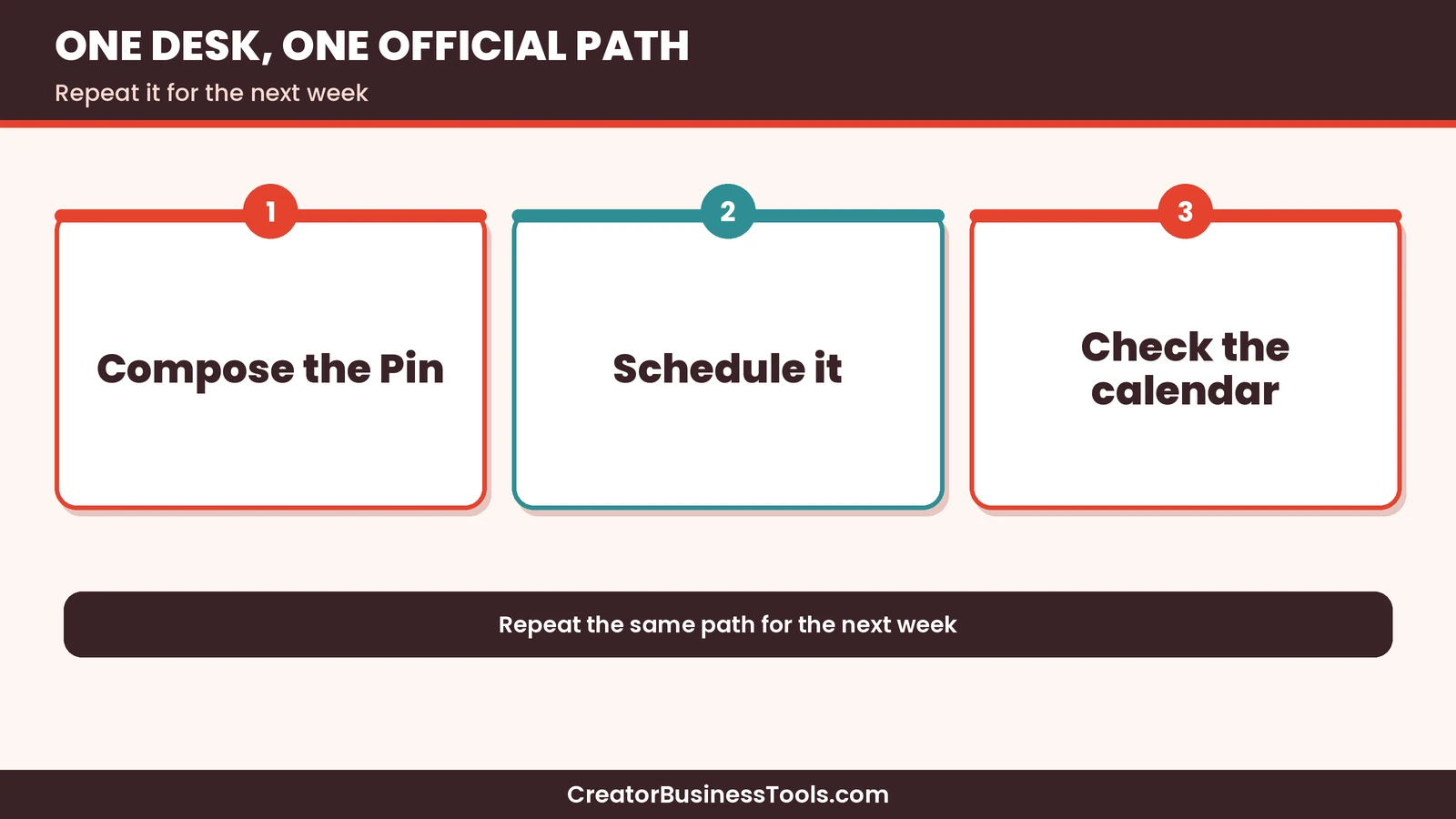
The most useful way to read how to schedule Pinterest Pins with SocialPilot is as a repeatable official path. Open Create Post, choose Pinterest, fill the official fields, choose boards, use the full URL, and check the calendar. That is enough for many mixed social weeks.
If Pinterest is the whole job, Tailwind may be the better first desk. If you want a free plan with limits, Buffer or Pallyy may be the better first desk. In every case, finish the Pin fields before you look for a faster upload tool.
Related reading: Best social media scheduler for creators, Tailwind review, Pallyy vs Buffer.
FAQ
How do I schedule Pinterest Pins with SocialPilot?
Official pages describe this path: log in, open Posts, choose Create Post, select Pinterest, add the Pin, choose boards, set a date and time, and schedule. Then check the calendar. Confirm the official fields for title, description, alt text, and the destination URL.
Can I schedule Pins to more than one board?
Official SocialPilot materials describe choosing Pinterest boards in the Create Post flow, and posting to multiple boards inside one account without treating each board as an extra paid social account. Confirm the current official composer if you rely on this often.
Does every SocialPilot plan include bulk Pin scheduling?
No. Official marketing mentions a large bulk cap, but official plan tables place bulk scheduling and CSV upload on higher rungs. If a month of Pins in one upload is the plan, confirm the rung first.
Should I use Tailwind instead?
Use Tailwind if Pinterest is the main job and you want a Pinterest-first official desk. Use SocialPilot if Pins need to live in the same calendar as other networks.
Get the free Pinterest scheduling checklist
Free checklist: Get our free Pinterest Scheduling Checklist — for the official SocialPilot Pin path, including boards, titles, alt text, and full destination URLs. Contact us to request a copy.
Conclusion: a calm way to schedule Pinterest Pins with SocialPilot
Learning how to schedule Pinterest Pins with SocialPilot is less about shortcuts and more about a path you will repeat. Use the official Create Post route in SocialPilot, fill the Pin fields, choose the boards, and keep the destination URL complete. If Pinterest is the whole job, look at Tailwind. If you want a free plan with limits, look at Buffer or Pallyy. Confirm official caps, schedule one short week, and let that week tell you whether the desk fits.