
Make Notion Integration: How to Automate Notion for Your Creator Business
Disclosure: This post contains affiliate links. If you buy through them, we may earn a commission at no extra cost to you. How we make money.
The Make Notion integration turns Notion from a place where you write things down into a system that updates itself. With it, a new sale, form response, or calendar event can create or update a Notion page automatically, and changes in Notion can trigger actions in your other apps.
For creators who run their content calendar, client list, or course operations in Notion, that removes a lot of copy-and-paste. This guide explains what the integration can do, how to connect the two tools, what it costs, and when Notion’s own built-in automations are enough. It’s based on Make’s and Notion’s official documentation, not on sponsored claims.
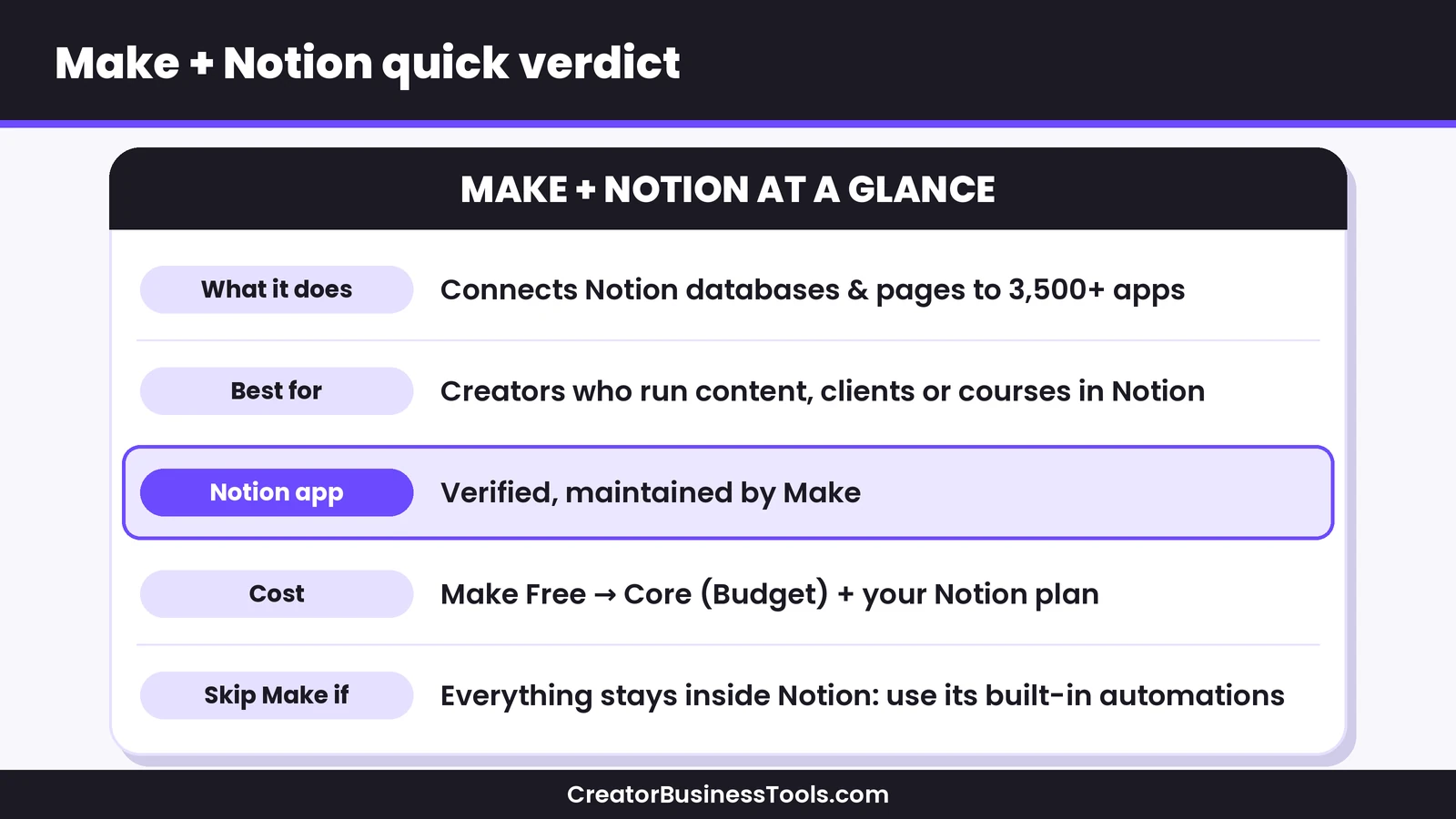
Quick verdict: If your automations stay inside Notion, such as setting a property or notifying a teammate when a status changes, Notion’s built-in database automations may be all you need on a paid Notion plan. If you want Notion to talk to the rest of your business, such as your email tool, payment platform, calendar, or spreadsheets, Make is the better fit. Its Notion app is verified and maintained by Make, and its free plan lets you build and test your first workflow without paying.
Quick picks
- Best for connecting Notion to your other apps: Make, with triggers and actions for Notion data sources, pages, and page content. Try Make
- Best for simple in-Notion rules: Notion database automations on a paid Notion plan.
- Best way to start: Make’s Free plan plus one Notion database you already use.
- Best for teams sharing workflows: Make Teams, with team roles and shared scenario templates.
Make Notion integration at a glance
| Item | What you get |
|---|---|
| Notion app status | Verified; supported and maintained by Make |
| Triggers | Watch data source items, objects, page contents, and events |
| Actions | Create, update, and get data source items, pages, databases, and page content; search; append content; make an API call |
| Connection types | Internal (integration token) or Public (sign in and choose pages) |
| Templates | Ready-made Notion scenarios in Make’s template gallery |
| Make price tier | Free, then $ (Core), $–$$ (Pro), $$ (Teams) |
| Notion price tier | Free, then $ (Plus) and $$ (Business) per member |
| Main alternative | Notion’s built-in database automations (paid Notion plans) |
What the Make Notion integration does
Make is a visual automation platform. You build a scenario by connecting modules on a canvas, where each module performs one action in an app. The Notion app adds dozens of Notion-specific modules to that canvas.
In practice, the integration does three jobs:
- Watch Notion for changes. A scenario can start when an item in a database is created or updated, when a page or database changes, when new page content appears, or when a specific event happens in your workspace.
- Write to Notion from other apps. A scenario can create a database item, update properties, create a page, or append content to an existing page using data from any connected app.
- Read Notion data for other apps. A scenario can search Notion, get a page or database item, and pass that information to your email tool, a spreadsheet, a calendar, or an AI step.
Because Make connects to 3,500+ apps, Notion can sit in the middle of almost any workflow. Make’s own Notion page highlights examples such as syncing a meetings database with Google Calendar, turning new Google Sheets rows into Notion items, and sending Notion entries to ChatGPT, then saving the results back into the database.
Make Notion modules explained
You don’t need to memorize every module, but knowing the main groups helps you plan.
Triggers
- Watch Data Source Items: Starts a scenario when an item in a database is created or updated. This is the trigger most creators use.
- Watch Objects: Starts when a data source, page, or database is created or updated.
- Watch Page Contents: Starts when content is added to a page.
- Watch Events: An instant trigger that starts when a specified event happens on pages your connection can access. Notion sends the event to Make through a webhook, so it doesn’t need to check on a schedule.
Actions and searches
- Create a Data Source Item and Update a Data Source Item: Add a row to a database or change its properties.
- Create a Page and Append a Page Content: Build pages and add blocks such as text or lists.
- Search Objects and Get a Data Source Item: Find an existing page before you update it, which prevents duplicates.
- List Page Property Items: Retrieve the full value of properties with many entries, such as long relation lists.
- Make an API Call: Use Notion’s API directly for anything the ready-made modules don’t cover.
Make’s documentation recommends using the newer Notion modules, not the ones labeled Legacy, for new setups. The newer modules work with databases that have one or several data sources, which keeps your scenarios compatible with Notion’s API changes.
How to connect Notion to Make
Make offers two ways to connect your Notion account. Both require a Notion account with admin permissions.
Option 1: Public connection (simplest)
- In Make, add a Notion module to a scenario and click Create a connection.
- Choose Notion Public as the connection type and give it a name.
- Sign in to Notion when prompted, click Select pages, choose the pages and databases Make may access, and allow access.
This is the quickest route for most solo creators.
Option 2: Internal connection (more control)
- In Notion, open the integrations settings and create a new internal integration for your workspace.
- Set its capabilities and copy the internal integration token. Store it somewhere safe.
- In Make, create a connection, choose Notion Internal, and paste the token.
- Back in Notion, open each database you want to automate, use Add connections, and select your integration.
That last step matters. With an internal connection, Notion databases don’t appear in Make’s search until you share them with the integration.
Choosing what to share
Share only the databases a scenario needs. If you later add new pages or databases, Make’s documentation explains that you may need to reauthorize the connection so they appear. Keeping access narrow also makes your workspace easier to audit.
Make vs Notion’s built-in automations
Notion has its own automation feature, so it’s fair to ask whether you need Make at all.
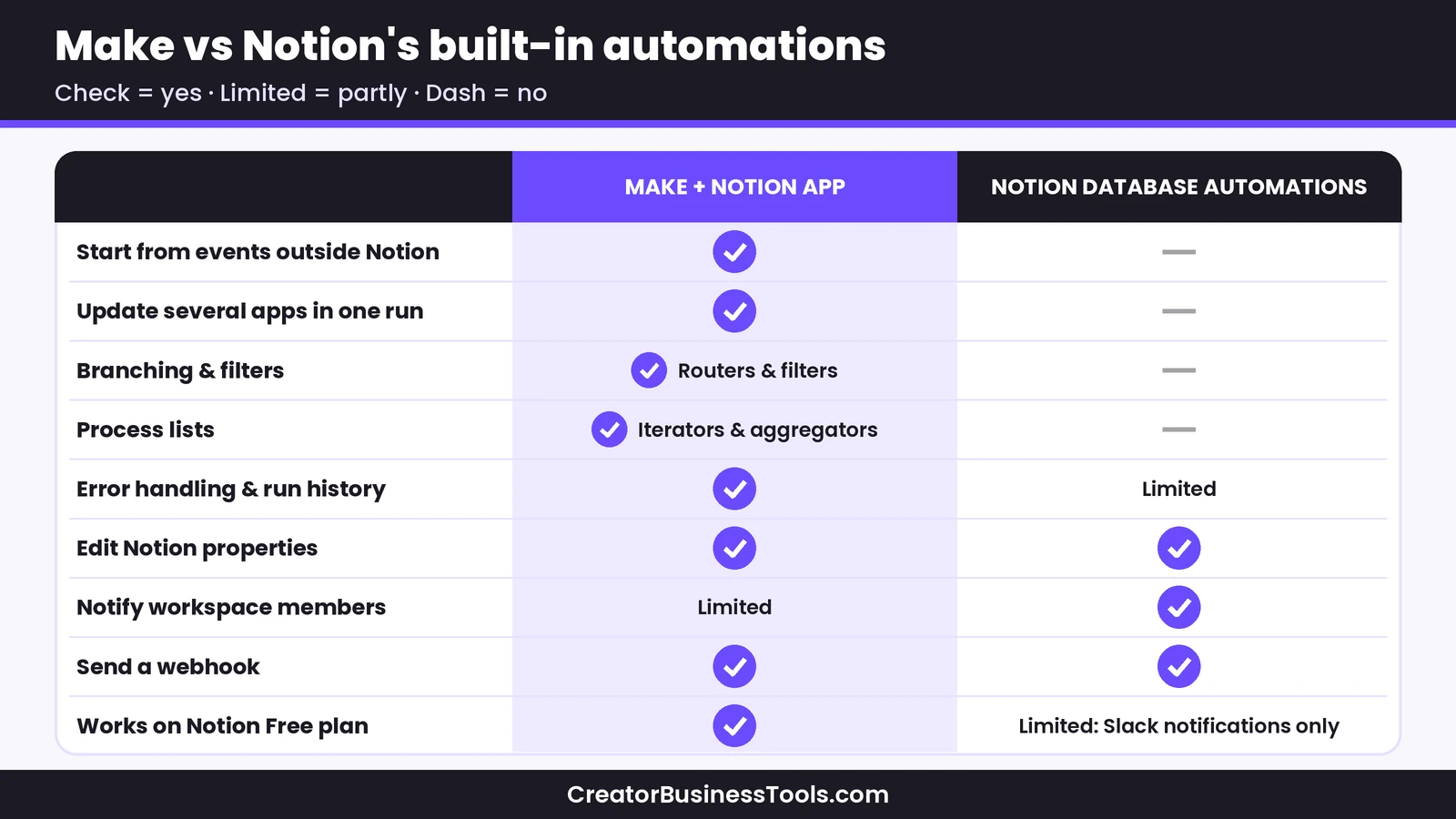
Notion database automations run inside a database. Triggers include a page being added, a property being edited, or a recurring schedule. Actions include editing properties, adding or editing pages in a database, sending notifications to workspace members, sending an email from a connected Gmail account, sending a Slack notification, sending a webhook, and defining variables. They’re available on paid Notion plans; on the Free plan, you can create Slack notification automations but not other kinds.
There are limits. Notion’s automations can’t be triggered by other automations, and they focus on Notion itself plus a few connected services.
Make works across apps. It can start from events outside Notion, such as a payment, a form submission, or a new email subscriber, and it can update several apps in one run. It also adds routers for branching, filters for conditions, iterators and aggregators for lists, error handlers, and a detailed history of every run.
The two also work well together. A Notion automation can send a webhook, and a Make scenario can start from a webhook, so you can trigger a larger Make workflow from a button or status change in Notion.
What the Make Notion integration costs
You’ll pay for two tools: your Notion plan and your Make plan.
The Make side
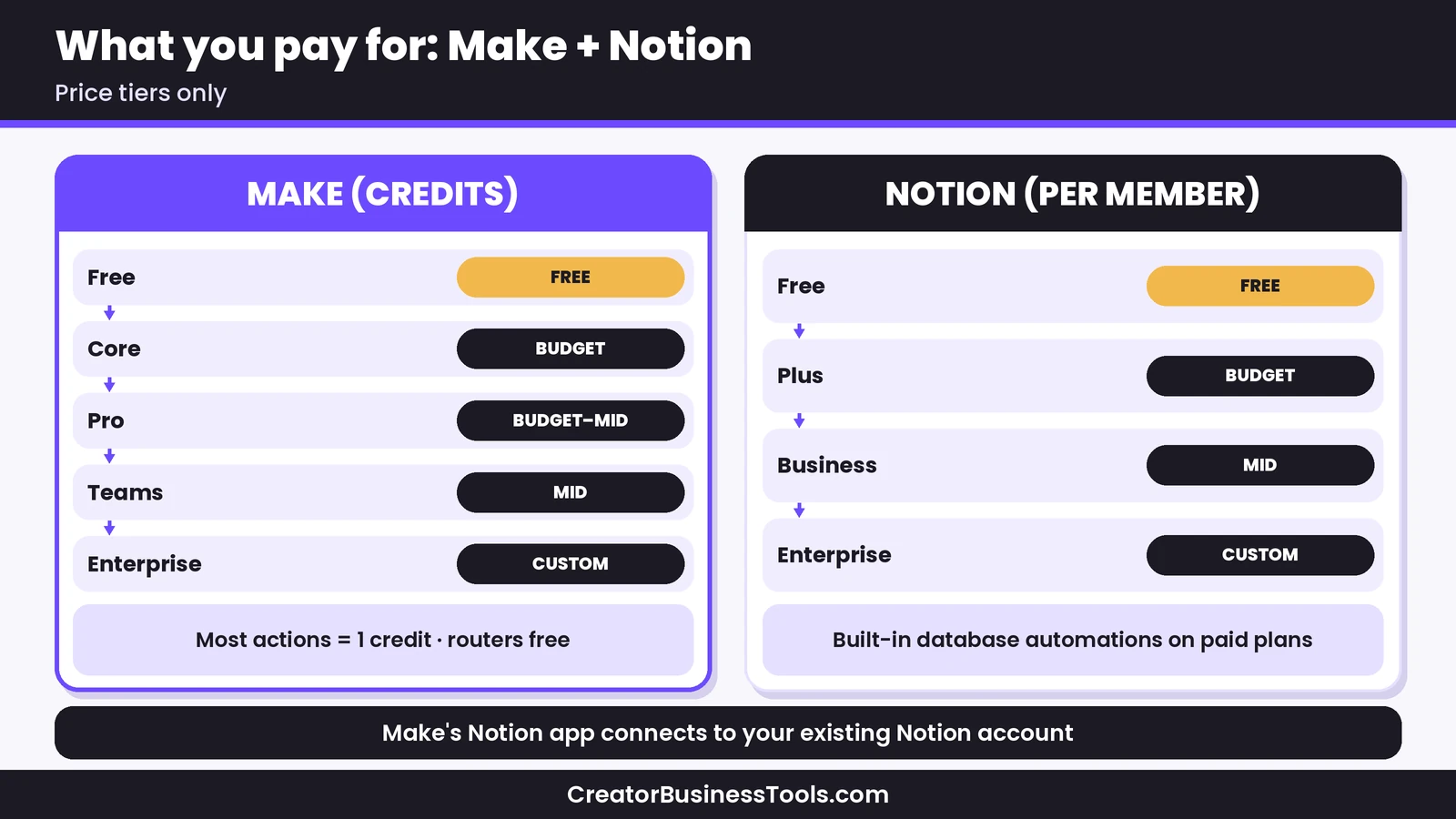
Make bills by credits. Each time a module performs an action, such as reading a database item or creating a page, it uses credits. Most actions use one credit, while some AI features that run on Make’s AI provider can use more. Routers and error handler modules don’t use credits. Scheduled “Watch” triggers use a credit each time they check Notion, even when nothing new turns up, so checking less often saves credits. Instant triggers like Watch Events only run when data arrives.
- Free: A small monthly credit allowance, the visual builder, routers and filters, and scheduled runs no more often than every 15 minutes.
- Core ($): Unlimited active scenarios, scheduling down to the minute, and access to the Make API.
- Pro ($–$$): Adds priority execution, custom variables, and full-text execution log search.
- Teams ($$): Adds teams, team roles, and shared scenario templates.
Paid plans scale with the credits you choose, annual billing costs less than monthly, and unused credits expire at the end of the term. Our Make pricing guide explains how to estimate credits.
The Notion side
Make’s Notion app works with your existing Notion account. Notion’s plans are Free, Plus, Business, and Enterprise, priced per member. You only need a paid Notion plan if you also want Notion’s own database automations or other paid features.
Six Make Notion workflows for creators
These are hypothetical examples to show what’s possible. Each can start from a Make template or be built from scratch.
- Content calendar from a form. A new response in your idea form creates a Notion database item with the title, format, and target date.
- Sales log. A new payment in Stripe creates a row in a Notion sales database with the product, amount, and customer email, so your revenue dashboard stays current.
- Client onboarding. When a client’s status changes to “Signed” in Notion, Make sends a welcome email, creates a shared folder, and adds a kickoff event to Google Calendar.
- Calendar sync. Meetings in a Notion database create, update, or delete matching Google Calendar events.
- Student roster. A new enrollment on your course platform adds the student to a Notion roster and tags them in your email tool. Our guide to Make for course creators walks through similar flows.
- AI summaries. When you paste a transcript into a Notion page, Make sends it to an AI step and writes a summary and suggested titles back into the page properties.
How to decide: Notion automations or Make?
Ask yourself these questions before you build.
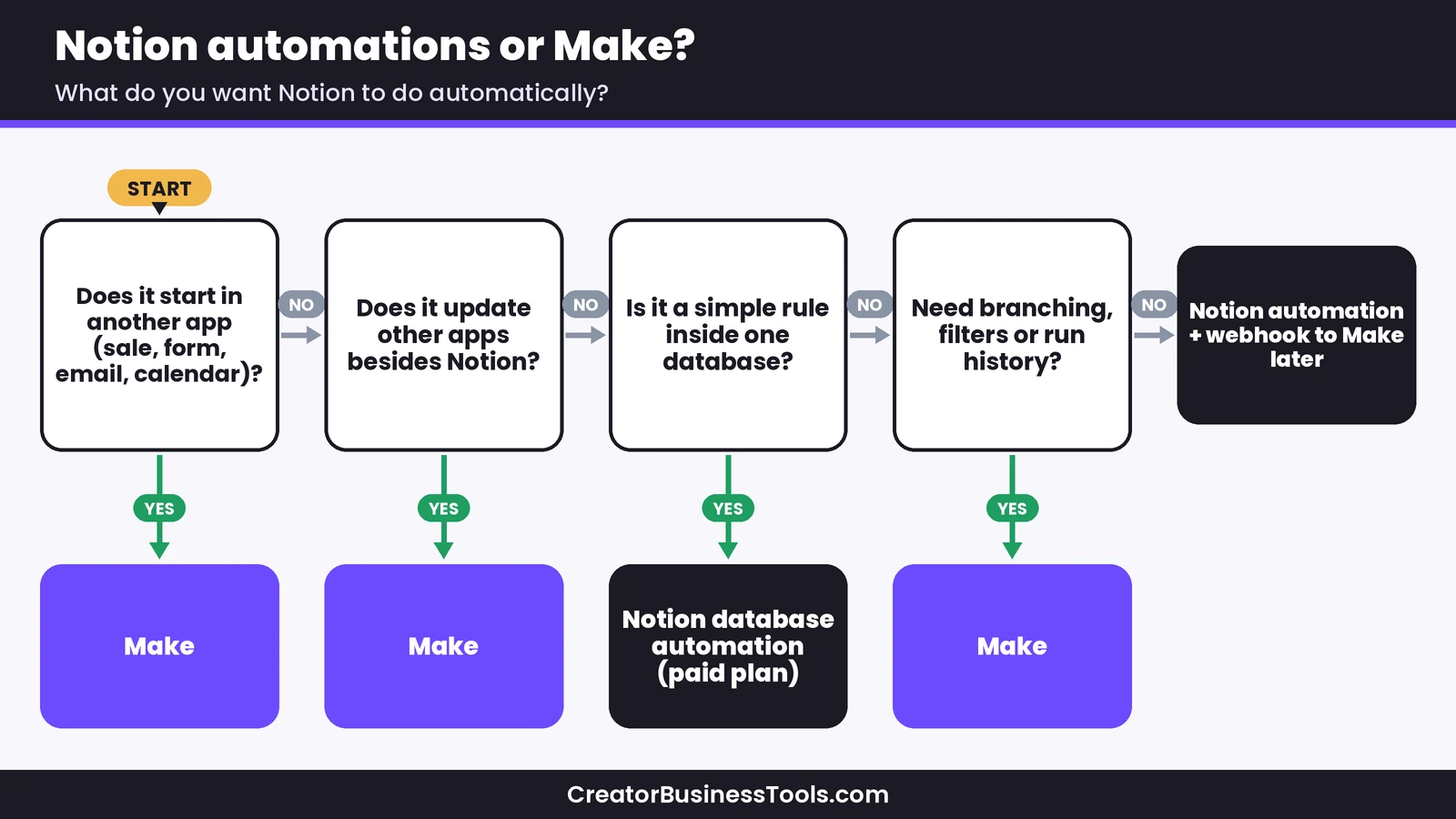
- Does the workflow start outside Notion? If yes, you need Make.
- Does it update more than one app? If yes, Make is the better fit.
- Does it need branching, filters, or lists? Make handles these natively.
- Is it a simple rule inside one database? A Notion database automation may be enough.
- Do you need to see what happened when something breaks? Make’s run history makes troubleshooting easier.
Build your first Make Notion scenario step by step
Here’s a simple starter build: logging new form responses in a Notion content database. It’s a hypothetical example, but the same pattern works for most “app to Notion” workflows.
- Prepare the database. In Notion, create a database with the properties you want to fill, such as Title, Format, Status, and Target date. Give each property a clear, unique name.
- Create a scenario in Make. Sign up for the Free plan, create a new scenario, and add your form tool’s “watch responses” module as the trigger. Try Make
- Add the Notion module. Choose Create a Data Source Item, connect your Notion account, and select the content database.
- Map the fields. Drag the form answers into the matching Notion properties. Select and status properties need values that match your options in Notion.
- Add a filter. If you only want certain responses, such as video ideas, place a filter between the trigger and the Notion module.
- Run once and inspect. Submit a test response, run the scenario, and open each module’s output to check the data. Then confirm the new item looks right in Notion.
- Schedule it. Turn the scenario on and choose how often it checks for new responses. On the Free plan, the shortest interval is 15 minutes.
Once this works, extending it is easy. Add a router after the trigger to send long-form ideas to one database and short-form ideas to another, or add an email step that confirms receipt to the person who submitted the form.
Security and permissions
Automation tools need access to your data, so a little housekeeping goes a long way.
- Grant the minimum access. Share only the pages and databases each scenario needs.
- Protect integration tokens. Treat an internal integration token like a password and store it securely.
- Review connections regularly. Remove connections you no longer use, both in Make and in Notion’s connection settings.
- Watch shared workspaces. If several people edit a database, agree on property names and options so scenarios don’t break when someone renames a field.
Tips to keep your Notion scenarios efficient
- Search before you create. Use a search module to check whether a page exists, then update it instead of creating duplicates.
- Filter early. Put filters right after the trigger so only relevant items continue, which saves credits.
- Use clear property names. Consistent names in Notion make mapping in Make faster and less error-prone.
- Pick the right schedule. Watching a database every 15 minutes is fine for a content calendar. Faster schedules need a paid Make plan.
- Start from a template. Make’s gallery includes thousands of pre-built scenarios, including Notion examples.
Common mistakes and quick fixes
- The database doesn’t appear in Make. With an internal connection, open the database in Notion and add your integration under connections.
- New pages are missing. Reauthorize the connection in Make after adding new pages or databases.
- A mix of Legacy and newer modules. Use the newer modules for new scenarios; older and newer modules reference databases differently.
- Long relation or people properties look cut off. Use the List Page Property Items module to retrieve the full value.
- Too many credits used. Add filters, reduce schedule frequency, and avoid unnecessary searches.
Make Notion integration: pros and cons
Pros
- Verified Notion app maintained by Make
- Dozens of Notion modules for databases, pages, and content
- Connects Notion to 3,500+ apps in one visual workflow
- Branching, filters, error handling, and run history
- Free plan for testing, with templates to start from
Cons
- More setup than a native Notion automation
- Credit-based pricing needs some planning
- Free plan schedules no more often than every 15 minutes
- Connection permissions need attention when you add new databases
FAQ
Is the Make Notion integration free?
You can use Make’s Notion app on Make’s Free plan, which includes a monthly credit allowance. Heavier use requires a paid Make plan.
Do I need a paid Notion plan to use Make with Notion?
No. Make’s Notion app connects to your Notion account. A paid Notion plan is only needed for Notion’s own database automations and other paid features.
What’s the difference between the internal and public connection?
The public connection lets you sign in and pick pages. The internal connection uses an integration token you create in Notion and requires sharing each database with that integration.
Can Make trigger when a Notion database item changes?
Yes. The Watch Data Source Items module starts a scenario when an item is created or updated.
Is Make better than Notion’s built-in automations?
For workflows that involve other apps, branching, or lists, yes. For simple rules inside one database, Notion’s built-in automations can be enough.
Can I use Zapier instead?
Yes. Zapier also connects to Notion. Our Make vs Zapier comparison explains how the two differ on pricing and workflow design.
Bottom line
The Make Notion integration is the easiest way to turn Notion into the hub of a creator business. It can capture sales, form responses, and calendar events in Notion, and it can push Notion changes out to your email, calendar, and spreadsheets, with branching and error handling that Notion’s built-in automations don’t offer.
If your needs stay inside one database, start with Notion’s own automations. If you want Notion connected to everything else, Make is the stronger choice, and its free plan lets you build your first scenario before you spend anything. For a broader look at the platform, read our Make review.
Connect Notion to Make for free
Free checklist: Want a plan before you build? Get our free Automation Switch Checklist, a one-page worksheet for mapping your workflows, picking the right tool, and launching your first scenario safely. Contact us to request a copy.
Pricing and features from official vendor pages, last checked October 22, 2026.