
Make for Course Creators: 7 Automations to Build First
Disclosure: This post contains affiliate links. If you buy through them, we may earn a commission at no extra cost to you. How we make money.
If you sell an online course, you probably spend more time on admin than you’d like: tagging buyers in your email tool, inviting students to your community, copying sales into a spreadsheet, and chasing people who booked a coaching call but haven’t filled in the intake form yet. Make for course creators is about handing those jobs to automations so they happen the same way every time, even when you’re busy recording lessons.
This guide shows seven practical Make automations for course creators, from buyer onboarding to progress nudges and weekly sales summaries. For each one, we explain the trigger, the steps, and roughly how many credits it uses. We also cover which course platforms connect to Make with ready-made apps, which Make plan fits most course businesses, and the mistakes that tend to break student access.
Everything here is based on Make’s official pricing page and its app integration pages, not on hands-on benchmarks. The scenarios are examples you can adapt, not copy-paste recipes, because every creator’s stack is a little different. We use price tiers ($ = budget, $$ = mid-range, $$$ = premium) rather than exact prices, since Make adjusts its plans from time to time. If you haven’t decided on Make yet, our Make review and Make vs Zapier guide are good places to start.
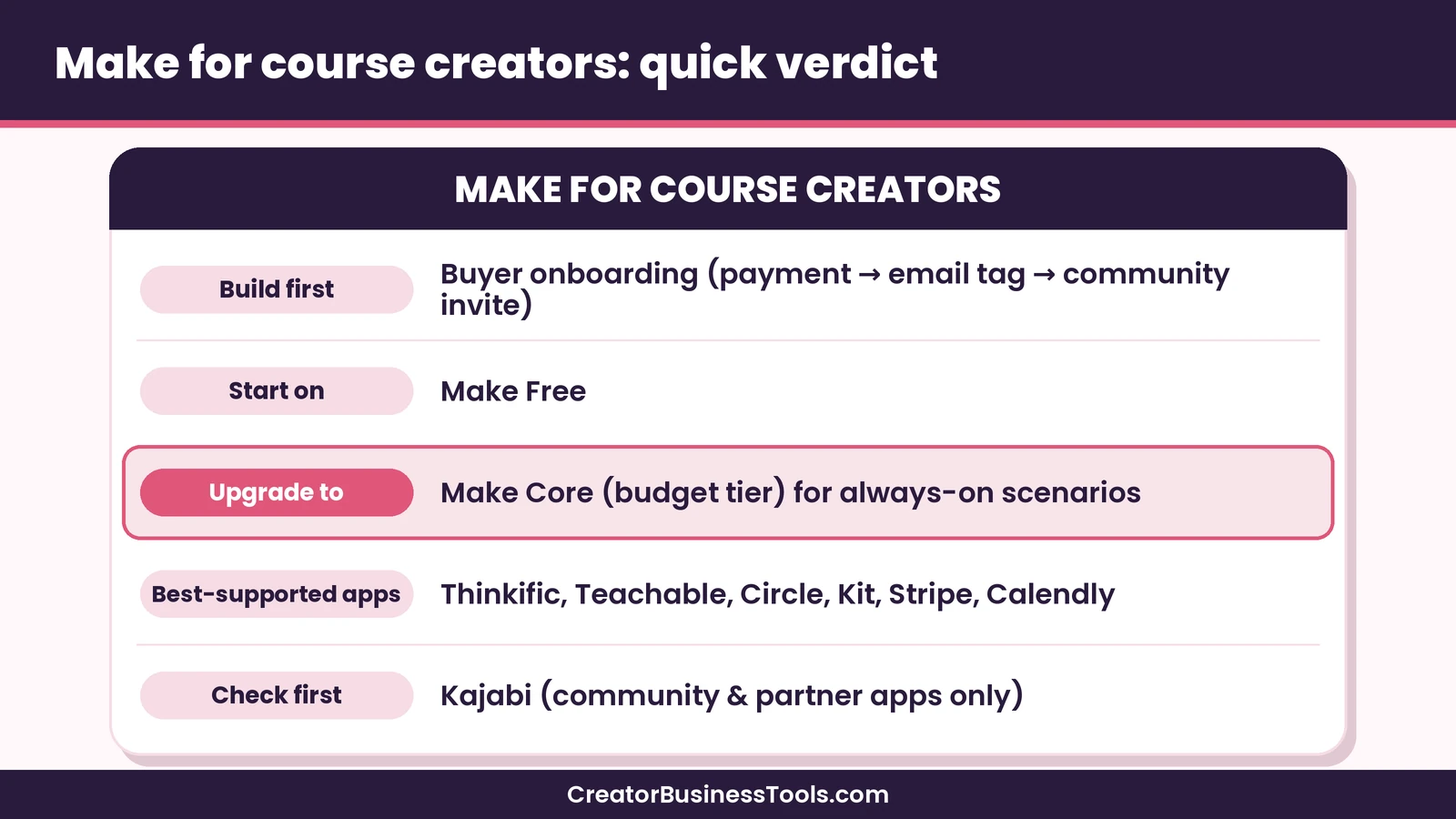
Quick verdict: For most course creators, Make is a budget-friendly way to connect payments, email, course platform, and community. Start on Make Free to build your first buyer-onboarding scenario, then move to Core once you need several always-on scenarios and minute-level scheduling. Thinkific, Teachable, Circle, Kit, Stripe, and Calendly all have Make-maintained apps; Kajabi relies on community and partner-built apps, so check the details before you plan around it.
Quick picks
- Best first automation: buyer onboarding, which tags new buyers in your email tool and invites them to your community. Try Make free
- Best plan to start on: Make Free, to learn the builder and measure your real credit use.
- Best plan for most course businesses: Make Core, with unlimited active scenarios and minute-level scheduling in the budget tier.
- Best plan for launch-heavy creators: Make Pro, with priority execution and full-text log search for troubleshooting.
Why Course Creators Use Make
A typical course business runs on four or five tools that don’t talk to each other by default: a payment processor, an email platform, a course platform, a community, and maybe a scheduling tool for coaching calls. Every manual step between them is a chance for a buyer to fall through the cracks.
Make connects those tools with scenarios. A scenario starts with a trigger, such as a successful payment, and then runs a series of modules, such as “add a tag in Kit” or “add a member to a Circle space.” According to Make’s pricing page, each module action uses credits, and most actions use one. A few tools, like the Router module and the error handler modules, don’t use credits at all.
Three things make Make a good fit for course creators in particular:
- Visual branching. Routers let one scenario handle different products differently, such as sending course buyers to one community space and coaching clients to another.
- Ready-made creator apps. Make maintains its own apps for Kit, Stripe, Circle, Thinkific, Teachable, and Calendly, so you’re not relying on unofficial connectors for your core stack.
- Budget pricing for modest volume. A solo creator’s onboarding workflows often use a small number of credits each month, which keeps most people in the free or budget tier.
Which Course Platforms Connect to Make?
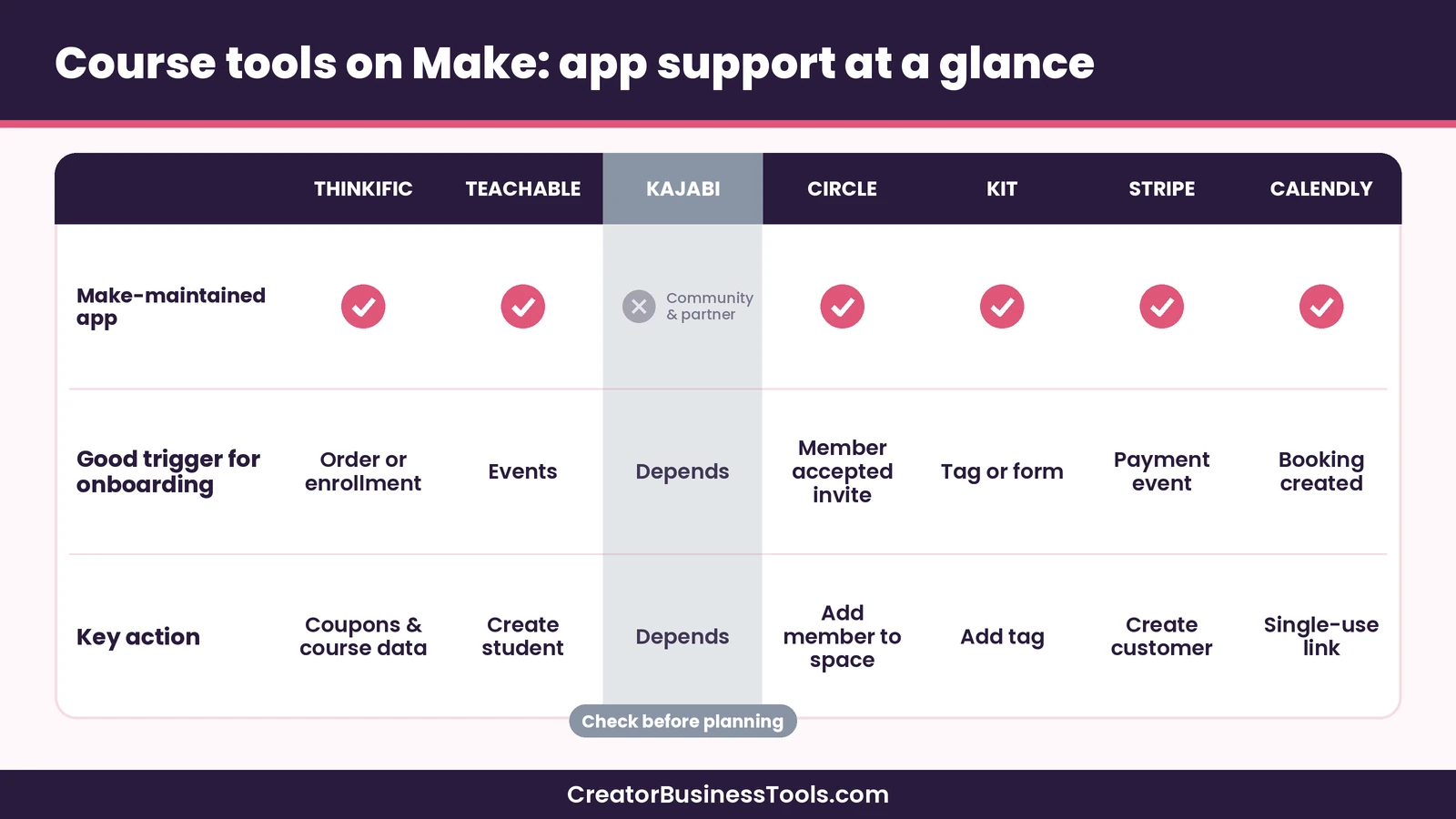
Before you plan any automation, check how your course platform connects. Make labels some apps as “Verified” and supported and maintained by Make itself, while others are built by the community or by partners. Here’s what Make’s app pages show for common creator tools.
| Tool | App type on Make | Useful triggers | Useful actions | Watch out for |
|---|---|---|---|---|
| Thinkific | Make-maintained (Verified) | Order created, enrollment created or completed, lesson completed, new user | Create coupons, categories, and other course data | Check which actions your Thinkific plan’s API supports |
| Teachable | Make-maintained (Verified) | Watch events | Create, update, find, or delete students | Make marks its enroll and unenroll modules as deprecated and says they require a business plan, so check your Teachable plan first |
| Kajabi | Community and partner-built apps | Depends on the app | Depends on the app | No Make-maintained app; one partner app is paid and needs an access code |
| Circle | Make-maintained (Verified) | Member accepted an invitation, new posts, new comments | Add or remove a member from a space or space group, remove a member, create comments | Make’s Circle docs say the modules need a paid Circle account; plan spaces before you automate invites |
| Kit | Make-maintained (Verified) | Form subscription, sequence subscription, tag added or removed | Add a subscriber to a form or sequence, add a tag | Keep tag names consistent across scenarios |
| Stripe | Make-maintained (Verified) | Watch events (such as successful payments) | Create customers, charges, and payment intents | Choose the exact event types you need |
| Calendly | Make-maintained (Verified) | Event created or canceled | Create a single-use scheduling link | Some templates require a paid Calendly account |
If your platform isn’t listed, Make’s HTTP and webhook modules can often connect to any tool with a public API. That takes more setup, so it’s worth checking for a ready-made app first. If you’re still choosing a course platform, our Kajabi vs Teachable guide and Teachable vs Thinkific guide compare popular options.
7 Make Automations for Course Creators
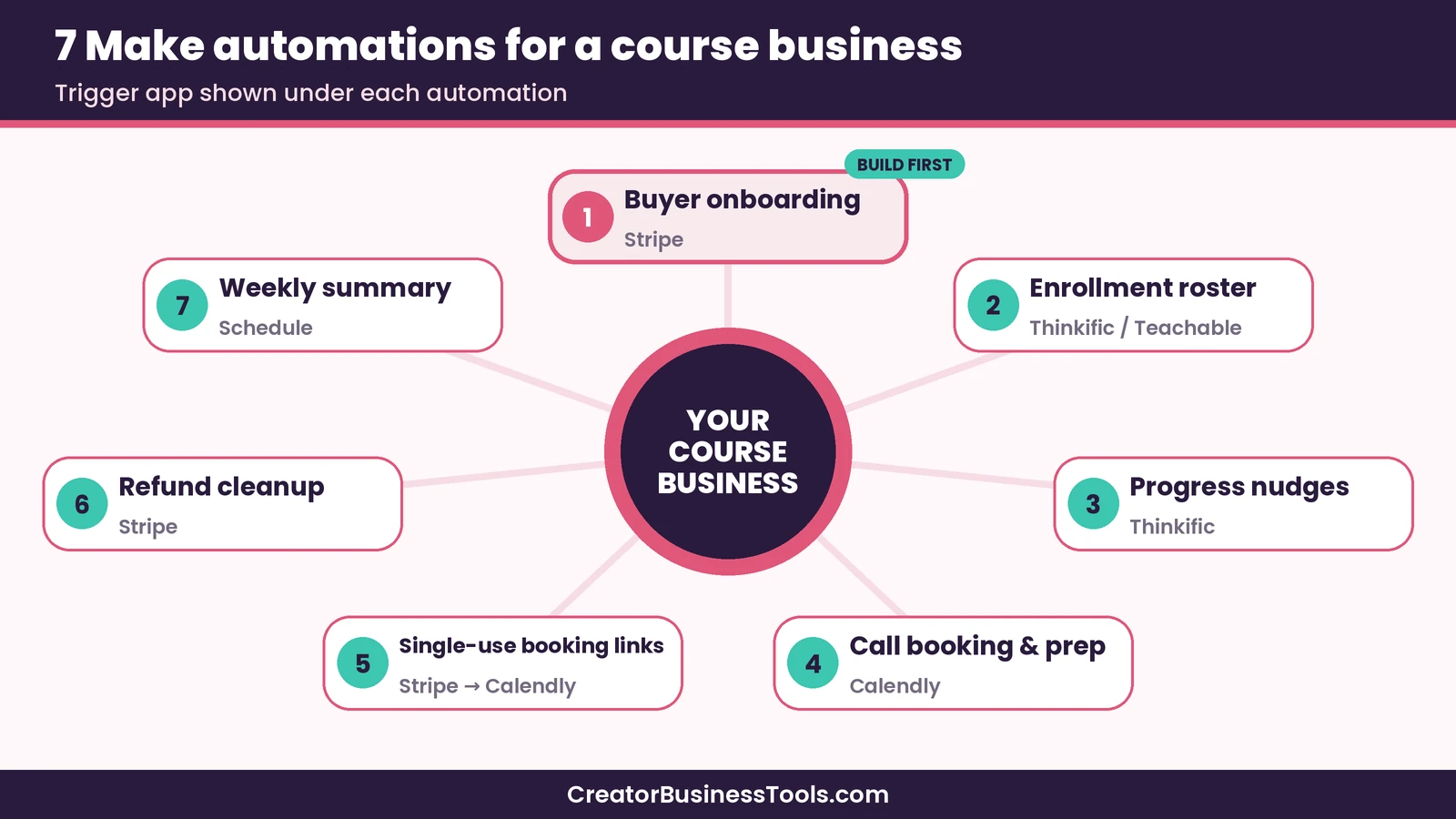
Each scenario below lists its trigger, its main steps, and an illustrative credit estimate. Your real numbers depend on your tools, your filters, and how many people buy or enroll.
1. Buyer onboarding: payment to email tag to community invite
Trigger: a successful payment in Stripe, or an order in your course platform.
Steps: add a product tag to the buyer in Kit, add the buyer to the right Circle space, and log the sale in Google Sheets.
Why it matters: this is the automation buyers feel most. Tagging in Kit can start your welcome sequence, and the community invite means nobody waits for you to notice the sale. Make’s Kit app page even lists a ready-made template that tags a Kit subscriber when a Stripe payment succeeds, which is a good starting point.
Credit estimate: roughly three or four credits per sale. At a modest number of sales per month, this usually fits in a small credit tier.
2. Enrollment roster and student welcome
Trigger: a new enrollment in Thinkific, or a new event in Teachable.
Steps: add a row to a Google Sheets roster with the student’s name, email, course, and date; add a course-specific tag in Kit; send a short welcome message with links to the first lesson and the community.
Why it matters: a simple roster gives you one place to see who’s enrolled in what, which helps with support emails, cohort planning, and testimonials later.
Credit estimate: roughly three credits per enrollment.
3. Progress nudges for students who stall
Trigger: Thinkific’s lesson-completed or enrollment-progress trigger.
Steps: use a router to check which lesson the student just finished. If it’s a milestone lesson, add a tag in Kit that triggers an encouragement email. If a student completes the course, add a “completed” tag that starts a testimonial request or an offer for your next program. You can also send students a Senja testimonial form.
Why it matters: completion tends to drive results, reviews, and repeat purchases. Automated nudges at the right moments do the follow-up you’d like to do personally but rarely have time for.
Credit estimate: a couple of credits per lesson event. Routers don’t use credits, so branching by lesson is affordable. Because lesson events can be frequent, filter early so only milestone lessons continue.
4. Coaching call booking and prep
Trigger: a new booking in Calendly.
Steps: log the booking in Google Sheets, tag the client in Kit as “call booked,” and send a prep email with your intake questions. For cancellations, a second route can tag the client as “call canceled” and send a friendly rebooking note.
Why it matters: coaching packages often live or die on preparation. An automatic prep email means clients show up with goals written down, and you show up with context.
Credit estimate: roughly three credits per booking or cancellation.
5. Single-use booking links for paid coaching buyers
Trigger: a successful payment for a coaching package.
Steps: create a single-use scheduling link in Calendly, then email it to the buyer through your email tool.
Why it matters: single-use links help keep paid sessions from being booked by people who haven’t purchased. It also removes the “I paid, now what?” gap between checkout and the first call.
Credit estimate: roughly two or three credits per purchase.
6. Refund and cancellation cleanup
Trigger: a refund or subscription-cancellation event from Stripe.
Steps: remove or swap the buyer’s product tag in Kit so they stop receiving course emails, update their row in your roster, remove them from the relevant Circle space (Make’s Circle app lists remove-member actions), and, where your course platform’s Make modules support it, change their course access.
Why it matters: cleanup is the automation most creators forget. Without it, refunded buyers can keep receiving launch emails or keep community access, which creates awkward conversations.
Credit estimate: a few credits per refund. Because refunds are relatively rare, this scenario costs little to run.
7. Weekly sales and enrollment summary
Trigger: a weekly schedule.
Steps: read the past week’s rows from your Google Sheets roster, aggregate them into a short summary of sales, enrollments, and completions, and send it to your inbox or a Slack channel.
Why it matters: a weekly snapshot helps you spot trends without logging into five dashboards. It’s also a gentle way to celebrate progress during a slow week.
Credit estimate: a handful of credits per week, depending on how many rows you read and aggregate.
Make Plans for Course Creators: Pricing Comparison
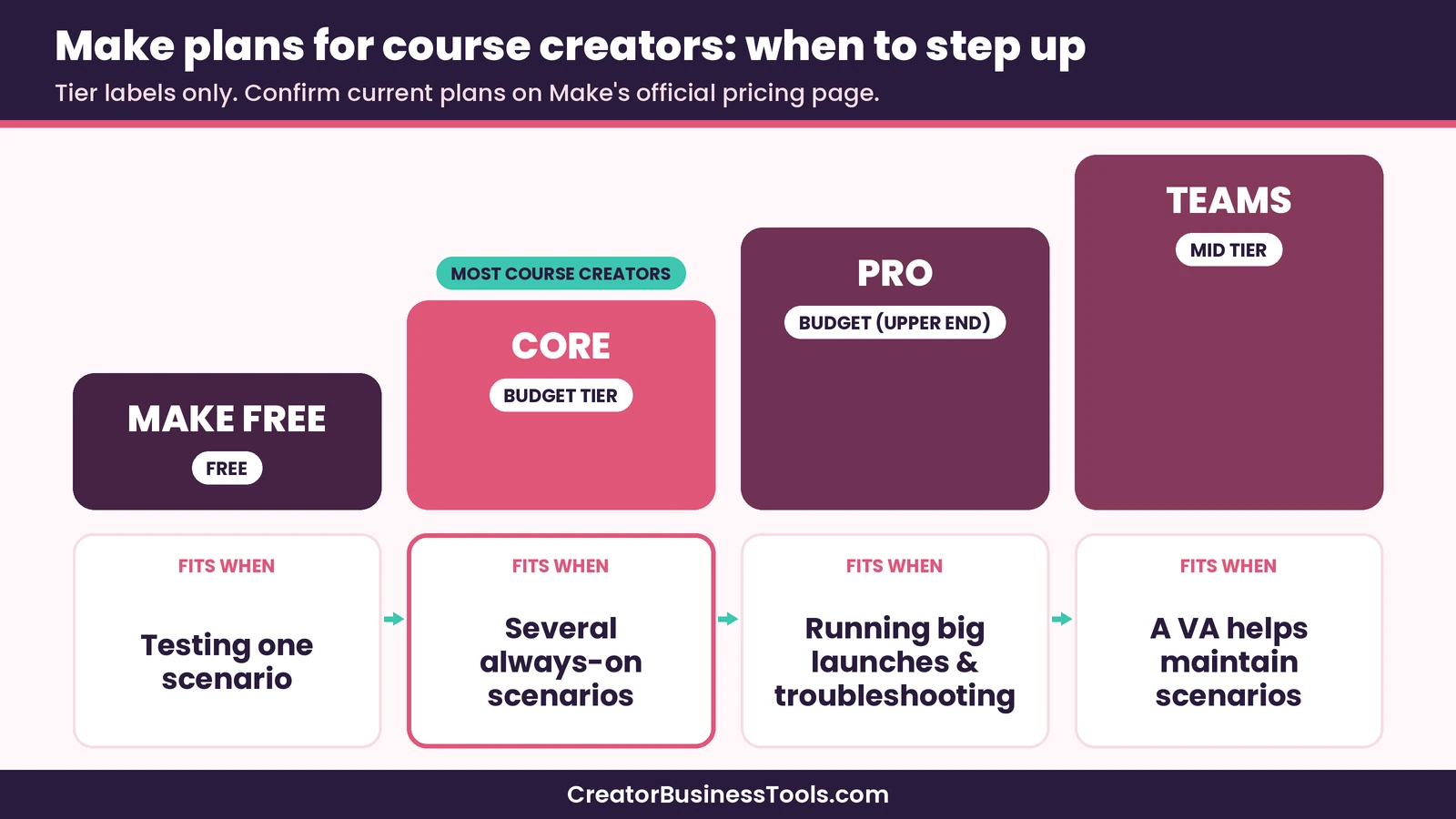
Make prices its plans by features and by the size of your monthly credit pool, so the plan name matters less than your volume. Here’s how the plans line up for a course business. Price tiers reflect the smallest credit amount on each plan.
| Plan | Fits which course creator | What it adds | Main limitation | Price tier |
|---|---|---|---|---|
| Make Free | Creators testing their first onboarding scenario | A monthly credit pool, the visual builder, routers, and filters | Limited active scenarios and a 15-minute minimum interval | Free |
| Make Core | Most solo course creators and coaches | Unlimited active scenarios and minute-level scheduling | No priority execution or full-text log search | $ |
| Make Pro | Launch-heavy creators with big enrollment spikes | Priority execution, custom variables, full-text execution log search | Costs more than Core at the same credit amount | $ (upper end) |
| Make Teams | Course businesses with a VA or small team | Team roles and shareable scenario templates | More than a solo creator needs | $$ |
| Make Enterprise | Large education companies | Enterprise security, support, and overage protection | Custom pricing through sales | $$$ (custom) |
A few pricing rules from Make’s pricing FAQ are worth knowing before a launch:
- Running out pauses scenarios. If credits run out, scenarios stop until credits are added. Incoming webhooks are queued up to your plan’s queue allowance and processed once you resume.
- Unused credits expire. Credits don’t roll over at the end of the term, so a much bigger tier isn’t automatically better value.
- Annual is cheaper. Make says paying annually in advance costs less than paying monthly.
For a full breakdown of credits and tiers, see our Make pricing guide, and confirm on Make’s official pricing page before you choose.
How to Estimate Credits for a Course Business
You don’t need a spreadsheet model to pick a plan. A quick estimate works:
- List your scenarios. Write down the automations you plan to build first, usually buyer onboarding and an enrollment roster.
- Count the modules. Count the action steps in each scenario. Routers and error handlers don’t use credits.
- Estimate runs. Multiply by how many sales, enrollments, or bookings you expect in a normal month.
- Add a launch buffer. Launch weeks can multiply your volume, so add a generous buffer, and check Make’s pricing page for how credits work on annual billing for your plan.
- Review after a few weeks. Check real usage in Make and move up or down a tier.
Here’s an illustrative example. A creator with a few dozen sales a month runs buyer onboarding at about four credits per sale, an enrollment roster at about three credits per enrollment, and a weekly summary. That’s likely a few hundred credits a month, which shows why many solo creators start comfortably on the free plan and move to Core mainly for unlimited active scenarios and faster scheduling rather than for volume.
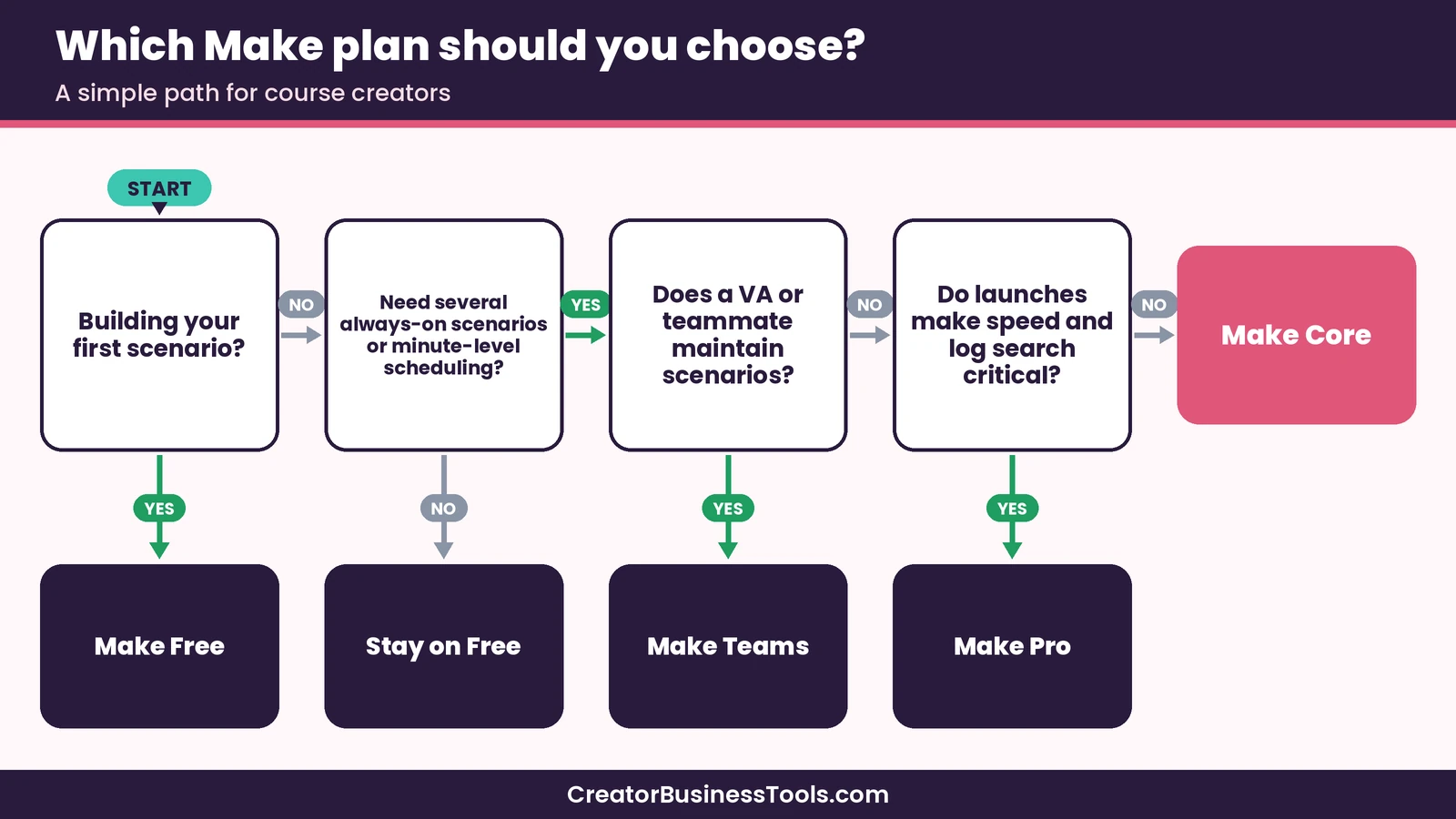
Which Make Plan Should You Choose? A Simple Path
You’re just starting. Use Make Free and build buyer onboarding first. It’s the scenario your buyers notice most.
You run several always-on scenarios. Move to Core. Unlimited active scenarios let you keep onboarding, rosters, nudges, and cleanup as separate, easy-to-debug automations, and minute-level scheduling helps students get access quickly.
You run big launches. Consider Pro. Priority execution helps during busy windows, and full-text log search makes it easier to answer “I paid but didn’t get access” emails.
A VA or contractor helps you. Choose Teams for team roles and shared templates.
Common Mistakes That Break Student Access
Automations save time only when they’re reliable. These are the mistakes that most often cause problems for course businesses.
- Testing with real customers. Build and test with your own email address and test purchases before you turn a scenario on.
- Duplicate scenarios. If two scenarios react to the same payment, buyers can get two welcome emails or two invites. Keep one scenario per job.
- Inconsistent tag names. “course-buyer” in one scenario and “Course Buyer” in another can split your list. Agree on names before you build.
- No error handling. Add error handler routes to critical scenarios so a temporary app outage doesn’t silently skip a buyer. Make’s error handler modules don’t use credits.
- Forgetting refunds. Build the cleanup scenario alongside onboarding, not months later.
- No launch buffer. A launch can spike your credit use. If scenarios pause mid-launch, buyers wait for access.
Before you automate your course business
- Confirm current plan details and credit tiers on Make’s official pricing page.
- Check that your course platform’s Make app supports the triggers and actions you need.
- Test every scenario with your own email address before going live.
- Build refund cleanup at the same time as onboarding.
- This guide is based on official information, not hands-on benchmarks.
Make for Course Creators: FAQ
Does Make work with Thinkific and Teachable?
Yes. Make lists Make-maintained apps for both. Thinkific’s app includes triggers for orders, enrollments, and lesson completions. Teachable’s app can watch events and create or update students, though Make marks its enroll and unenroll modules as deprecated and says they require a business plan, so confirm your Teachable plan before relying on them.
Does Make work with Kajabi?
Make doesn’t list a Make-maintained Kajabi app. It lists community-built and partner-built Kajabi apps, one of which is paid. Check those apps and Kajabi’s own automation options before planning a Kajabi-based workflow.
Can Make add buyers to my email list automatically?
Yes. Make’s Kit app can add subscribers to forms or sequences and add tags, and Make lists a template that tags a Kit subscriber when a Stripe payment succeeds. Our guide to email marketing for course creators covers how to choose the email tool itself.
Is Make or Zapier better for course creators?
Make tends to be more economical and visual for multi-step onboarding. Zapier is often easier for simple, linear automations. Our Make vs Zapier guide compares them in detail, and our Make vs n8n guide covers the self-hosted option.
How many credits does a course business need?
It depends on your sales, enrollments, and number of steps. Many solo creators use a modest number of credits a month for onboarding and rosters. Estimate from your scenarios, add a launch buffer, and review real usage after a few weeks.
Bottom line: start with onboarding, then add one automation at a time
Make for course creators works best as a series of small, reliable automations rather than one giant workflow. Start with buyer onboarding, add an enrollment roster and refund cleanup, and then layer in progress nudges and coaching workflows as your business grows. Begin on Make Free, move to Core when you need several always-on scenarios, and step up to Pro or Teams only when launches or teammates give you a clear reason.
If you build just one scenario to start, make it the one that gets new buyers tagged, welcomed, and into your community without you lifting a finger.
Build your first scenario free on Make
Free download: the Course Creator Automation Blueprint. Want a one-page map of the seven automations in this guide, with the trigger, steps, and credit estimate for each? It comes with a pre-launch checklist for testing your scenarios. Contact us to request a copy.
Pricing and features from official vendor pages, last checked October 19, 2026.