
Make vs Power Automate: Which Fits Creators and Small Teams?
Disclosure: This post contains affiliate links. If you buy through them, we may earn a commission at no extra cost to you. How we make money.
Make vs Power Automate is a common question for small businesses that already pay for Microsoft 365. Power Automate is Microsoft’s own automation platform, and many Microsoft 365 plans, including Business Basic, Business Standard, Business Premium, and Enterprise plans like E3 and E5, include a limited version of it. Make is an independent automation tool known for its visual canvas and budget-friendly plans. Both can connect your apps and take repetitive work off your plate, but they’re built for different kinds of businesses.
In this guide, we compare Make and Microsoft Power Automate on pricing models, app coverage, ease of use, desktop automation, and AI features. We also share hypothetical example workflows and a simple decision path, so you can pick the tool that fits how your business works.
Everything here is based on Make’s and Microsoft’s official pricing, product, and licensing pages, not on hands-on benchmarks. We use price tiers ($ = budget, $$ = mid-range, $$$ = premium) instead of exact prices, because plans and prices change, and each pricing page is the place to confirm the final number.
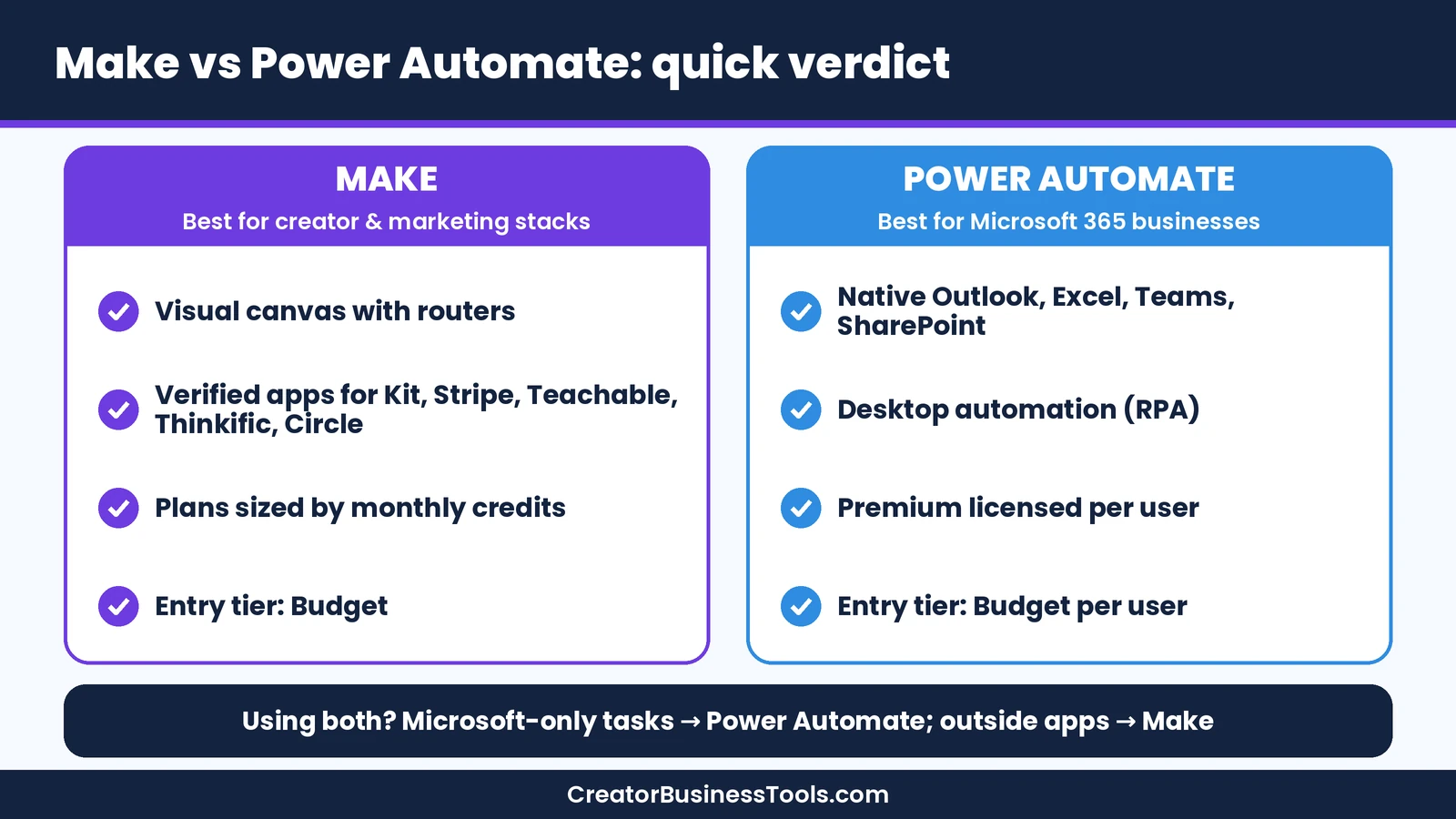
Quick verdict: Choose Make if your business runs on creator and marketing tools like Kit, Stripe, Teachable, Thinkific, or Circle, and you want visual multi-step workflows at a budget price tier. Choose Power Automate if your business lives inside Microsoft 365, you mainly automate Outlook, Excel, Teams, and SharePoint, or you need to automate desktop apps that have no API. Many small teams can use both: Power Automate for Microsoft-only tasks and Make for everything that connects to outside apps.
Quick picks
- Best for creators, coaches, and online sellers: Make, for verified integrations with popular creator platforms and a visual canvas that handles branching. Try Make free
- Best for Microsoft 365-first small businesses: Power Automate, especially if your plan already includes its standard connectors.
- Best for automating desktop apps without an API: Power Automate, through its desktop flows (RPA).
- Best for growing teams that want predictable usage pricing: Make, because its plans are sized by monthly credits rather than per user.
Make vs Power Automate at a glance
| Category | Make | Microsoft Power Automate |
|---|---|---|
| What it is | Independent, cloud-based visual automation platform | Microsoft’s automation platform for cloud and desktop flows |
| Pricing model | Plans sized by monthly credits; credits per module action | Premium priced per user; Process priced per bot for unattended automation |
| Entry price tier | Free plan, then $ | Power Automate Free for work or school accounts (standard connectors only), a free trial, limited rights in many Microsoft 365 plans, then $ per user |
| Editor | Visual canvas of modules with routers and filters | Step-based flow designer with Copilot assistance |
| Strongest app coverage | Creator, marketing, and SaaS apps | Microsoft 365 and business apps |
| Desktop automation (RPA) | Not listed on the pages we reviewed | Yes, attended and unattended desktop flows |
| Connecting any API | HTTP app and webhooks | Custom connectors (premium) and HTTP actions (generally premium; check licensing) |
| Error handling | Dedicated error-handler modules | Built-in run history and flow monitoring |
| Best for | Creators, coaches, online sellers, small marketing teams | Microsoft 365 businesses and teams with legacy desktop apps |
What Is Make?
Make is a no-code automation platform where each workflow, called a scenario, appears as a visual map of modules. A module is a single action, such as watching for a new sale in Stripe, adding a subscriber in Kit, or writing a row in Excel. You connect modules, map data from one to the next, and add routers and filters to send data down different paths.
Make prices its plans by monthly credits. According to its pricing FAQ, most module actions use one credit, including reading, searching, creating, updating, and deleting data. The Router and error-handler modules don’t use credits. If you run out, scenarios pause until you add credits or upgrade, and incoming webhooks wait in a queue.
For creators, Make’s biggest strength is app coverage. It lists verified apps for Kit, Stripe, Circle, Thinkific, and Teachable, as well as Microsoft 365 apps like Excel and Outlook. If an app isn’t listed, Make’s HTTP app can connect to any service with a public API. For a deeper look, read our Make review.
What Is Microsoft Power Automate?
Power Automate is part of Microsoft Power Platform. It covers cloud flows, which connect apps and services much like other automation tools, and desktop flows, which use robotic process automation (RPA) to click through desktop apps and websites the way a person would. You can start from a template, build from scratch, or describe your automation in plain language and let Copilot draft it.
Microsoft says Power Automate offers more than a thousand API connectors, plus custom connectors for anything else. Its native experiences in Teams, Excel, and SharePoint make it a natural fit for teams that already work in Microsoft 365. It also includes task and process mining for spotting automation opportunities, and governance features for larger organizations.
Pricing: Credits vs Per-User Licenses
The two tools charge in very different ways, so comparing sticker prices alone can mislead you.
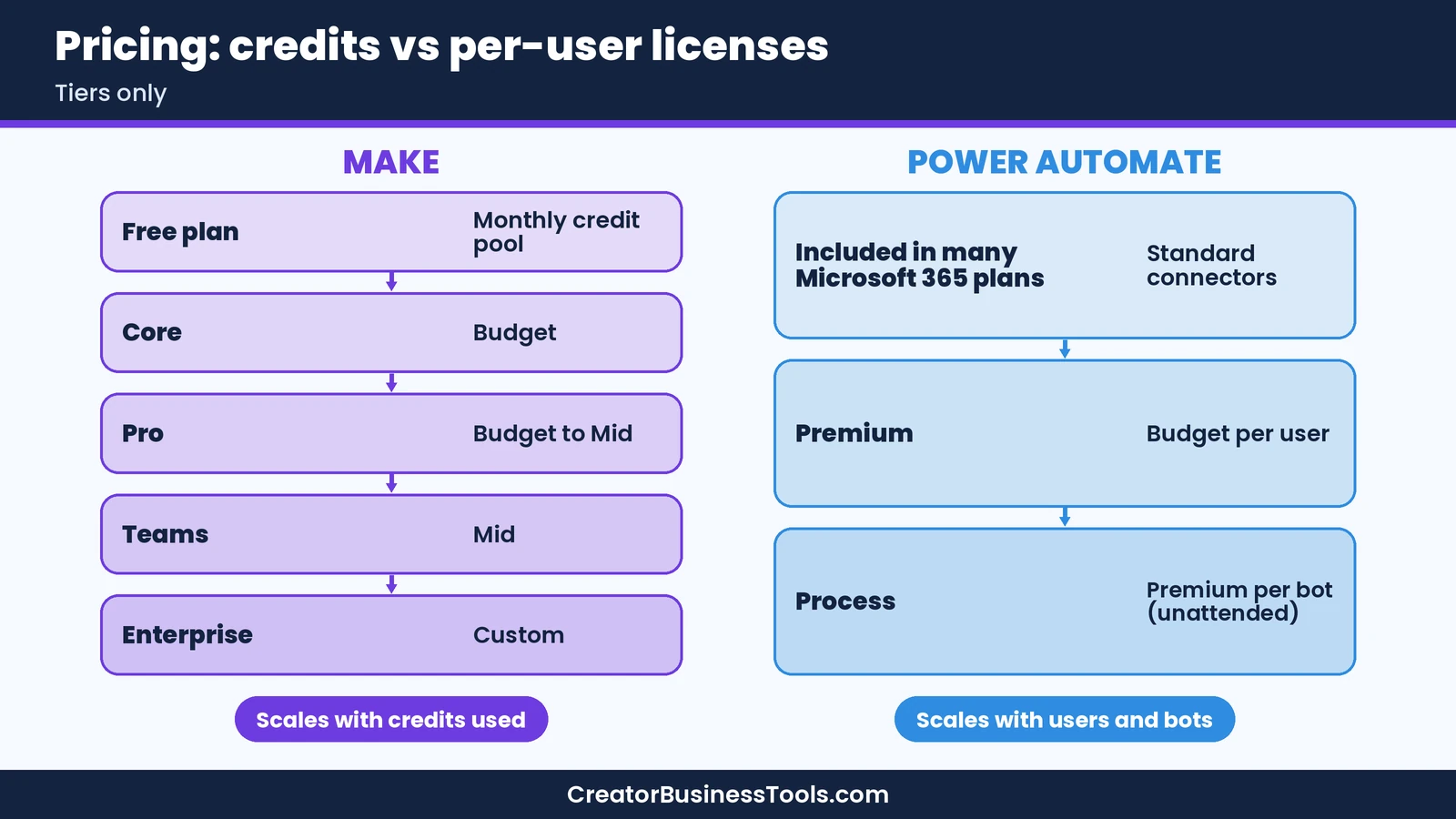
Make sells plans by credit volume. Its free plan includes a monthly credit pool for learning and light use. Paid plans start in the budget tier, and higher tiers add features such as priority execution and team tools. You can buy extra credits if you run short, and paying annually costs less than paying monthly, according to Make’s pricing FAQ. Our Make pricing guide breaks down each plan.
Power Automate has several layers:
- Included rights: Microsoft’s licensing FAQ says many Microsoft 365 plans, including Business Basic, Business Standard, Business Premium, and Enterprise plans like E3 and E5, include limited Power Automate rights. You can create automated, scheduled, and button cloud flows with standard connectors, but not with premium or custom connectors.
- Premium: A per-user license in the budget tier that unlocks premium and custom connectors, attended desktop flows, and process mining.
- Process: A per-bot license in the premium tier for unattended desktop automation and for licensing a single flow.
For a solo creator, Make’s entry plan and Power Automate Premium sit in similar budget tiers. The difference grows with your team. Power Automate Premium is priced per user, so the bill scales with headcount. Make’s bill scales with how many credits your scenarios use. There’s one helpful nuance from Microsoft’s FAQ: for automated and scheduled flows that use premium connectors, only the flow’s owner needs a Premium license.
Compare Make plans on the official pricing page
App Coverage: Creator Apps vs Microsoft 365
This is where the choice often gets decided.
Power Automate is strongest inside Microsoft’s world. Outlook, Excel, Teams, and SharePoint all have Microsoft-built connectors, and its approvals connector makes sign-off workflows straightforward. Microsoft’s connector reference also includes many popular business apps, such as Gmail, Google Sheets, and Typeform (standard) and Stripe, Mailchimp, and Calendly (premium, so they need a paid license). Every connector carries a standard or premium label, so check it for each app you need.
Creator platforms are a different story. In Microsoft’s connector reference, some creator tools, including Kit (listed under its former name, ConvertKit) and Shopify, appear only as community-built Independent Publisher connectors, which are premium. We didn’t find connectors for Teachable, Thinkific, Kajabi, or Circle in that list. You could still reach those apps through custom connectors, which require a premium license, or HTTP actions, which are generally treated as premium too, but both take more setup.
Make covers both sides reasonably well. It has verified Microsoft 365 apps for Excel and Outlook, lists Microsoft Teams among its featured integrations, and offers verified apps for the creator platforms above. For a course creator or online seller, that usually means fewer workarounds.
Ease of Use
Make shows the whole workflow on one canvas. That makes branching, loops, and error paths easy to see, but it takes a little time to learn how modules, mapping, and routers fit together. Its template gallery helps you start from a working example.
Power Automate uses a step-based designer that will feel familiar if you’ve used other Microsoft tools. Copilot can draft a flow from a plain-language description, which helps beginners get started. The learning curve tends to appear later, with licensing, environments, and premium connectors.
Neither tool is clearly easier for everyone. If you think visually, Make’s canvas often clicks. If your team lives in Microsoft apps, Power Automate’s familiar look may feel more natural.
Desktop Automation and Legacy Apps
Power Automate has a clear advantage here. Its desktop flows can automate desktop apps and websites through the user interface, which helps with older software that has no API. Attended automation runs with a person present and is included in Premium. Unattended automation runs in the background and needs a Process license per bot, or the Hosted Process license, which adds a Microsoft-managed virtual machine.
Make focuses on cloud apps and APIs. On the pages we reviewed, Make didn’t list desktop or UI automation among its features. If you need to automate a desktop accounting program or an internal tool without an API, Power Automate is the better fit.
AI Features
Both platforms have added AI. Power Automate’s Copilot helps you create and edit flows by describing what you want in natural language. Make’s pricing FAQ notes that some advanced features using Make’s AI Provider can use more than one credit per action, and Make offers a verified OpenAI app, so you can add steps like drafting text or analyzing images to a scenario.
If AI is a big part of your plans, estimate how often those steps will run and check how each platform charges for them before you commit.
Feature Comparison
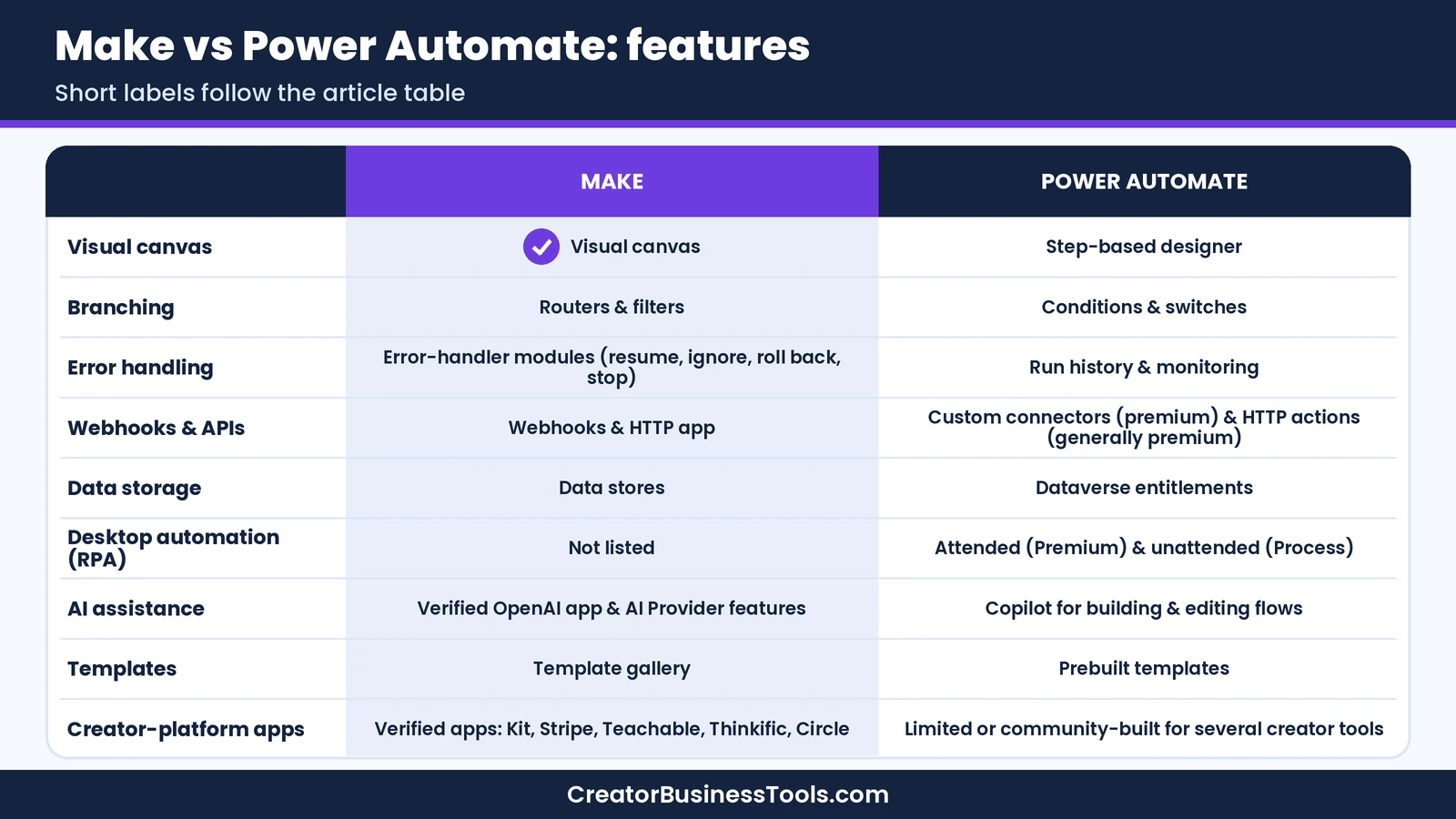
| Feature | Make | Power Automate |
|---|---|---|
| Visual workflow canvas | Yes | Step-based designer |
| Branching | Routers and filters | Conditions and switches |
| Error handling | Error-handler modules (resume, ignore, roll back, stop) | Run history and monitoring |
| Webhooks and APIs | Webhooks and HTTP app | Custom connectors (premium) and HTTP actions (generally premium; check licensing) |
| Data storage | Data stores | Dataverse entitlements |
| Desktop automation (RPA) | Not listed | Attended (Premium) and unattended (Process) |
| AI assistance | Verified OpenAI app and AI Provider features | Copilot for building and editing flows |
| Templates | Template gallery | Prebuilt templates |
| Creator-platform apps | Verified apps for Kit, Stripe, Teachable, Thinkific, Circle | Limited or community-built for several creator tools |
Example Workflows: Which Tool Fits?
These hypothetical examples show how the choice plays out in practice.
1. New course sale → onboarding. A coach sells a course on Teachable and uses Kit for email. When a sale comes in, the workflow tags the buyer in Kit, invites them to a Circle community, and logs the sale in Excel. Make fits better here because it has verified apps for each step.
2. Invoice approval in Microsoft 365. A small agency receives invoices by Outlook, saves them to SharePoint, and asks a manager to approve them in Teams. Power Automate fits better because every step uses Microsoft apps and its approvals connector.
3. Weekly report from a desktop app. A bookkeeper exports a report from desktop accounting software that has no API, then emails it to a client. Power Automate fits better because desktop flows can operate the program’s interface.
4. Lead form → CRM → team alert. A small business collects leads in Typeform, adds them to a CRM, and alerts the team in Teams. Both can work. Make keeps the whole flow on one canvas, while Power Automate may need a premium license for some connectors. Check each app’s connector label before you choose.
5. Using both together. A creator who runs on Microsoft 365 might use Power Automate for internal Outlook and SharePoint tasks, and Make for anything that touches Stripe, Kit, or a course platform. Splitting by job keeps each tool in the area where it’s strongest.
How to Choose Between Make and Power Automate
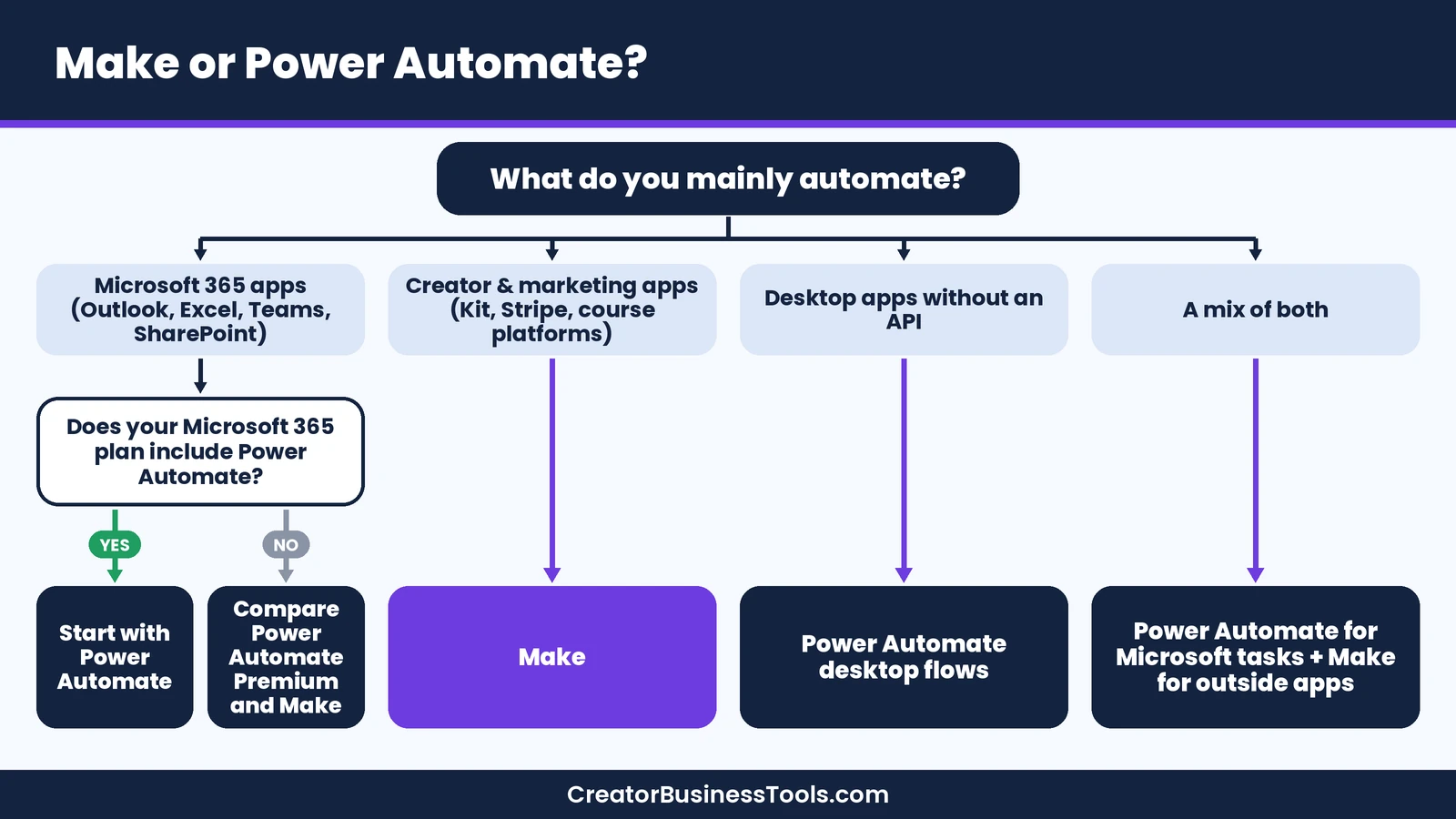
- Choose Make if most of your workflows connect creator, marketing, or ecommerce apps; you want visual multi-step logic; and you prefer pricing that scales with usage rather than headcount.
- Choose Power Automate if your business runs on Microsoft 365, your workflows mostly stay inside Microsoft apps, or you need desktop automation.
- Use both if you have a clear split between internal Microsoft tasks and customer-facing workflows that touch outside apps.
Before you decide
- Check whether your Microsoft 365 plan already includes Power Automate’s standard connectors before you buy anything.
- Look up every app you need in Microsoft’s connector reference and note whether it’s standard, premium, or community-built.
- Estimate your monthly Make credits by counting module actions per run and multiplying by how often each scenario runs.
- Prices and licensing rules change. Confirm the details on Make’s and Microsoft’s official pricing pages.
Other Tools Worth a Look
If neither tool feels right, these alternatives cover different needs. Price tiers reflect each tool’s entry paid plan.
| Tool | Best for | Entry price tier |
|---|---|---|
| Make | Visual multi-step workflows for creator stacks | $ |
| Microsoft Power Automate | Microsoft 365 businesses and desktop automation | $ per user |
| Zapier | The simplest setup and a very large app directory | $$ |
| n8n | Technical teams that want self-hosting and per-run billing | $$ |
For head-to-head details, see our Make vs Zapier and Make vs n8n comparisons. If Make itself is the sticking point, our Make alternatives guide covers other options.
Common Mistakes to Avoid
- Assuming Microsoft 365 covers everything. Included rights cover standard connectors only. Premium and custom connectors need a paid license.
- Ignoring per-user costs. Power Automate Premium is priced per user, so the bill grows with your team.
- Underestimating credit use. In Make, scenarios that loop through long lists use more credits. Test with realistic data.
- Skipping error handling. Set up error handlers in Make or monitoring in Power Automate, so a failed step doesn’t go unnoticed.
- Building everything in one tool by habit. Match each workflow to the tool that connects its apps most directly.
FAQ
Is Power Automate free with Microsoft 365?
Many Microsoft 365 plans, including Business Basic, Business Standard, Business Premium, and Enterprise plans like E3 and E5, include limited Power Automate rights for cloud flows with standard connectors, according to Microsoft’s licensing FAQ. Premium connectors, custom connectors, and most desktop automation need a paid license. Popular apps such as Stripe and Mailchimp use premium connectors. Separately, Microsoft offers a free Power Automate plan for work or school accounts, also limited to standard connectors.
Is Make cheaper than Power Automate?
It depends on your team size and usage. For one person, both entry options sit in similar budget tiers. For a team, Power Automate Premium is priced per user, while Make’s cost depends on the credits your scenarios use.
Can Make connect to Microsoft 365?
Yes. Make offers verified apps for Microsoft 365 Excel and Microsoft 365 Email (Outlook), and it lists Microsoft Teams among its featured integrations.
Does Power Automate work with Kit, Teachable, or Thinkific?
Kit appears in Microsoft’s connector reference only as a community-built premium connector under its former name, ConvertKit, and we didn’t find Teachable or Thinkific there. You could connect them through custom connectors (premium) or HTTP actions (generally premium as well).
Can Make automate desktop apps?
On the pages we reviewed, Make focuses on cloud apps and APIs and didn’t list desktop automation. For desktop apps without an API, Power Automate’s desktop flows are the better fit.
Which is easier for beginners?
Power Automate’s Copilot can draft flows from plain language, which helps beginners start. Make’s visual canvas takes a little longer to learn but makes multi-step workflows easier to follow.
Can you use Make and Power Automate together?
Yes. Many teams use Power Automate for Microsoft-only tasks and Make for workflows that connect outside apps. Just make sure each workflow lives in one tool, so actions don’t run twice.
Bottom line
In the Make vs Power Automate decision, the apps you use matter most. Make is the better fit for creators, coaches, and online sellers whose workflows connect tools like Kit, Stripe, Teachable, Thinkific, and Circle, and who want a visual canvas with pricing that scales with usage. Power Automate is the better fit for small businesses that live inside Microsoft 365 or need to automate desktop apps.
If you already pay for Microsoft 365, check what’s included first. Then try Make’s free plan for the workflows that touch outside apps and compare how naturally each tool handles your most important process.
Try Make’s free plan · Explore Power Automate
Free checklist: Planning your automation setup? Get our free Automation Switch Checklist, a one-page worksheet for listing your workflows, estimating volume, and testing safely before you commit. Contact us to request a copy.
Pricing and features from official vendor pages, last checked October 20, 2026.