
Make for YouTubers: 7 Automations From Upload Log to Weekly Recap
Disclosure: This post contains affiliate links. If you buy through them, we may earn a commission at no extra cost to you. How we make money.
Uploading a video is only one step of a YouTube workflow. Around it sit a dozen small jobs: logging the upload, announcing it to your community, tidying playlists, sorting comments, and pulling together a weekly recap. This guide looks at Make for YouTubers, a visual automation tool that connects YouTube with spreadsheets, chat apps, AI tools, and cloud storage so many of those jobs can run in the background.
We cover what Make’s YouTube app can and cannot do, seven first automations, how to set up a first scenario, credits and plan limits, and where a human should stay in the loop. Everything here is based on Make’s official app, pricing, and help pages, not hands-on testing. The scenarios below are hypothetical examples.
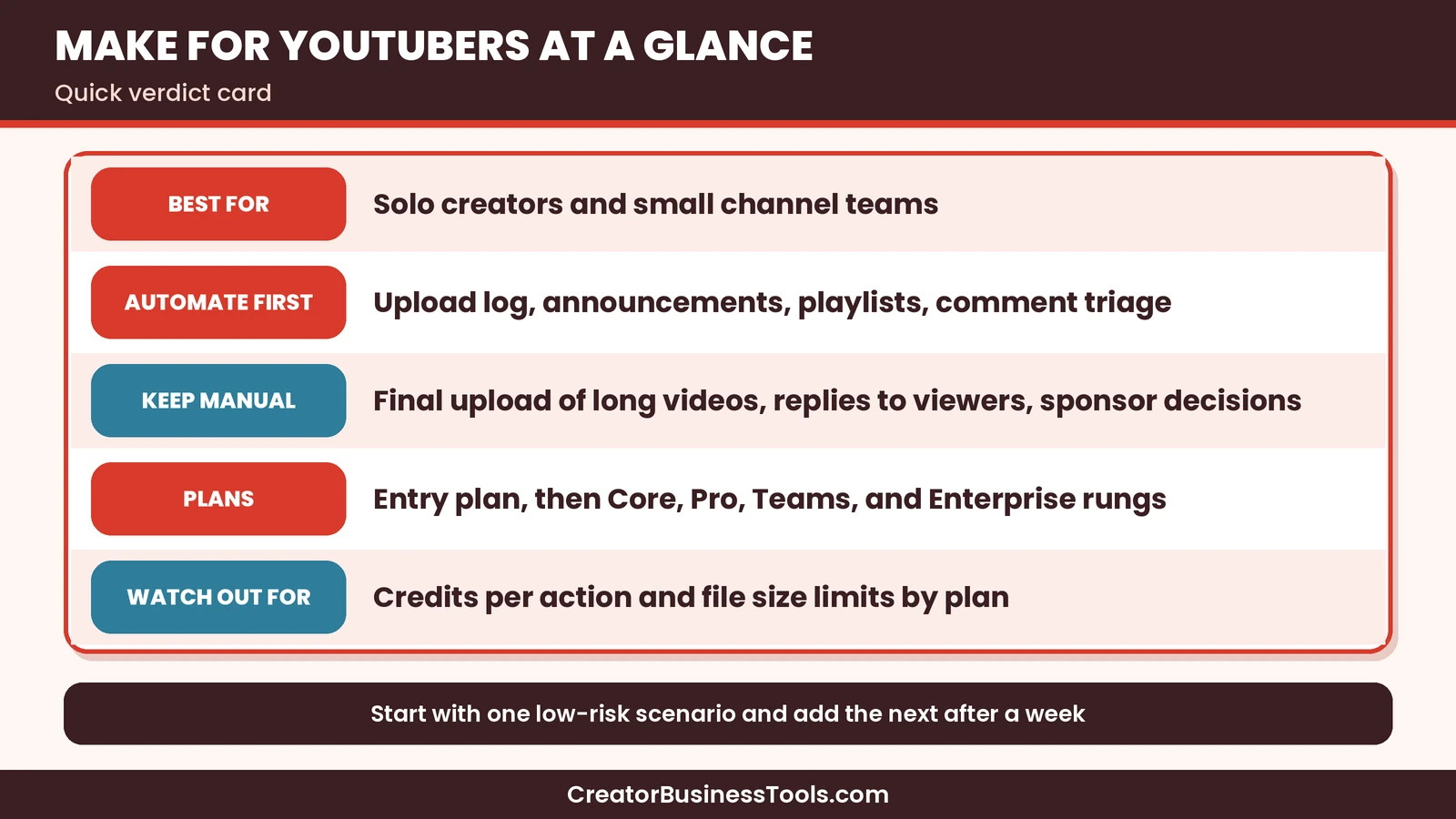
Quick verdict: For solo YouTubers and small channel teams, Make looks like a practical, budget-friendly way to automate the work around each video: logging uploads, announcing new videos, organizing playlists, and triaging comments. It is less suited to pushing long, full-length video files, because each plan has a maximum file size. Start on Make’s free plan with one low-risk scenario, such as logging every new video to a spreadsheet, and move to a paid plan only when you run several scenarios or need more credits.
Quick picks
- Best way to start: Make’s free plan, with one scenario that logs each new video to a spreadsheet. See Make’s plans
- Best for a weekly upload schedule: a Make paid plan, for more credits, more active scenarios, and larger file limits. Compare Make’s plans
- Best if you want the simplest setup: Zapier, which offers a straightforward YouTube integration at a higher price tier.
- Best for a tight budget with simple flows: Pabbly Connect. See our Pabbly Connect review.
What Make can do for a YouTube channel
Make is a no-code automation platform. You build “scenarios” on a visual canvas: a trigger starts the scenario, and modules perform actions in other apps. Make’s YouTube app is listed as verified, meaning Make supports and maintains it.
According to Make’s help page, the YouTube app includes these modules:
| Type | Modules |
|---|---|
| Triggers | Watch Videos in a Channel, Watch Videos by Search, Watch Videos in a Playlist, Watch New Comments |
| Videos | Upload a Video, Update a Video Detail, Set a Video Thumbnail, Delete a Video |
| Channels | Update a Channel Banner, Update a Channel Detail |
| Playlists | Create a Playlist, Update a Playlist, Add a Video to the Playlist, Delete a Playlist |
| Comments | Reply to a Comment |
| Other | Make an API Call |
Combined with Make’s other apps, such as Google Sheets, Google Drive, Notion, Slack, Discord, and OpenAI, those modules cover most of the “after publish” routine for a small channel.
What Make doesn’t do for YouTubers
It helps to be clear about the limits before you build anything:
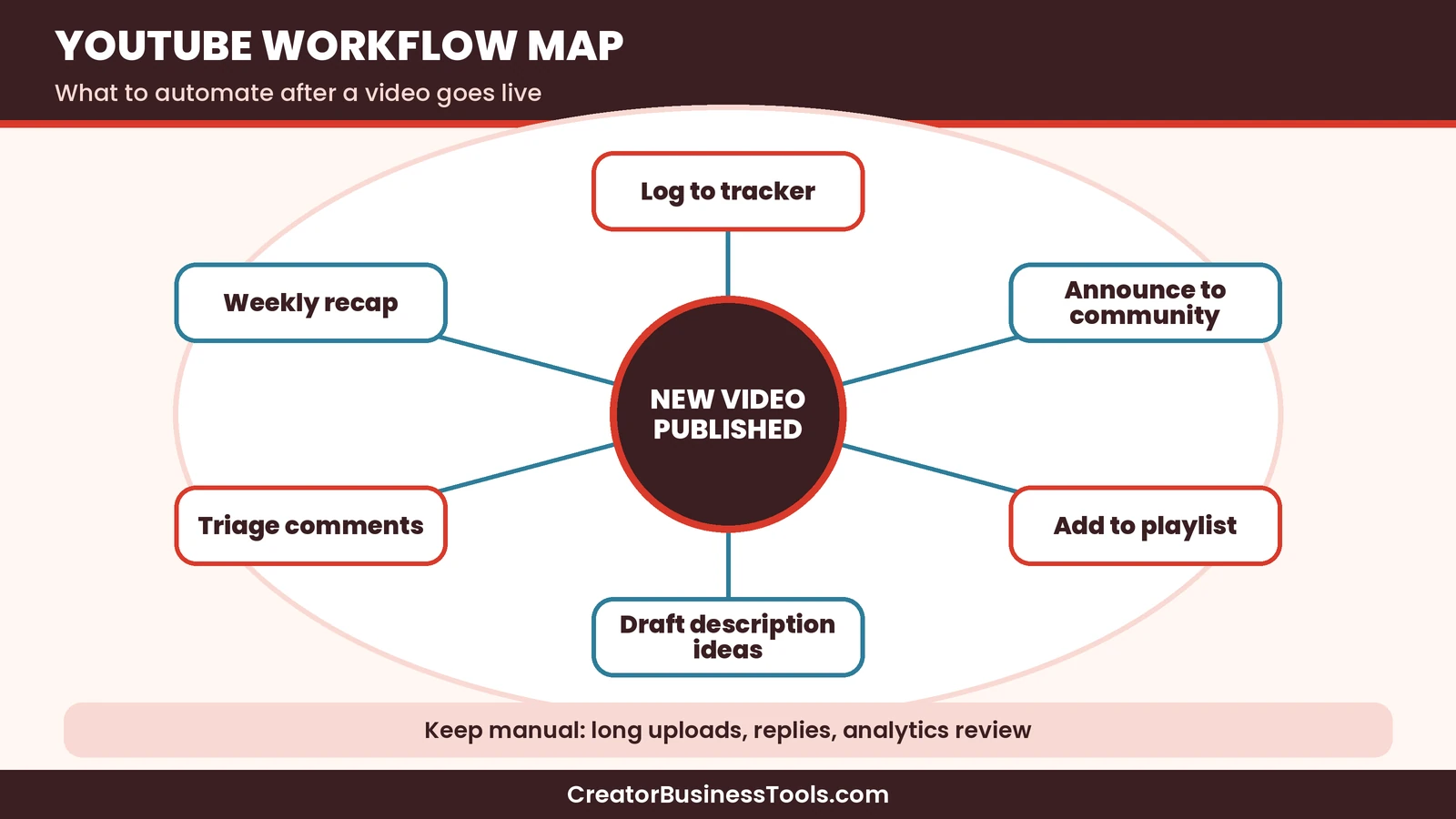
- No analytics reports in the module list. The YouTube app does not list analytics or reporting modules. Keep YouTube Studio as your source for watch time and audience data.
- File size limits by plan. Make’s help center sets a maximum file size per plan: 5 MB on Free, 100 MB on Core, 250 MB on Pro, 500 MB on Teams, and 1,000 MB on Enterprise. Many full-length videos are larger than that, so automated uploads suit short clips better than long episodes.
- API quotas. YouTube’s Data API has daily usage limits. If you connect with your own Google Cloud credentials, your project’s quota applies.
- No creative judgment. Make can move data and draft text, but titles, thumbnails, and replies still need your voice.
Is Make for YouTubers worth it?
Make tends to be worth it when three things are true:
- You publish on a schedule. Weekly or more frequent uploads create repeatable chores worth automating.
- You use several tools. If your workflow touches a spreadsheet, a chat community, an email tool, and YouTube, Make’s job is to connect them.
- You are comfortable with a visual builder. Make’s canvas is powerful but has a learning curve compared with simpler tools.
If you upload once a month and handle everything in YouTube Studio, automation may save little time. In that case, a checklist may be enough.
7 Make automations for YouTubers to build first
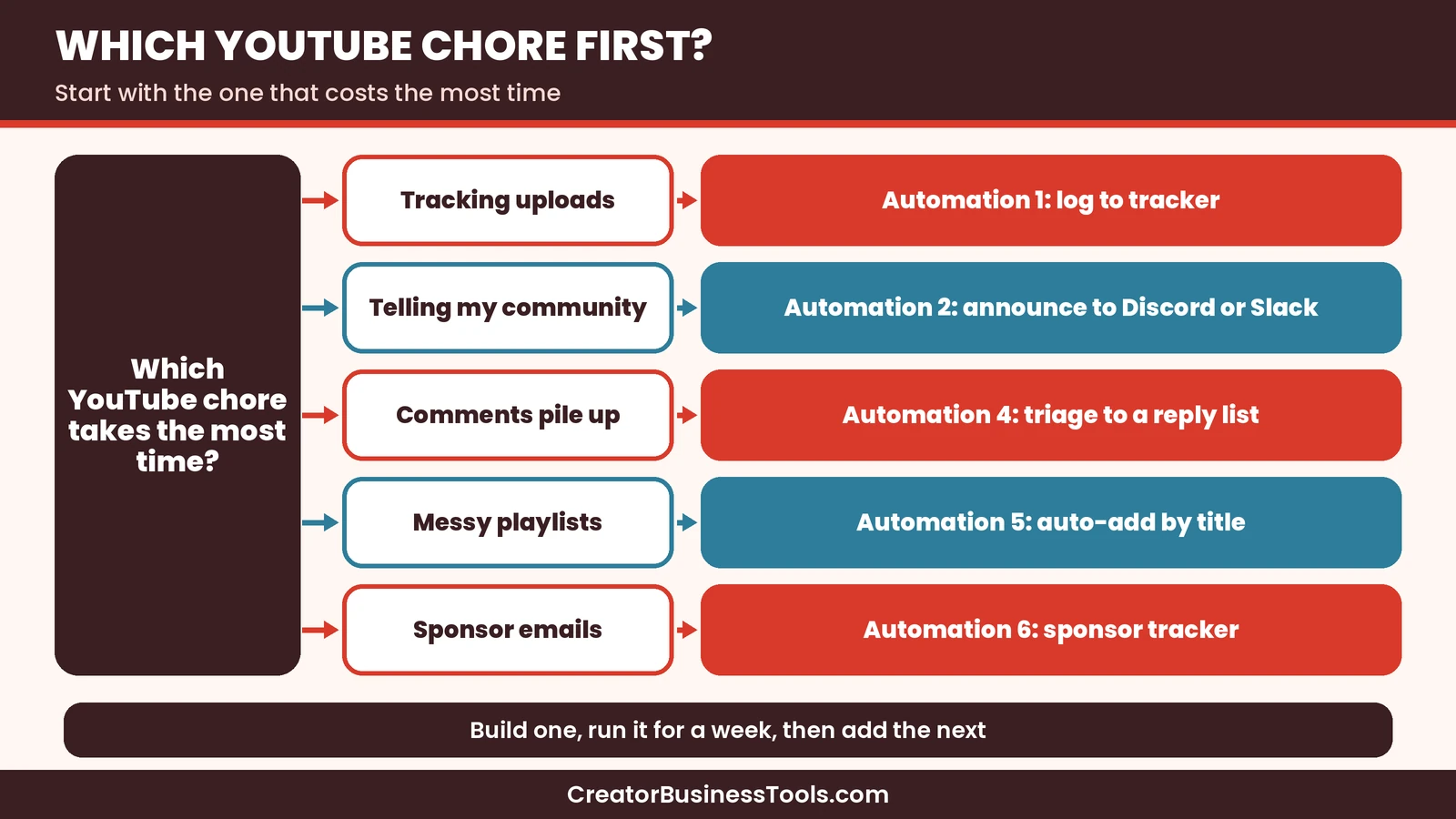
Start with automations that are low-risk and easy to undo. Each example below is hypothetical and uses modules listed on Make’s official pages.
1. Log every new video to a content tracker
Trigger: Watch Videos in a Channel. Action: add a row to Google Sheets or a page to a Notion database with the title, link, and publish date.
This is the best first scenario because it only writes to a tracker you control. A clean log also powers later automations, such as the weekly recap. See our Make Notion integration guide if you plan your content in Notion.
2. Announce new videos to your community
Trigger: Watch Videos in a Channel. Action: post a message in a Discord or Slack channel with the video link.
Keep the message short and human. For email newsletters, a safer pattern is to create a draft or a tracker row that reminds you to send, rather than emailing subscribers automatically.
3. Draft description and tag ideas for review
Trigger: a new row in your planning sheet with a working title and outline. Actions: send the outline to an AI module for description and tag ideas, then write the ideas back into the sheet.
Make’s YouTube integration page lists AI-assisted description templates. We suggest keeping a review step: paste the ideas you like into YouTube yourself, so the final text matches the video and your voice.
4. Triage new comments
Trigger: Watch New Comments. Actions: filter for keywords such as questions, collaboration requests, or links, then send matches to a “to reply” sheet or a private chat channel.
Make lists a Reply to a Comment module, but we suggest replying by hand. Viewers can tell a template from a real reply, and repeated automatic replies may run into YouTube’s spam rules.
5. Keep playlists organized
Trigger: Watch Videos in a Channel. Action: use a filter on the title or description, then Add a Video to the Playlist.
If your series titles follow a pattern, such as “Beginner Lesson” or “Q&A”, this keeps playlists up to date without a manual step.
6. Track sponsor and collaboration inquiries
Trigger: a new form submission or a labeled email. Actions: add the inquiry to a sponsor tracker and send yourself a reminder to reply.
This automation does not touch YouTube at all, but many creators find it saves more stress than any upload workflow. Keep the decision and the reply manual.
7. Send yourself a weekly content recap
Trigger: a weekly schedule. Actions: read last week’s rows from your tracker and send a short summary to your email or chat.
Because the YouTube app does not list analytics modules, keep views and watch time in YouTube Studio. The recap is about what you published and what is next, not a replacement for analytics.
How to set up your first YouTube scenario in Make
Here is a simple path for automation 1, logging new videos to a spreadsheet:
- Create a Google Sheet with columns for title, link, publish date, and notes.
- Create a new scenario in Make and add the YouTube module “Watch Videos in a Channel”.
- Connect your Google account. Make’s help page says you need a Google account and will be asked to accept YouTube’s Terms of Service and Google’s Privacy Policy.
- Choose your channel and set where the trigger should start, so it does not import your whole back catalog.
- Add a Google Sheets module to add a row, and map the video title, link, and publish date.
- Run the scenario once and check the new row.
- Turn on scheduling at an interval that fits your upload pace.
Optional: using your own Google Cloud credentials
Make’s help page explains how to connect with your own Google Cloud project, including enabling the YouTube Data API and setting up an OAuth consent screen. It also notes that if the project stays in “Testing” status, you need to reauthorize the connection every week. Most solo creators can use the standard connection and skip this step.
Credits, file sizes, and plan limits
Make bills in credits. According to its pricing FAQ, most actions use one credit, while some features that use Make’s AI provider use more. Reading, searching, creating, updating, and deleting data all count, and so do built-in transformations, aggregations, and iterations. Router and error-handler modules do not use credits.
If you run out of credits, your scenarios stop until credits are added. Incoming webhooks are queued, and polling triggers search again from the last successful run. You can buy extra credits or upgrade, and unused credits expire at the end of the term.
A rough credit estimate for a weekly channel
Imagine a hypothetical channel that publishes two videos a week. The upload log scenario uses a trigger plus one spreadsheet action per video. The announcement scenario adds one chat message per video. The comment triage scenario uses a trigger and a filter-plus-action for each new comment. A small channel with modest comment volume may fit inside the free plan’s monthly credits at first, while a busy comment section or AI drafting steps can push you to a paid plan. Make’s scenario history shows credits used per run, so check it after the first week.
Make pricing for YouTubers
| Plan | Price tier | What it means for a channel |
|---|---|---|
| Free | Free | Monthly credits for one or two light scenarios; small file size limit |
| Core | Budget | More credits and scenarios; larger file limit |
| Pro | Budget | Adds priority execution and a larger file limit |
| Teams | Budget | Team roles for channel teams; larger file limit |
| Enterprise | Premium | Custom pricing and the largest file limit |
Make plans can be billed monthly or annually, and you can cancel at any time. After cancellation, your organization moves to the free plan at the end of the term. For full details, see our Make pricing guide.
Make vs Zapier vs Pabbly Connect for YouTube
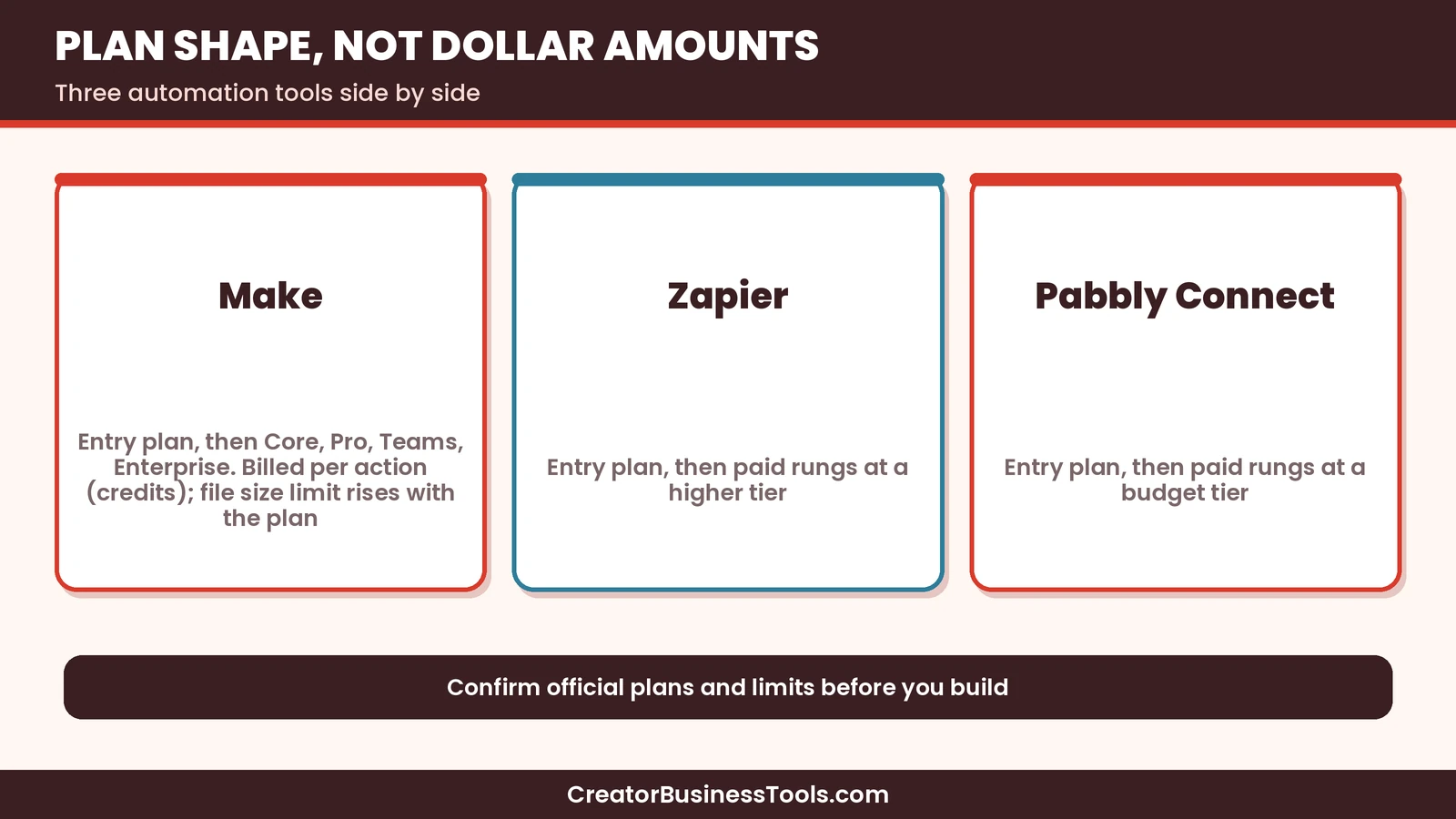
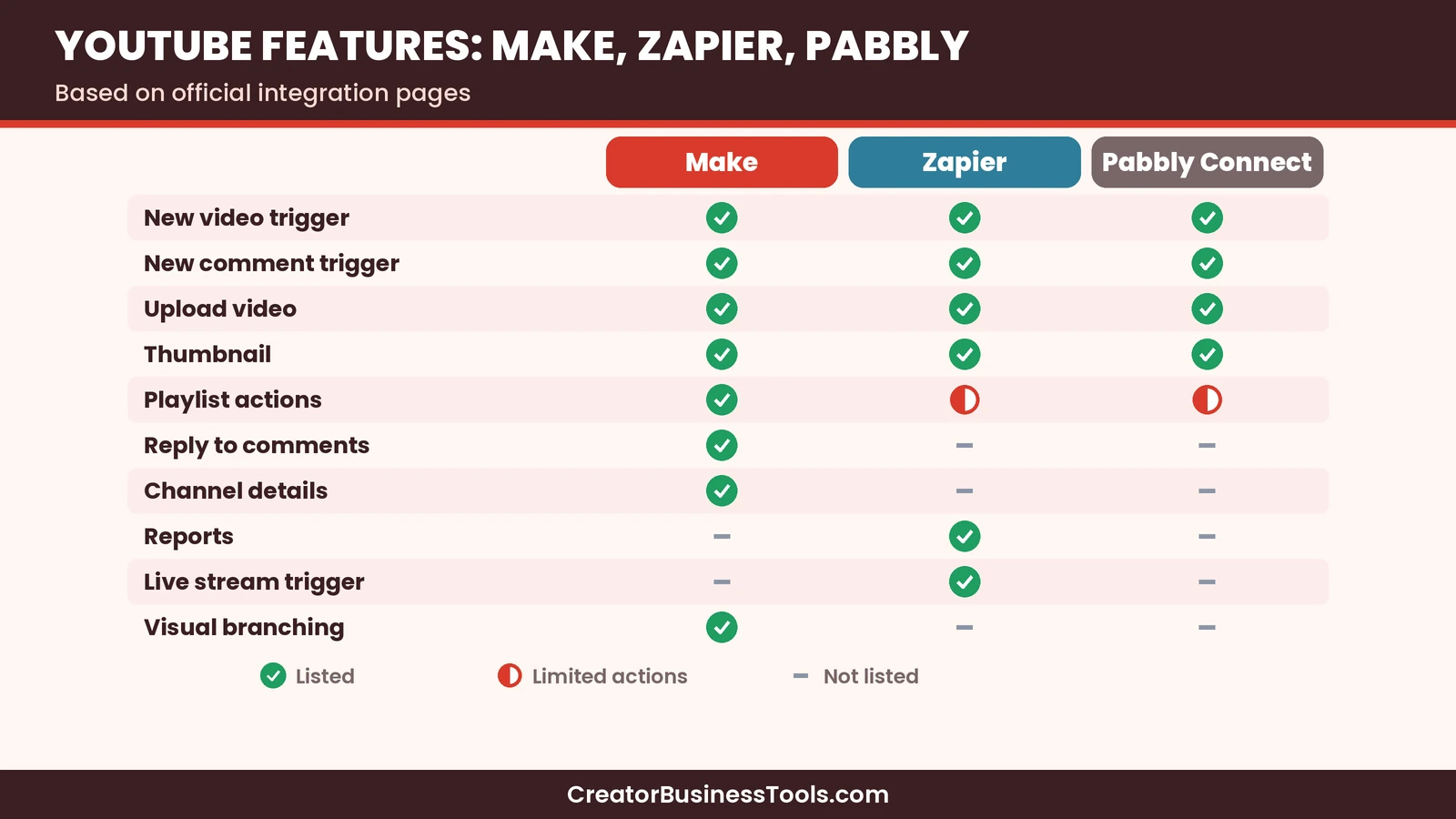
All three tools connect YouTube with other apps. Here is how their official YouTube integrations compare.
| Feature | Make | Zapier | Pabbly Connect |
|---|---|---|---|
| New video trigger | ✓ | ✓ | ✓ |
| New comment trigger | ✓ | ✓ | ✓ |
| Upload a video | ✓ (file size by plan) | ✓ | ✓ |
| Set a thumbnail | ✓ | ✓ | ✓ |
| Playlist actions | Create, update, add, delete | Add to playlist | List playlist items |
| Reply to comments | ✓ | Not listed | Not listed |
| Channel banner and details | ✓ | Not listed | Not listed |
| Reports | Not listed | Get Report | Not listed |
| Live stream trigger | Not listed | ✓ | Not listed |
| Entry paid price tier | Budget | Mid-range | Budget |
Make offers the widest set of YouTube actions in its module list and a visual builder for branching logic. Zapier is often seen as easier to learn and lists a report query and a live stream trigger, at a higher price tier. Pabbly Connect sits in a budget tier and documents background uploads to primary or brand channels. Our Make vs Zapier comparison goes deeper on the general trade-offs.
A simple weekly rhythm with automation
Here is one hypothetical way a solo creator might combine these scenarios across a week:
- Planning day: add next week’s working titles and outlines to the planning sheet, and let the AI scenario fill in description and tag ideas for review.
- Publish day: upload the video by hand in YouTube Studio. The tracker, announcement, and playlist scenarios run after it goes live.
- Midweek: open the “to reply” list from comment triage and answer the comments that matter most.
- End of week: read the recap email, glance at YouTube Studio for performance, and note one change for the next video.
The point is not to remove you from the channel. It is to move the copy-and-paste work out of the way so your time goes to scripting, filming, and talking with viewers.
Where a human should stay in the loop
Automation works best for the repetitive parts of running a channel. These parts usually deserve a person:
- Final uploads of long videos. File size limits and the need to check titles, chapters, and settings make manual uploads the safer default.
- Replies to viewers. Use automation to find comments worth answering, then answer them yourself.
- Sponsor decisions. Track inquiries automatically, but read and decide by hand.
- Thumbnails and titles. AI drafts can spark ideas, but the final choice shapes your click-through rate.
- Anything that deletes. Make lists delete modules for videos and playlists. Avoid them in automations unless you have a clear reason and a backup.
Common mistakes to avoid
- Starting with uploads. Upload automation is the hardest to get right. Start with logging and announcements.
- Importing the whole back catalog. Set the trigger’s starting point so the first run does not process hundreds of old videos and use up credits.
- Auto-replying to comments. Templates can feel spammy. Triage instead.
- Ignoring scenario errors. Check Make’s scenario history after the first few runs and add error handling for steps that fail.
- Forgetting reauthorization. If you use your own Google Cloud project in Testing status, plan for weekly reauthorization.
Who should use Make for their channel
- Solo YouTubers who publish weekly and want the admin around each video to run itself.
- Small channel teams with an editor or assistant who need shared trackers and notifications.
- Educators and course creators who announce lessons to a community and organize playlists by series. See our guide to Make for course creators.
- Creators with several platforms who want one place to connect YouTube with a newsletter, a community, and a content calendar.
If you want to learn the tool itself first, read our Make review.
FAQ
Does Make work with YouTube?
Yes. Make offers a verified YouTube app with triggers for new videos and comments and actions for uploads, thumbnails, playlists, channel details, and comment replies.
Can Make upload videos to YouTube?
Yes. The YouTube app includes an Upload a Video module. Each Make plan has a maximum file size, so automated uploads suit short clips better than long videos on lower plans.
Can I use Make for free as a YouTuber?
Yes. Make’s free plan includes a monthly credit allowance that can run a light scenario, such as logging new videos to a spreadsheet.
Can Make pull my YouTube analytics?
The YouTube app’s module list does not include analytics reports. Keep YouTube Studio for views, watch time, and audience data.
Should I let Make reply to comments automatically?
We suggest using Make to sort comments into a reply list and answering them yourself. Automated replies can feel impersonal and may conflict with YouTube’s spam policies.
Is Make better than Zapier for YouTubers?
Make lists more YouTube actions and offers visual branching at a budget price tier. Zapier is often simpler to learn and lists a report query, at a higher price tier. Pick based on the workflows you need.
What should my first Make for YouTubers scenario be?
Log each new video to a spreadsheet or Notion database. It is low-risk, easy to check, and useful for every automation you add later.
Bottom line
Make for YouTubers works best as a quiet assistant for the work around each video: logging uploads, announcing them, keeping playlists tidy, sorting comments, and tracking sponsor emails. Its verified YouTube app covers more actions than many creators will need, and its free plan is enough to test one scenario. Plan limits on file size mean long videos are still best uploaded by hand.
Start with one low-risk scenario, check credits after a week, and add the next automation only when the first one runs smoothly.
Free map: Want a head start? Get our free YouTube Automation Starter Map, a one-page plan for your upload log, announcements, comment triage, and weekly recap. Contact us to request a copy.